Best Settings For Diablo Immortal
Best Diablo Immortal Settings: The Ultimate Optimization Guide for Mobile and PC
Diablo Immortal brings the dark, gothic world of Sanctuary to the palm of your hand and your desktop monitor. However, as a cross-platform title with high-fidelity graphics, it is an incredibly demanding game. Whether you are battling through the Rifts or engaging in intense PvP in the Battleground, your settings can mean the difference between victory and a frustrating lag-induced death.
In this comprehensive guide, you will discover the best Diablo Immortal settings to balance visual quality with peak performance. We will delve into every menu toggle, from frame rate limits to control sensitivities, ensuring you have the optimal setup for your specific hardware.
Understanding the Hardware Requirements
Before adjusting your internal game settings, you must ensure your device meets the baseline criteria. Diablo Immortal’s performance is heavily dictated by your processor (CPU) and graphics chip (GPU).
Mobile Requirements (Android & iOS)
For Android users, you generally need a Snapdragon 660 or higher, with at least 2GB of RAM. iOS users should ideally use an iPhone 6s or newer. However, meeting the minimum requirements often means playing on “Low” settings. To experience the game as intended, a modern flagship device is recommended.
PC Requirements
The PC version is still technically in a refined state. At a minimum, you need an Intel Core i3 or AMD FX-8100 with an NVIDIA GeForce GTX 460 or Radeon HD 6850. For the best Diablo Immortal settings on PC, we recommend at least a GTX 1060 or RX 580 to maintain a stable 60 FPS at 1080p resolution.
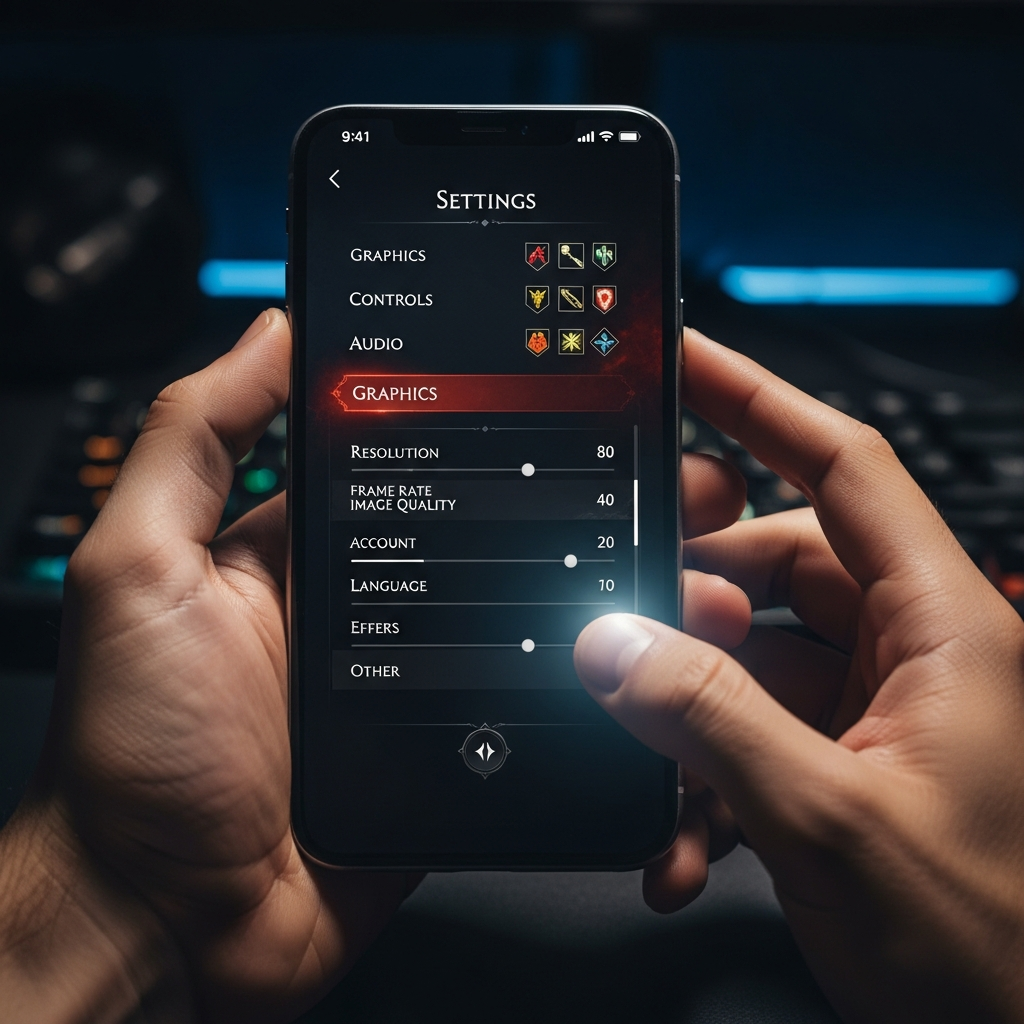
The Best Graphics Settings for High Performance
The Graphics tab is where you will see the most significant impact on your frame rate and battery life. If you notice your device getting hot or the game stuttering, this is the first place you should look.
Frame Rate: The Most Critical Setting
Diablo Immortal offers options for 30 FPS, 60 FPS, and on some high-end devices, Uncapped/120 FPS.
- Our Recommendation: Set this to 60 FPS.
- Why: 30 FPS feels sluggish in a fast-paced ARPG, while Uncapped can cause extreme overheating and battery drain. 60 FPS provides the perfect balance of fluid combat and stability.
Resolution
Resolution determines the clarity of the image.
- Low/Medium: Best for older phones to prevent stuttering.
- High: The sweet spot for modern smartphones.
- Ultra: Only available on PC and select high-end tablets. It looks crisp but significantly taxes the GPU.
Visual Effects and Detailing
These settings control the “eye candy” of Sanctuary.
- Visual Effects: Set to Medium. High effects can clutter the screen during chaotic 8-player raids, making it hard to see enemy telegraphs.
- Shadow Quality: Set to Low or Medium. Shadows are notorious for eating up resources without providing a massive gameplay benefit.
- Fog Quality: Set to Low. This improves visibility in darker dungeons.
- Post-Processing: Off. While it adds a cinematic flair, it often introduces input lag on mobile devices.
Anti-Aliasing
Anti-aliasing smooths out the jagged edges of character models and environments.
- Recommendation: Low or Off. On a small mobile screen, the difference between “High” and “Low” anti-aliasing is negligible, but the performance gain from turning it down is substantial.
Optimizing Controls for Precision Combat
Precision is everything when you are aiming a Demon Hunter’s Multishot or a Wizard’s Meteor. The default controls are functional, but they are rarely “optimal.”
Control Sensitivity
If you find that your character turns too slowly or your skill aiming feels “heavy,” you need to increase your sensitivity.
- Horizontal/Vertical Sensitivity: Start at 60% and adjust upwards. Higher sensitivity allows for “flick” shots, which are vital in PvP.
Skill Aiming and Cancellation
- Skill Aim Assist: On. This helps the game “snap” your skills toward the nearest enemy, which is helpful for casual play.
- Skill Cancellation Method: Set to “Drag to Area.” This prevents accidental skill casts when you change your mind mid-combat.
Auto-Pickup Settings
Do not waste time tapping on every piece of gold or equipment that drops.
- Auto-Pickup: Enable for Normal, Magic, and Rare items.
- Why: This ensures your inventory fills up with materials you can scrap for upgrades without manual intervention. You should still manually check Legendary drops to savor the moment!
Audio and Social Settings for Better Communication
Diablo Immortal is an inherently social game. Being able to hear your teammates and filter out noise is crucial for high-level Clan activities.
Audio Balancing
- SFX Volume: 80%. You need to hear the sound cues of enemy attacks.
- Music Volume: 40%. While the score is beautiful, it can drown out voice chat.
- Voice Chat: Ensure your microphone is set to “Push to Talk” if you are playing in a noisy environment. This is common courtesy for your Raid group.
Chat Filters
Sanctuary’s world chat can become cluttered with “spam.”
- Recommendation: Go to Chat Settings and disable “World Chat” while you are in a dungeon. Keep “Party,” “Guild,” and “Whisper” active so you don’t miss important tactical calls.
Best Settings for PvP (The Battleground)
Player vs. Player combat requires a different approach than slaying mindless demons. In the Battleground, performance is more important than aesthetics.
- Lower All Graphics: Even if you have a powerful device, set graphics to Low/Medium for PvP. You need the lowest possible latency and the clearest view of enemy players.
- Disable Screen Shake: Under the Gameplay tab, turn off “Screen Shake.” This keeps your camera steady when massive explosions occur, allowing you to maintain your aim.
- Player Outlines: Ensure these are On. It makes it much easier to distinguish between allies and enemies in the heat of a 16-player brawl.
PC-Specific Optimizations
If you are playing the PC version, you have access to features that mobile players do not.
- Display Mode: Always use Fullscreen. “Windowed” or “Borderless Windowed” can introduce micro-stuttering.
- Vertical Sync (V-Sync): Off if you have a G-Sync or FreeSync monitor. On if you experience “screen tearing.”
- Keybindings: Rebind your skills to keys that feel natural. Many players prefer the classic “Q, W, E, R” layout from MOBAs rather than the default 1, 2, 3, 4.
Battery Saving Tips for Mobile Players
If you are traveling and want to squeeze an extra hour of gameplay out of your phone, use these settings:
- Frame Rate: Drop to 30 FPS. This is the single most effective way to save battery.
- Brightness: Lower your in-game brightness and rely on your phone’s system brightness.
- Device Temperature: If your phone gets hot, the OS will throttle the CPU, causing lag. Remove your phone case during long play sessions to help with heat dissipation.
Troubleshooting Common Performance Issues
Even with the best Diablo Immortal settings, you may encounter issues. Here is how to fix them:
- Resource Download: Ensure all game assets are fully downloaded. Playing while the game is downloading assets in the background causes massive lag.
- Clear Cache: If the game crashes frequently, use the “Repair Client” button on the login screen.
- Background Apps: Close apps like Facebook, YouTube, or Chrome before launching Diablo. These consume RAM that the game desperately needs.
Conclusion
Finding the best Diablo Immortal settings is a personal journey that depends on your hardware and playstyle. For most players, prioritizing a stable 60 FPS and Medium graphics provides the most enjoyable experience. By optimizing your controls and cleaning up your UI, you will be better equipped to face the Burning Hells.
Take the time to experiment with these settings in a low-stakes environment, like the Ashwold Cemetery, before heading into high-tier Challenge Rifts. Once your settings are dialed in, you can focus on what truly matters: the endless hunt for legendary loot.