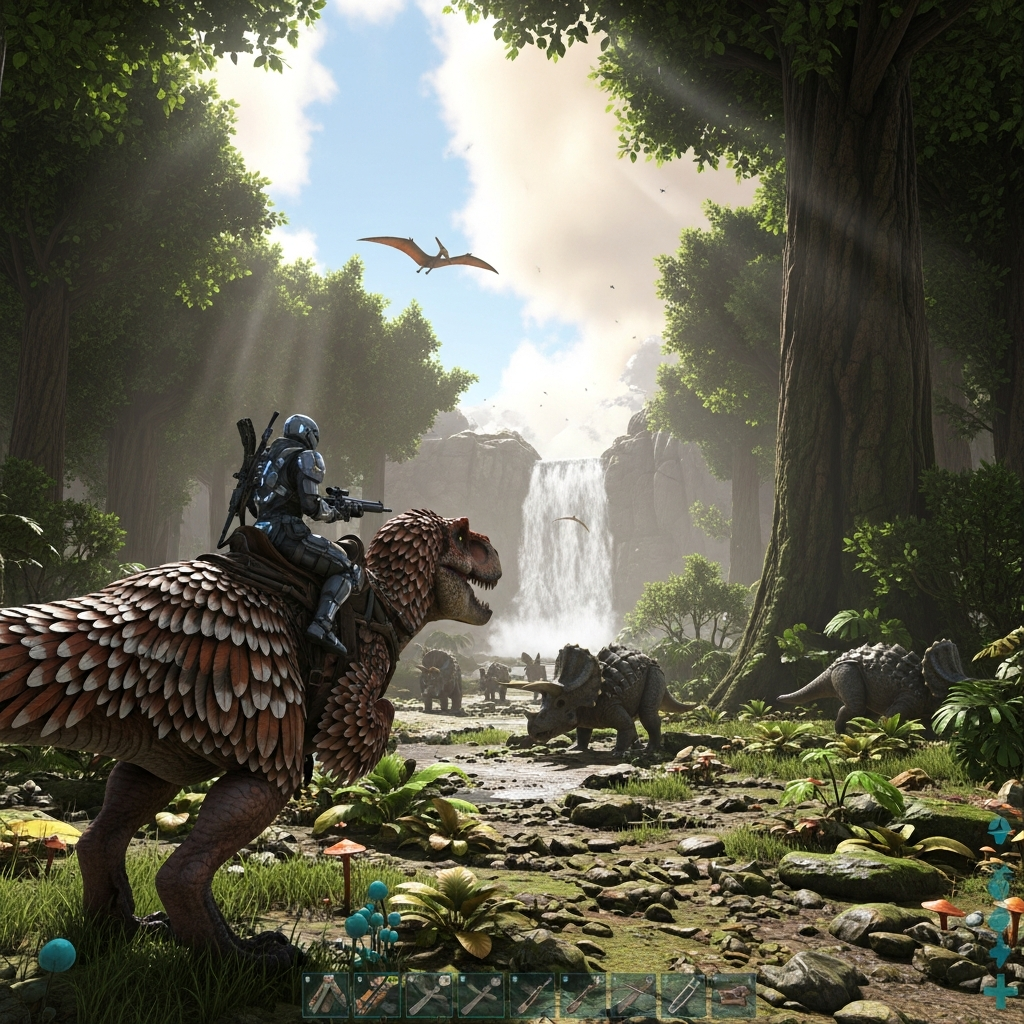
Best Settings For Ark Survival Evolved
Best Settings for Ark Survival Evolved: The Ultimate Optimization Guide
Survival is the core essence of Ark: Survival Evolved, but the greatest threat you will face isn’t a Tyrannosaurus Rex or a Giganotosaurus—it is often the game’s own optimization. Since its release, Ark has been notorious for being one of the most demanding titles on PC hardware. Whether you are playing on a high-end rig or a budget laptop, finding the best settings for Ark Survival Evolved is crucial for a smooth, immersive experience.
In this comprehensive guide, we will break down every critical setting, from graphics and performance to server configurations and launch options. By the end of this article, you will know exactly how to balance visual fidelity with high frame rates, ensuring your survival journey is as seamless as possible.
Understanding the Performance Landscape of Ark
Before diving into the specific toggles and sliders, it is important to understand why Ark requires such heavy optimization. The game utilizes Unreal Engine 4, featuring massive open worlds, complex AI pathing for hundreds of dinosaurs, and dynamic lighting systems. Without proper adjustment, even modern GPUs can struggle to maintain a stable 60 FPS (frames per second).
Optimization in Ark is not just about lowering everything to “Low.” It is about understanding which settings tax your Graphics Card (GPU) and which ones lean heavily on your Processor (CPU). Our goal is to eliminate stuttering, reduce input lag, and maintain a clear image so you can spot predators before they spot you.
System Requirements: The Baseline
Before you begin tweaking, ensure your hardware meets the minimum requirements. However, be aware that “Minimum” in Ark often means playing at very low resolutions with significant graphical sacrifices.
- Minimum OS: Windows 7/8.1/10 (64-bit versions).
- Processor: Intel Core i5-2400/AMD FX-8320 or better.
- Memory: 8 GB RAM.
- Graphics: NVIDIA GTX 670 2GB/AMD Radeon HD 7870 2GB or better.
- Storage: 60 GB+ (SSD highly recommended).
If you are looking for a smooth 1080p experience at High settings, you should ideally possess at least an NVIDIA RTX 2060 or AMD Radeon RX 5700 XT, paired with 16GB of RAM and an NVMe SSD.
Best Graphics Settings for Maximum FPS
The Graphics menu is where you will spend most of your time. Here is a breakdown of the most impactful settings and our recommendations for the best settings for Ark Survival Evolved performance.
1. Resolution and Window Mode
Resolution: Always set this to your monitor’s native resolution (e.g., 1920×1080). Lowering this will significantly blur the image.
Window Mode: Set this to Fullscreen. “Windowed Fullscreen” or “Windowed” modes often introduce input lag and can decrease overall performance by allowing background processes to compete for resources.
2. Resolution Scale
This is perhaps the most important slider in the game. It determines the internal rendering resolution.
- Recommendation: Keep this at 100% if possible. If you are struggling to maintain 30 FPS, drop it to 90% or 85%, but be prepared for a much blurrier image.
3. World Tile Buffers
This setting relates to how much of the world is loaded into your VRAM (Video RAM).
- Low: For 2GB VRAM.
- Medium: For 4GB VRAM.
- High/Epic: For 8GB+ VRAM.
4. View Distance
In a survival game, seeing threats from afar is vital. However, rendering objects at a distance is extremely taxing.
- Recommendation: Medium or High. Setting this to Epic provides diminishing returns and can tank your FPS in dense jungles.
5. Anti-Aliasing
This smooths out the jagged edges (aliasing) on objects.
- Recommendation: High. Ark looks very “shimmery” without Anti-Aliasing. High provides a good balance without the blurriness of Epic.
6. Post-Processing
This covers various effects like color correction and bloom.
- Recommendation: Low or Medium. High settings here often make the game look overly saturated or artificially bright, while also consuming GPU cycles.
7. General Shadows and Terrain Shadows
Shadows are the biggest “FPS killers” in Ark.
- Recommendation: Low or Medium. If you need a massive FPS boost, start here. Setting Shadows to Low can increase your frame rate by 20-30%.
8. Texture Quality
This depends entirely on your GPU’s VRAM.
- Recommendation: High or Epic if you have 6GB+ VRAM. Textures have a minimal impact on FPS as long as you have enough memory to store them.
Advanced Graphics Toggles: What to Enable and Disable
Below the main sliders, you will find a list of checkboxes. Most of these are “eye candy” that significantly reduce performance.
- High Quality Materials: On (Makes a big visual difference with moderate cost).
- Subsurface Scattering: Off (Simulates light through skin; barely noticeable on dinos).
- High Quality VFX: Off (Reduces particles during explosions).
- Simple Distance Character Shadows: On (Helps performance).
- High Quality LODs: Off (Level of Detail; keep off for better FPS).
- Extra Mesh Optimization: On (Always keep this enabled).
- Bloom & Light Shafts: Off (These often make the sun blindingly bright and hard to play).
- Motion Blur: Off (Makes the game feel sluggish and can cause motion sickness).
The Secret Weapon: Ark Launch Options
Many players overlook the power of Steam Launch Options. These commands tell the game how to use your hardware before it even starts. To use these, right-click Ark in your Steam Library, select Properties, and find the Launch Options box.
Copy and paste the following string for maximum optimization:
-USEALLAVAILABLECORES -sm4 -d3d10 -nomansky -lowmemory -high
Explanation of Commands:
- -USEALLAVAILABLECORES: Forces Ark to use all your CPU cores.
- -sm4: Forces the game to use Shader Model 4 (DirectX 10) instead of DirectX 11. This provides a massive FPS boost but makes the game look slightly older.
- -d3d10: Similar to sm4, forces DirectX 10.
- -nomansky: Removes detailed sky effects (clouds/stars) to save resources.
- -lowmemory: Optimizes the game for PCs with less than 16GB of RAM.
- -high: Sets the Ark process to “High Priority” in Windows.
Best Server and Single Player Settings for Beginners
The “Best Settings for Ark Survival Evolved” aren’t just about graphics; they are also about how the game plays. The default “Official” settings are designed for large tribes and hundreds of hours of grinding. If you are playing solo or with a few friends, you must change these settings to enjoy the game.
1. Difficulty Offset & Override Official Difficulty
To see high-level dinosaurs (up to level 150), you should set Difficulty Offset to 1.0 and Override Official Difficulty to 5.0. This ensures you aren’t stuck with level 5 Dilos forever.
2. Taming Speed
On official settings, taming a high-level Rex can take hours.
- Recommended: 5.0 to 10.0. This respects your time while still requiring you to gather resources for the tame.
3. Harvest Amount
Gathering wood and stone can be tedious.
- Recommended: 3.0. This triples the resources you get from every swing of a pickaxe or hatchet.
4. XP Multiplier
Reaching the end-game blueprints takes a long time.
- Recommended: 2.0 or 3.0 for a steady sense of progression.
5. Breeding and Hatching
Raising a baby dinosaur on official settings can take days of real-time feeding.
- Egg Hatch Speed: 10.0
- Baby Mature Speed: 10.0
- Baby Cuddle Interval: 0.1 (This allows you to still get the 100% imprint bonus).
Gameplay and UI Optimization
A cluttered screen can lead to death. Adjusting your UI and gameplay settings will improve your situational awareness.
- Field of View (FOV): Increase this slider to see more of your surroundings. A setting of 90 to 100 is generally preferred.
- Camera Shake Scale: Set this to 0. When a large dinosaur walks near you, the screen shakes violently. Turning this off prevents headaches and allows you to keep aiming.
- Toggle Global Chat: If you are on a public server, disabling this can reduce distractions.
- Show Floating Names: Keep this on to identify your tames, but consider shortening the distance to reduce screen clutter in busy bases.
Optimizing NVIDIA and AMD Control Panels
Sometimes the best settings for Ark Survival Evolved are found outside the game. Both NVIDIA and AMD offer control panels that can override game behavior for better performance.
For NVIDIA Users:
- Open NVIDIA Control Panel > Manage 3D Settings > Program Settings.
- Select Ark: Survival Evolved.
- Power Management Mode: Prefer Maximum Performance.
- Texture Filtering – Quality: High Performance.
- Vertical Sync: Off.
- Threaded Optimization: On.
For AMD Users:
- Open Radeon Settings > Gaming > Ark: Survival Evolved.
- Texture Filtering Quality: Performance.
- Wait for Vertical Refresh: Always Off.
- Tessellation Mode: Override application settings (Set to 16x or lower).
The Importance of an SSD
It cannot be overstated: Ark must be installed on an SSD. Because the game constantly streams high-resolution textures and assets as you move across the map, a traditional Hard Drive (HDD) will cause massive “hitch points” or freezes that last several seconds. If you want to eliminate stuttering, moving the game to an SSD is the single best hardware upgrade you can make.
Conclusion: Finding Your Balance
There is no single “perfect” configuration, as every PC is different. However, by using these best settings for Ark Survival Evolved, you have a solid foundation. Start by lowering Shadows and Post-Processing, then use the Launch Options to unlock hidden performance. Finally, adjust your server rates to ensure the gameplay is fun rather than a second job.
Ark is a beautiful, albeit messy, masterpiece. With these optimizations, you can finally stop fighting the frame rate and start focusing on what really matters: taming that Giganotosaurus and ruling the Island.
Frequently Asked Questions (FAQ)
How do I increase FPS in Ark Survival Evolved?
The most effective ways to increase FPS are lowering Shadow Quality, reducing the Resolution Scale slightly, and using Steam Launch Options like -sm4 and -useallavailablecores.
Why does Ark lag so much even on a good PC?
Ark is poorly optimized and relies heavily on single-core CPU performance and fast drive speeds. Ensure the game is on an SSD and that you aren’t thermal throttling.
What are the best taming settings for solo players?
For a balanced solo experience, a Taming Multiplier of 5x or 10x is recommended. This reduces the wait time from hours to minutes without removing the challenge of gathering food.
Does Ark support DLSS or FSR?
Ark: Survival Evolved does not natively support DLSS or FSR. However, its successor, Ark: Survival Ascended, does. For Evolved, you must rely on Resolution Scale and manual driver tweaks.
Should I turn off Light Shafts and Bloom?
Yes, most professional players turn these off. They often create a “blinding” effect when looking toward the sun or water, making it difficult to see enemies or terrain.