Best Settings for Monster Hunter Now: The Ultimate Guide to Performance and Gameplay Optimization
Monster Hunter Now, developed by Niantic in collaboration with Capcom, brings the thrill of the hunt into the real world. However, as a graphically intensive mobile game that relies heavily on GPS, AR, and real-time combat, it can be demanding on your hardware. To ensure you are not missing a crucial dodge or suffering from frame drops during a Rathalos hunt, configuring the best settings for Monster Hunter Now is essential.
In this comprehensive guide, you will learn how to optimize your device for peak performance, improve your combat efficiency, and extend your battery life. Whether you are playing on a flagship device or a mid-range smartphone, these adjustments will provide a significant advantage in your hunting career.
Understanding the Impact of Settings on Gameplay
In Monster Hunter Now, precision is everything. Unlike turn-based games, the real-time combat mechanics require frame-perfect timing for “Perfect Dodges” and special attacks. If your game stutters for even a fraction of a second, you risk failing a high-rank hunt and wasting precious recovery items.
The MH Now performance optimization process involves balancing three main factors: visual clarity, frame rate stability, and battery consumption. By the end of this article, you will have a configuration tailored to your specific device capabilities and playstyle.
1. Graphics Settings for Maximum Performance
The graphics menu is the most influential area for your gaming experience. Accessing these settings allows you to dictate how much stress the game puts on your smartphone’s GPU and CPU.
Image Quality (Resolution)
Monster Hunter Now offers several tiers of image quality: Low, Medium, High, and Ultra. For the majority of players, Medium is the “sweet spot.”
- Low: Best for older devices. It reduces textures significantly but ensures the game remains playable.
- Medium: Provides a balance of clear monster models and stable performance.
- High/Ultra: Only recommended for flagship devices (e.g., iPhone 15 Pro, Samsung S24 Ultra). Even then, these settings can cause Monster Hunter Now lag during prolonged sessions due to thermal throttling.
Enabling 60 FPS Mode (The Game Changer)
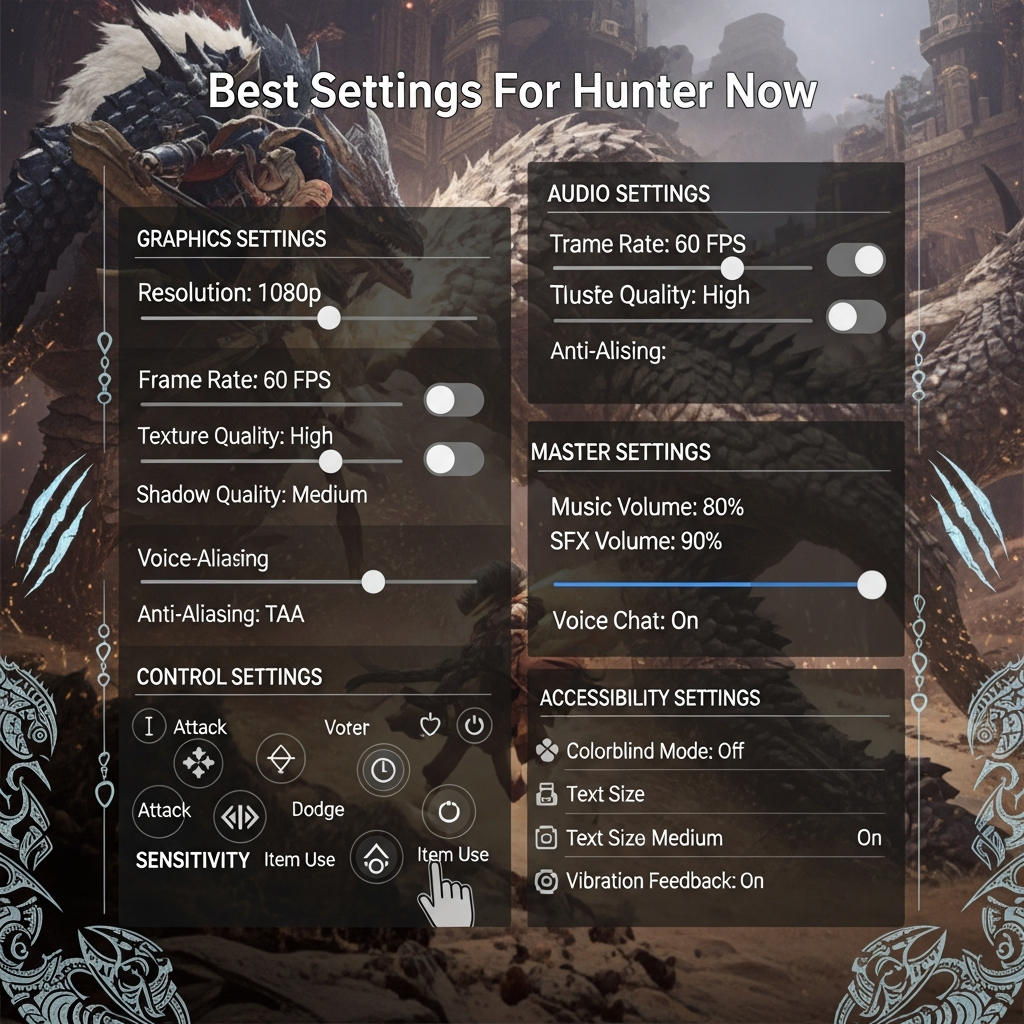
By default, the game often caps the frame rate to 30 FPS to save battery. However, enabling the 60 FPS mode is arguably the most important step in achieving the best settings for Monster Hunter Now. High frame rates reduce input lag, making it much easier to read monster telegraphs and execute perfect counters.
To enable this, go to Settings > Graphics > 60 FPS (during hunts). Note that this will increase battery drain and heat, but the combat fluidity is worth the trade-off.
2. Optimizing Battery Life and Heat Management
Since Monster Hunter Now is an outdoor game, you are often fighting against screen brightness and high ambient temperatures. Heat is the enemy of performance; when a phone gets too hot, it slows down the processor, leading to Monster Hunter Now lag.
Battery Saver Mode
The in-game Battery Saver mode dims the screen when the phone is held upside down or at your side. This is highly effective for long walks between monster spawns. It keeps the game active and tracks your steps for the “Adventure Sync” feature without draining the screen’s power.
Managing Device Heat
To prevent thermal throttling, follow these MH Now performance optimization tips:
- Remove your phone case: This allows heat to dissipate more effectively from the back of the device.
- Lower Screen Brightness: If you are in the shade, keep your brightness at 50-70% instead of maxing it out.
- Close Background Apps: Ensure apps like social media or video streaming are not running in the background while you hunt.
3. Connectivity and GPS Settings
Monster Hunter Now is a location-based service (LBS) game. If your GPS signal is weak, you will experience “teleporting” or the dreaded “Searching for GPS” pop-up, which can interrupt your hunt.
High Accuracy Location
On Android, ensure that Google Location Accuracy is turned on. On iOS, make sure Precise Location is enabled for the app. This ensures the game knows exactly where you are relative to the monster and gathering points.
Data Usage Optimization
While the game doesn’t use massive amounts of data, a stable connection is vital. If you are playing in an area with spotty 5G, try switching your phone’s settings to LTE/4G. Often, a stable 4G connection is better for gaming than a fluctuating 5G signal.
4. Combat and Gameplay Settings
The best settings for Monster Hunter Now aren’t just about graphics; they are also about how you interact with the game world. Your control scheme can dictate your success rate against Elder Dragons.
Gyroscope vs. Semi-Auto Camera
Monster Hunter Now offers two main camera modes: Semi and Full (Gyro).
- Semi Mode: The camera automatically tracks the monster. This is best for melee weapons like the Great Sword or Sword and Shield, as it allows you to focus on tapping and swiping.
- Full (Gyro) Mode: Required for ranged weapons like the Bow and Light Bowgun. It allows you to aim at specific weak points (like the head or tail) by physically moving your phone. Mastering Gyro is essential for high-level play.
Vibration Feedback
Haptic feedback provides physical cues when you hit a monster or when a monster is about to roar. While it consumes a small amount of battery, keeping Vibration enabled is recommended for better sensory awareness during intense battles.
5. AR (Augmented Reality) Settings
Niantic’s AR technology allows you to see monsters in your real-world environment. While visually stunning, AR settings are often a hindrance to serious hunting. AR mode requires extra processing power and makes it harder to maintain a consistent viewing angle during a fight.
Expert Tip: Use AR mode for photography, but disable it during actual combat to maintain the best settings for Monster Hunter Now performance.
6. Troubleshooting Common Issues (Lag and Stuttering)
If you have applied the best settings for Monster Hunter Now and still experience issues, consider these technical fixes:
Download All Assets
Go to the in-game settings and look for the “Download All Assets” option. By downloading all game data over Wi-Fi, your phone won’t have to download monster models or textures on the fly using mobile data, which significantly reduces mid-game stuttering.
Clear Cache
Over time, the game’s cache can become bloated. Periodically clearing the cache through your device’s app settings can refresh performance without deleting your character progress.
7. Pro Tips for Advanced Hunters
To truly master the game, you must look beyond the in-app menu. Here are some advanced MH Now performance optimization strategies:
- Game Plugins (Android): Many Android devices come with a “Game Booster” or “Game Plugins” app. Use these to prioritize CPU/GPU resources for Monster Hunter Now and block notifications that might distract you during a hunt.
- Refresh Rate Sync: If your phone has a 120Hz display, ensure it is set to “Adaptive” or “120Hz.” While the game runs at 60 FPS, the higher touch sampling rate of a 120Hz screen makes your swipes and taps feel much more responsive.
- Network Ping: Use a signal testing app to find the best spots in your local park. A lower ping (latency) ensures your dodges are registered by the server instantly.
Frequently Asked Questions (FAQ)
Does Monster Hunter Now use a lot of battery?
Yes, due to the combination of high-end graphics, GPS tracking, and constant data usage, the game is a significant battery drain. Using the in-game Battery Saver and lowering brightness is highly recommended.
Why is my Monster Hunter Now lagging on a new phone?
Lag can occur due to thermal throttling (overheating) or background processes. Ensure you have downloaded all assets and are playing on “Medium” graphics even if your phone is powerful, to maintain consistent 60 FPS.
Is 60 FPS necessary for Monster Hunter Now?
While not strictly “necessary” for casual play, 60 FPS is highly recommended for difficult hunts. It provides smoother animations, which makes timing your dodges and blocks much more reliable.
How do I fix the “Searching for GPS” error?
Ensure your phone’s location settings are set to “High Accuracy” and that you have a clear view of the sky. Avoid playing inside large concrete buildings or underground malls where GPS signals are blocked.
Conclusion
Finding the best settings for Monster Hunter Now is a journey of trial and error tailored to your specific device. By prioritizing 60 FPS mode, managing your device’s heat, and ensuring your GPS is optimized, you transform the game from a stuttering experience into a fluid, responsive hunt.
Remember, the most beautiful graphics are useless if they cause you to miss a dodge. Focus on performance first, clarity second, and battery life third. With these settings applied, you are now ready to take on the most dangerous monsters Niantic has to offer. Happy hunting!