Best Settings For Solo Leveling: Arise – The Ultimate Optimization Guide for PC and Mobile
Solo Leveling: Arise has taken the gaming world by storm, bringing the legendary journey of Sung Jinwoo to life with stunning visuals and high-octane combat. However, to truly experience the thrill of the “Monarch of Shadows,” you need more than just high-level hunters; you need a game that runs flawlessly.
Whether you are playing on a high-end PC or a flagship mobile device, finding the Best Settings For Solo Leveling Arise is crucial. Improper configurations can lead to frame drops, input lag, and overheating, all of which can hinder your progress in difficult dungeons and the Power of Destruction raids.
In this comprehensive guide, we will break down every menu option, from graphical fidelity to control sensitivity. Our goal is to help you achieve a stable 60 (or 120) FPS while maintaining the visual splendor that Netmarble has meticulously crafted.
Understanding the Impact of Optimization
Before diving into the specific toggles, you must understand that Solo Leveling: Arise is a resource-intensive game. It utilizes high-quality 3D assets and complex particle effects during skill animations. If your settings are too high for your hardware, you will experience “stuttering,” which is fatal in a game that relies heavily on precise dodging (Extreme Evasion).
Optimizing your settings isn’t just about making the game look “pretty.” It is about reducing input latency. In high-level gameplay, the millisecond delay between your click and Sung Jinwoo’s dash can be the difference between a successful clear and a “Game Over” screen.
Minimum and Recommended System Requirements
To determine the Best Settings For Solo Leveling Arise for your specific device, you first need to know where your hardware stands. Below are the official requirements provided by Netmarble.
PC Requirements
- Minimum: OS Windows 10 (64-bit), CPU Intel Core i3 or equivalent, 8GB RAM, NVIDIA GeForce GTX 1050 or equivalent.
- Recommended: OS Windows 10/11 (64-bit), CPU Intel Core i5 or equivalent, 16GB RAM, NVIDIA GeForce RTX 2060 or better.
Mobile Requirements (Android & iOS)
- Android: RAM 4GB or higher, OS Version 7.0 or higher. Recommended: Galaxy S21 or newer.
- iOS: RAM 4GB or higher, iPhone 11 or newer, OS Version 12.0 or higher.
The Best Graphics Settings for High Performance
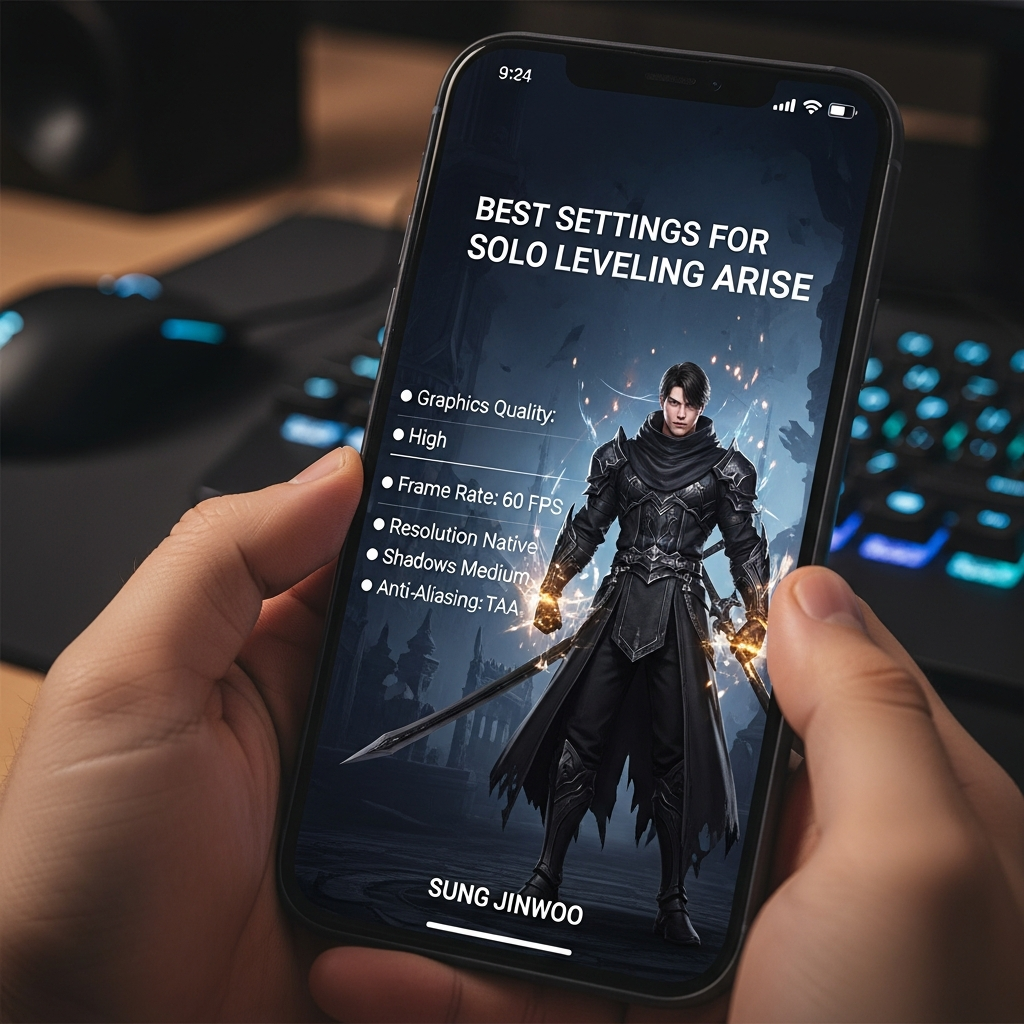
The Graphics tab is where most of your performance gains will come from. Here is the optimal configuration for a balanced experience of visual quality and high frame rates.
1. Frame Rate (The Most Important Setting)
You should always prioritize Frame Rate over visual resolution. In Solo Leveling: Arise, you have options for 30, 60, and sometimes 120 FPS depending on your monitor or screen refresh rate.
- Recommended: Set this to 60 FPS or Unlimited/120. Never play at 30 FPS if your device can handle more, as the combat will feel sluggish.
2. Graphics Quality Presets
If you are unsure about individual settings, start with the “Medium” preset and adjust from there. However, custom settings are always superior.
3. Texture Quality
This determines the sharpness of Sung Jinwoo’s armor and the environment.
- High-End PC/Mobile: High.
- Mid-Range: Medium.
- Low-End: Low (This significantly saves VRAM).
4. Shadow Quality
Shadows are notoriously heavy on the GPU. If you are experiencing lag during boss fights with many minions (like Igris or Cerberus), lowering this will provide a massive performance boost.
- Recommended: Low or Medium. The difference between High and Medium shadows is often negligible during fast-paced combat.
5. Effect Quality
This controls the flashy particles when you use skills like “Multistrike” or “Deaths Dance.” While it looks cool, it can clutter the screen and drop frames.
- Recommended: Medium. This keeps the game looking dynamic without sacrificing performance during chaotic encounters.
6. Anti-Aliasing
This removes “jagged edges” from character models.
- Recommended: TAA or Low. If you are playing on a small mobile screen, you can often turn this off entirely to save battery and increase FPS.
Best Control Settings for Precise Combat
The Best Settings For Solo Leveling Arise aren’t just about graphics; they are about how you interact with the game. The “Control” tab is vital for mastering the timing of your skills.
Mouse & Keyboard (PC)
- Mouse Sensitivity: Set this to a level where you can quickly rotate the camera 180 degrees. Most players prefer a mid-range sensitivity (40-50%).
- Keybindings: Ensure your “Dash” (Shift or Space) and “Skill” keys are easily reachable. Many pro players bind their skills to side mouse buttons for faster reaction times.
Touch Controls (Mobile)
- Joystick Type: Fixed Joystick is generally better for muscle memory than a “Floating” one.
- Button Size: Increase the size of the “Dodge” button. It is the most used button in the game, and missing it means taking heavy damage.
Controller Support
Solo Leveling: Arise has excellent native controller support. If you find touch controls clunky, connecting a PS5 or Xbox controller to your PC or Phone can drastically improve your optimal gameplay experience.
Optimizing Gameplay & Camera Settings
Many players overlook the “Gameplay” tab, but it contains settings that can help you see the battlefield more clearly.
- Camera Distance: Set this to Max (Wide). This allows you to see boss telegraphs from behind you or from the side, which is essential for dodging area-of-effect (AoE) attacks.
- Screen Shake: Turn this OFF or set it to Low. While it adds “impact,” it can be disorienting and make it harder to time your Extreme Evasions.
- Auto-Lock On: Enable this for boss fights, but be prepared to toggle it off if you need to target specific environmental objects.
PC-Specific Optimization Tips
If you are playing on the Netmarble Launcher, there are a few “hidden” ways to boost your performance beyond the in-game menu.
1. Update Your Drivers
Always ensure your NVIDIA or AMD drivers are up to date. Both manufacturers often release “Game Ready” drivers specifically optimized for new releases like Solo Leveling: Arise.
2. Windows Game Mode
Enable Windows Game Mode in your PC settings. This prevents background Windows updates from hogging your CPU while you are clearing gates.
3. High-Performance Power Plan
Go to your Control Panel > Power Options and select High Performance. This ensures your CPU and GPU aren’t being throttled to save power.
Mobile-Specific Optimization Tips
Mobile players face a unique challenge: Thermal Throttling. When your phone gets too hot, it automatically slows down the processor, causing massive lag.
- Turn Off Background Apps: Close apps like Instagram, Discord, or YouTube before launching the game.
- Lower Brightness: High brightness generates significant heat. Keep it at a comfortable mid-level.
- Remove Phone Case: If you are doing long sessions of “Encore Missions” or “Instance Dungeons,” removing your case can help dissipate heat faster.
- Battery Saver: Ensure your phone is NOT in “Battery Saver” mode, as this usually caps the FPS to 30.
Best Settings for Solo Leveling Arise: Summary Table
For those in a hurry, here is a quick reference table for the most balanced settings.
| Setting | Recommended Value | Reason |
|---|---|---|
| Frame Rate | 60 / Unlimited | Smooth combat and reaction time. |
| Texture Quality | Medium/High | Keeps character models sharp. |
| Shadow Quality | Low | Biggest performance boost when lowered. |
| Effect Quality | Medium | Balances visual flair with clarity. |
| Camera Distance | Max | Better visibility of boss attacks. |
| Screen Shake | Off | Reduces motion sickness and improves focus. |
Troubleshooting Common Performance Issues
Even with the Best Settings For Solo Leveling Arise, you might encounter issues. Here is how to fix the most common ones:
Game Crashing on Startup
This is often caused by corrupted game files. Use the “Repair Files” or “Verify Integrity” option in the Netmarble Launcher. On mobile, try clearing the cache (not the data) in your app settings.
High Latency/Ping
Solo Leveling: Arise requires a constant internet connection. If you see a “Connecting” spinner frequently, switch from Wi-Fi to a wired Ethernet connection (on PC) or ensure you have a strong 5G signal (on Mobile).
Stuttering During Skill Animations
This is usually a sign that your Effect Quality is too high. Drop it to “Low” and see if the stuttering persists. If it does, consider lowering your Resolution Scale.
Expert Tips for Competitive Gameplay
To reach the top of the leaderboards in the Battle of Chaos or Time Attack, you need every advantage possible. Expert players often use these specific tweaks:
- Disable Bloom: Bloom adds a glow to lights. While pretty, it can obscure the “Red Flash” indicator that tells you when to dodge. Disabling it makes the dodge window much clearer.
- Manual Aiming: While “Semi-Auto” is fine for farming, “Manual” control over your skills allows you to group enemies more effectively, leading to faster clear times.
- Sound Cues: Don’t play on mute! Many bosses have audio cues for their big attacks. The Best Settings For Solo Leveling Arise include a balanced audio mix where “SFX Volume” is higher than “BGM Volume.”
Conclusion
Optimizing your game is a journey, much like Sung Jinwoo’s path from an E-Rank hunter to the Shadow Monarch. By applying the Best Settings For Solo Leveling Arise outlined in this guide, you ensure that your hardware is never the bottleneck to your success.
Start with a high frame rate, adjust your shadows and effects for stability, and zoom out your camera for better battlefield awareness. With these adjustments, you are ready to face the strongest bosses the Gates have to offer. Now, go forth and Arise!
Frequently Asked Questions (FAQ)
Q: Does Solo Leveling: Arise support 120 FPS?
A: Yes, the PC version and certain high-end mobile devices (with 120Hz screens) support 120 FPS. You must enable this in the Graphics settings under “Frame Rate.”
Q: Why is my phone getting so hot while playing?
A: The game is graphically demanding. To reduce heat, lower your “Graphics Quality” to Medium and cap your FPS at 60 instead of Unlimited.
Q: Can I play Solo Leveling: Arise on a controller?
A: Absolutely. The game has full controller support for PC and Mobile. Simply connect your controller via Bluetooth or USB, and the game will automatically detect it.
Q: What is the most important setting for dodging?
A: Camera Distance and Screen Shake. Setting Camera Distance to Max and turning Screen Shake Off allows you to see the boss’s movements clearly, making “Extreme Evasion” much easier to trigger.
Q: Should I use “Auto” or “Manual” combat?
A: For easy farming, “Auto” is fine. However, for Boss Fights and challenging content, “Manual” is highly recommended so you can time your dodges and ultimate skills perfectly.