Best Settings for Dragon Ball Legends: The Ultimate Optimization Guide for Pro Gameplay
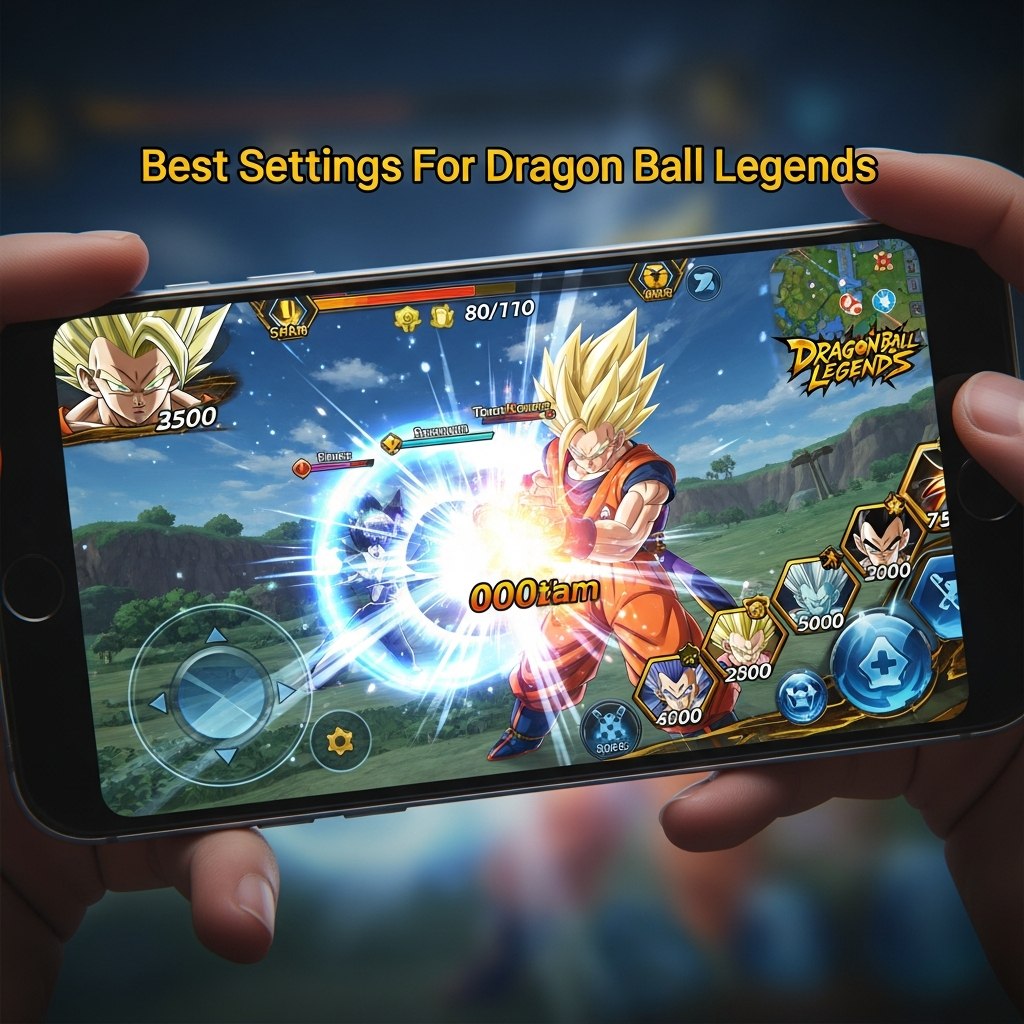
Dragon Ball Legends is one of the most visually stunning and fast-paced mobile games available today. Developed by Bandai Namco, it brings the high-octane action of the Dragon Ball universe to your fingertips. However, to truly excel in both competitive PvP (Player vs. Player) and challenging PvE (Player vs. Environment) modes, having a high-end device is only half the battle. You must also master the Best Settings for Dragon Ball Legends to ensure smooth performance and responsive controls.
In this comprehensive guide, you will learn how to fine-tune every aspect of your game. From maximizing your frame rate to optimizing your battle controls, we will cover the technical details that separate the casual players from the God-rank legends. Whether you are playing on a flagship device or a budget smartphone, these optimizations will help you achieve a seamless experience.
Why Optimization Matters in Dragon Ball Legends
Before diving into the specific menus, it is crucial to understand why optimization is vital. Dragon Ball Legends relies heavily on precise timing. Actions such as “Vanishing Steps,” “Ki Canceling,” and “Side-stepping” require frame-perfect inputs. If your game stutters or suffers from input lag, you will likely lose matches that you should have won.
By implementing the best settings for Dragon Ball Legends, you reduce the mechanical friction between your intentions and the game’s execution. This guide focuses on three core pillars: Performance, Visual Clarity, and Control Responsiveness.
1. Graphics Settings: Balancing Visuals and Performance
The graphics menu is where most of your performance gains will happen. You can access this by navigating to Menu > Other > Options > Graphics. To achieve the best settings for Dragon Ball Legends, you should prioritize frame rate over high-resolution textures.
Screen Resolution
Dragon Ball Legends offers multiple levels of resolution. While “High” looks crisp, it puts a significant strain on your GPU. For competitive play, setting this to Medium or High (if your device is flagship) is recommended. Avoid “Low” unless you are using a very old device, as it can make it difficult to see character animations clearly.
Frame Rate (The Most Important Setting)
You will see a toggle for “Energy Saving.” You must ensure this is turned OFF. Turning Energy Saving on caps your frame rate at 30 FPS. For a competitive advantage, you need the game running at 60 FPS. A higher frame rate allows for smoother animations, making it much easier to react to your opponent’s attacks.
Graphics Quality (Rendering)
There are usually four levels of graphics quality. If you experience any overheating or thermal throttling during long sessions, lowering this setting by one notch can significantly improve stability without ruining the aesthetic of the game.
- Flagship Devices: Set all to Maximum, but keep Energy Saving OFF.
- Mid-Range Devices: Set Resolution to High, Quality to Medium, Energy Saving OFF.
- Budget Devices: Set Resolution to Medium, Quality to Low, Energy Saving OFF.
2. Battle Settings for Competitive Advantage
The Battle Settings tab is where you customize how you interact with the game. These are arguably the most critical “best settings for Dragon Ball Legends” for PvP enthusiasts. You can find these under Menu > Other > Options > Battle.
Detailed Battle Settings
Tap Timing Display: Turn this ON. It provides visual feedback on your taps, helping you internalize the rhythm of the game’s combat system.
Card Placement: You can choose between “Right” and “Left.” Most players prefer the default Right side, but if you are left-handed, switching this can feel more natural and improve your reaction speed.
Control Sensitivity: This is a hidden gem in the settings. If you find your character isn’t dashing or vanishing when you swipe, try increasing the sensitivity. Conversely, if you are accidentally dashing when you mean to tap, lower it slightly. For most pro players, a Higher Sensitivity is preferred for rapid movement.
Character Action Settings
Ensure that “Auto Mode” is never used in PvP. While helpful for grinding story mode, it will hinder your ability to learn the game’s mechanics. Familiarize yourself with the manual controls to maintain full authority over your character’s movements.
3. The “Download All” Strategy
One of the biggest causes of “lag” or stuttering in Dragon Ball Legends isn’t actually your internet connection—it’s your storage. When you encounter a new character or a new ultimate move for the first time, the game tries to download that data on the fly.
To fix this, go to Menu > Other > Options > Download All. This will download several gigabytes of data. It is highly recommended to do this over a stable Wi-Fi connection. By having all assets stored locally, the game doesn’t have to fetch data mid-battle, resulting in a much smoother experience.
4. Sound and Notification Settings
While sound might seem aesthetic, it plays a role in focus. In the Sound tab, you should find a balance that allows you to hear the “exclamation mark” sound effect clearly, as this is your primary audio cue for an incoming attack.
- BGM (Background Music): Lower this to 30-40% so it doesn’t drown out combat sounds.
- SE (Sound Effects): Keep this at 80-100%. Audio cues are vital for timing your Vanishing Step.
- Voice: Set this to your preference (English or Japanese), but ensure it is audible as some characters have voice lines that signal specific ability activations.
Notifications: Turn off all non-essential push notifications. There is nothing worse than a social media alert blocking your view during a high-stakes Ranked Match.
5. Optimizing Your Device (Android & iOS)
The best settings for Dragon Ball Legends aren’t just found inside the app. Your phone’s operating system needs to be ready for gaming too.
For Android Users:
- Enable Game Mode: Most modern Android phones (Samsung, Xiaomi, OnePlus) have a built-in Game Turbo or Game Mode. Enable this to prioritize CPU/GPU resources for Dragon Ball Legends.
- Disable Battery Saver: Never play while your phone’s system-wide battery saver is on. It throttles the processor and causes massive frame drops.
- Developer Options: You can go to Developer Options and enable “Force 4x MSAA” for better visuals, though this may increase heat. More importantly, ensure “Background process limit” is set to standard.
For iOS Users:
- Guided Access: Use Guided Access to prevent accidental swipes that might take you out of the game.
- Background App Refresh: Turn this OFF for other apps to save RAM and processing power.
- Low Power Mode: Ensure this is disabled before launching the game.
6. Network Optimization for PvP
You can have the best settings for Dragon Ball Legends, but if your ping is high, you will still lose. PvP in this game uses a peer-to-peer (P2P) connection model.
- Stable Wi-Fi: Always prefer a 5GHz Wi-Fi connection over 2.4GHz. 5GHz has less interference and lower latency.
- Avoid Cellular Data: Unless you have a full 5G signal with low jitter, mobile data is often too unstable for high-level PvP.
- Close Background Apps: Apps like YouTube, Twitch, or large downloads will eat your bandwidth and cause “lag switching” effects for both you and your opponent.
7. Advanced Tips: Managing Device Heat
Dragon Ball Legends is a resource-intensive game. Heat is the enemy of performance. When your phone gets too hot, the CPU slows down (throttling), causing your FPS to tank.
How to stay cool: – Remove your phone case during long gaming sessions. – Do not play while charging if possible, as charging generates significant heat. – Play in a cool environment or use a dedicated phone cooling fan if you are a serious competitive player.
8. Summary of Recommended Settings
To make things easier, here is a quick checklist of the best settings for Dragon Ball Legends for a standard competitive setup:
| Category | Recommended Setting |
|---|---|
| Energy Saving | OFF (Mandatory for 60 FPS) |
| Resolution | Medium or High |
| Graphics Quality | 2 or 3 (out of 4) |
| Download All | Completed |
| Tap Timing | ON |
| Sound Effects | High (80%+) |
Frequently Asked Questions (FAQ)
Why is my Dragon Ball Legends lagging even with low settings?
Lag can be caused by two things: hardware thermal throttling or network instability. Ensure your “Download All” is complete and that you are not using “Energy Saving” mode. If it persists, check your internet’s jitter and ping.
Does “Energy Saving” mode affect PvP?
Yes, significantly. It caps your game at 30 FPS. In a game where milliseconds matter, playing at 30 FPS against someone at 60 FPS puts you at a massive disadvantage. Always keep it OFF.
What is the best sensitivity for Dragon Ball Legends?
There is no universal “best,” but most top-tier players prefer a higher sensitivity. This allows for faster swipes to trigger Vanishing Steps and faster dashes to close the gap between you and your opponent.
Can I play Dragon Ball Legends on an emulator?
While possible, it is generally discouraged for PvP. The game is optimized for touch controls. Furthermore, using emulators can sometimes lead to account flags or bans if the software interferes with the game’s anti-cheat measures.
How much storage does Dragon Ball Legends need?
With all data downloaded (using the “Download All” feature), the game can take up between 6GB to 10GB of storage. Ensure you have at least 15GB of free space to allow the OS to handle temporary files and updates smoothly.
Conclusion
Finding the best settings for Dragon Ball Legends is a journey of trial and error tailored to your specific hardware. However, the golden rule remains: prioritize frame rate and stability over visual flair. By turning off energy-saving modes, downloading all game assets, and optimizing your device’s environment, you give yourself the best possible chance to climb the ranks.
Remember, even the best settings won’t replace practice. Use these optimizations as a foundation, then head into the Hyperbolic Time Chamber (or just Training Mode) to perfect your skills. Good luck, Chrono Crystals hunters!