Ultimate Guide to the Best Settings for Marvel Future Fight: Maximize Performance and Gameplay
Marvel Future Fight (MFF) remains one of the most visually stunning and mechanically complex action RPGs on mobile platforms. Developed by Netmarble, this game features a massive roster of over 250 characters, each with intricate skill animations and high-definition textures. However, with great visual fidelity comes a significant demand on your hardware.
If you are experiencing lag, frequent crashes, or rapid battery drain, your current configuration might not be optimized. Finding the best settings for Marvel Future Fight is not just about making the game look pretty; it is about ensuring smooth frame rates during intense Alliance Conquest battles and efficient resource management during long farming sessions.
In this comprehensive guide, we will break down every menu option, from graphics and performance to gameplay UI and sound. Whether you are playing on a flagship device or an older budget smartphone, this guide will help you tailor your experience for maximum efficiency.
Why Optimizing Your Marvel Future Fight Settings Matters
Before diving into the specific toggles, it is crucial to understand why optimization is necessary. Marvel Future Fight is a “live service” game that constantly receives updates, adding more particles, shaders, and complex AI behaviors. Without the correct setup, you may face “thermal throttling,” where your device slows down to prevent overheating.
Optimizing your settings provides several key benefits:
- Improved Reaction Time: Higher frame rates allow you to dodge boss attacks in World Boss Legend (WBL) more effectively.
- Battery Longevity: Reducing unnecessary background processes and graphical flair extends your playtime.
- Competitive Edge: In PvP modes like Timeline Battle, a single stutter can mean the difference between a win and a loss.
- Stability: Proper settings prevent the game from crashing during high-stakes modes like Giant Boss Raid (GBR) Dormammu.
1. Graphics and Performance Settings: The Core Optimization
The “Graphics” tab in the settings menu is the most impactful area for your device’s health and performance. Netmarble provides several presets, but a manual touch is often better for the best settings for Marvel Future Fight.
Graphics Quality
This setting determines the resolution of textures and the complexity of character models. If you have a high-end device (Snapdragon 8 Gen 1 or newer / iPhone 13 or newer), you can safely set this to High. For mid-range devices, Medium is the sweet spot. If you are using an older device or an emulator with limited allocated RAM, Low or Very Low is mandatory to prevent memory leaks.
Performance (Frame Rate)
This is arguably the most important setting in the game. Frame rate dictates how many images are displayed per second. You should always strive to set this to High. A high frame rate reduces input lag, making the controls feel responsive. If your phone gets uncomfortably hot, you may drop it to Medium, but never set it to Low unless you are strictly using “Auto-Play” for farming and not looking at the screen.
Anti-Aliasing
Anti-aliasing smooths out the jagged edges of character models. While it makes the game look “console-quality,” it is incredibly taxing on the GPU. For the most stable Marvel Future Fight optimization, we recommend turning this OFF. The screen size of most smartphones is small enough that the jagged edges are barely noticeable during fast-paced combat.
2. Gameplay Settings for Maximum Efficiency
The Gameplay tab focuses on how you interact with the game and how information is presented to you. These settings are vital for “Quality of Life” (QoL) and can significantly speed up your daily chores.
Auto-Play and Auto-Repeat Settings
Marvel Future Fight is a game of progression, which often requires “farming” missions. Ensure that Auto-Play++ is active (available after clearing stages). Under the “Auto-Repeat” settings, you should toggle “Stop upon reaching Max Level” if you are leveling up characters for Crystals. This prevents wasting Energy on characters that no longer need XP.
Skill Camera and Vibrate Effects
The Skill Camera often zooms in or changes angles when a character uses their “Ultimate” or “Tier-4” skill. While cinematic, this can be disorienting in competitive play. We recommend setting Skill Camera to OFF to maintain a consistent top-down view of the battlefield. Similarly, turn Vibrate to OFF to save battery and prevent physical distractions during long sessions.
Targeting and Combat UI
In the “Option” menu, look for Display Skill Cooldown. This should always be ON. Knowing exactly when your invulnerability or shield skill is ready is the difference between life and death in high-level content. Also, ensure Auto-Targeting is enabled to help your characters snap to the nearest enemy during chaotic mobs.
3. Audio and Notification Settings
While audio doesn’t heavily impact FPS, it does impact your device’s CPU usage and battery life. If you are a hardcore player who spends hours on the game, consider these adjustments.
- SFX and BGM: If you are listening to your own music or a podcast, turn these to 0. Processing high-quality audio files takes a small but measurable amount of CPU power.
- Push Notifications: Disable everything except “Energy Full” and “Event Notifications.” This prevents your phone from waking up unnecessarily, preserving battery health over the long term.
4. Best Settings for Specific Game Modes
The best settings for Marvel Future Fight can change depending on what you are doing. Here is a quick reference guide for different modes:
World Boss Legend (Mephisto, Knull, Gorr, Jean Grey)
In these modes, precision is everything. Graphics: Medium (to see boss telegraphs clearly). Performance: High. SFX: On (audio cues often signal boss phase changes).
Alliance Battle Extreme (ABX) and Legend (ABL)
The goal here is high scores, which means many enemies on screen. Graphics: Low. Performance: High. Skill Effects: Low (too many effects can hide the “Silence” or “Paralyze” orbs you need to collect).
Dimension Mission (Farming)
When you are just burning energy while doing something else. Graphics: Very Low. Performance: Low. Sound: Off. This configuration keeps your phone cool and saves the most battery.
5. Advanced Tips: Device Optimization
Sometimes the best settings for Marvel Future Fight aren’t found inside the game app itself, but within your device’s operating system.
For Android Users
Go to Developer Options and look for “Force 4x MSAA” (keep this OFF) and “Enable GPU Debug Layers.” More importantly, use the Game Plugins app (for Samsung) or Game Turbo (for Xiaomi) to prioritize the game’s CPU access. Clearing the System Cache once a month can also help remove “ghost data” that slows down loading times.
For iOS Users
iOS is generally well-optimized, but you should ensure that “Background App Refresh” is turned off for other apps while playing MFF. This ensures that the Marvel Future Fight engine has full access to the A-series chip’s power.
Using Emulators (PC)
If you play on PC via BlueStacks or LDPlayer, make sure to allocate at least 4 Cores and 4GB of RAM to the emulator. Enable VT (Virtualization Technology) in your BIOS settings, or the game will lag regardless of your in-game settings.
6. Troubleshooting: Fixing Common Lag Issues
Even with the best settings for Marvel Future Fight, you might encounter issues. Here is how to fix them:
- The “Pink Screen” Glitch: This usually happens when textures fail to load. Go to Settings > Info > Download All Data. This ensures all assets are on your local storage.
- Slow Loading Times: If the game takes forever to start, check your storage space. MFF requires at least 5GB of free space to operate smoothly.
- Connection Lag: MFF is sensitive to ping. If you see the “Connecting to Server” icon during play, try switching from Wi-Fi to Mobile Data (or vice versa) to see if the routing improves.
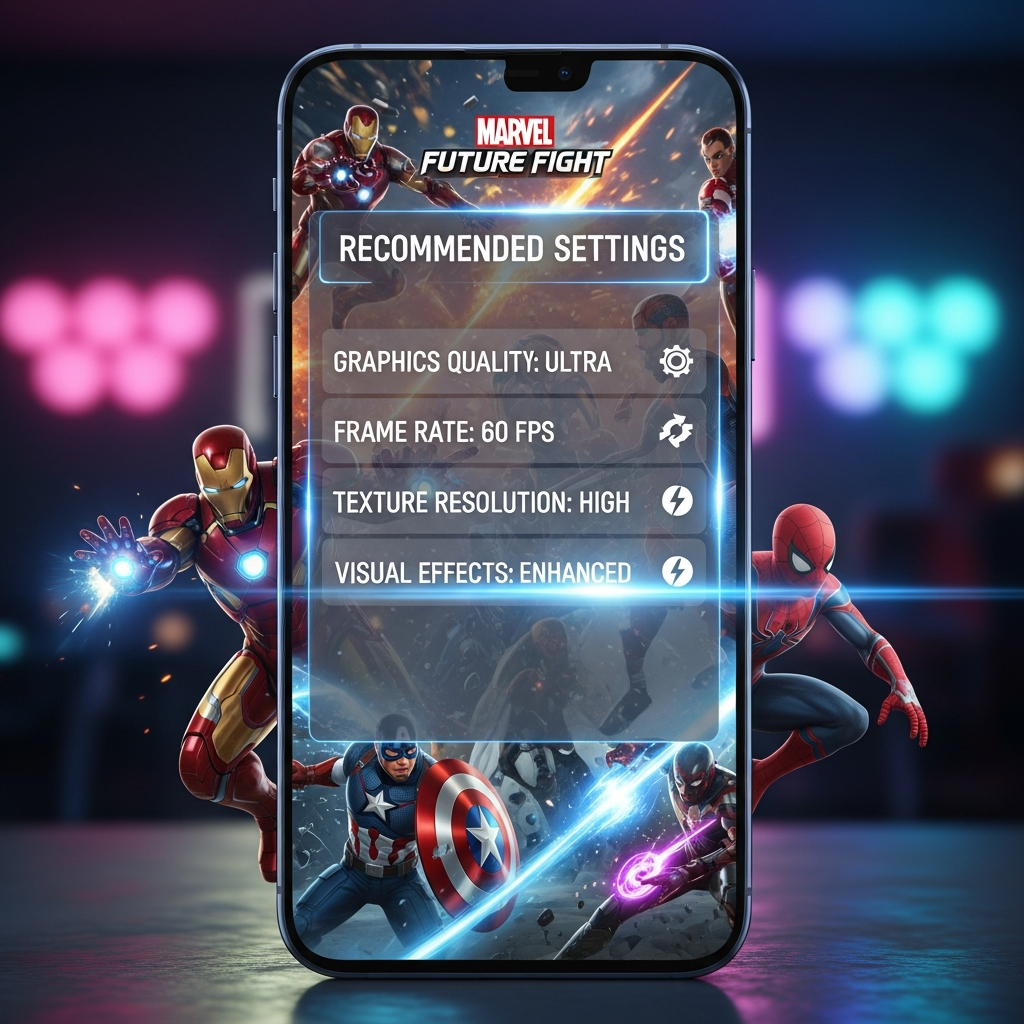
Summary of Recommended Settings
To summarize, here is the “Golden Standard” for a balanced experience:
| Setting Category | Recommended Value |
|---|---|
| Graphics Quality | Medium (Balanced) |
| Performance (FPS) | High |
| Anti-Aliasing | Off |
| Skill Camera | Off |
| SFX/BGM | 30% – 50% |
Conclusion
Achieving the best settings for Marvel Future Fight is a journey of trial and error based on your specific hardware. By prioritizing High Performance (FPS) and Medium Graphics, you create an environment where you can appreciate the game’s beauty without sacrificing the responsiveness needed for competitive play.
Remember to periodically check your settings after major game updates, as Netmarble often introduces new graphical features that might reset your preferences. Keep your device cool, keep your storage clean, and you will be well on your way to conquering the Multiverse!
Frequently Asked Questions (FAQ)
What is the most important setting for MFF?
The Performance setting is the most critical. Setting it to “High” ensures a smooth 60 FPS experience, which is vital for timing your character rotations and dodging enemy attacks.
Does “Low Graphics” affect my damage?
Technically, no. However, higher frame rates (from lower graphics) can sometimes lead to smoother skill “canceling,” which can indirectly increase your Damage Per Second (DPS).
Why does my phone get hot while playing Marvel Future Fight?
MFF is a GPU-intensive game. High brightness, high graphics, and playing while charging are the most common causes of overheating. Try lowering the “Graphics Quality” to Medium or Low to reduce the thermal load.
Should I use the “Download All Data” option?
Yes. Although it takes up more space (approx. 7GB+), it prevents the game from trying to download assets during gameplay, which significantly reduces mid-game stutters and lag.
Can I play Marvel Future Fight at 120 FPS?
Currently, MFF is capped at 60 FPS for most devices. Even if you have a 120Hz or 144Hz screen, the game engine does not natively support those higher refresh rates yet.