How to Fix Marvel Future Fight Not Working or Crashing: The Ultimate Troubleshooting Guide
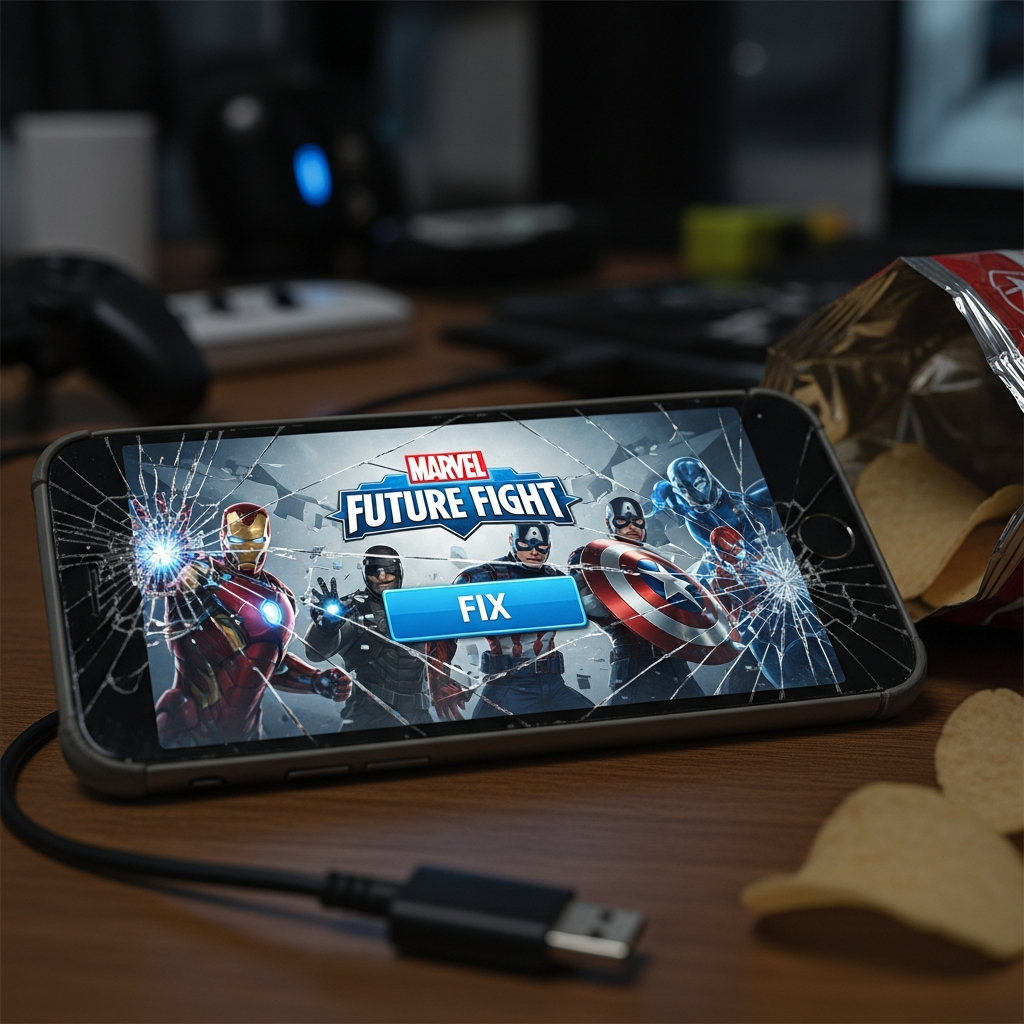
Marvel Future Fight (MFF) remains one of the most popular mobile action RPGs, allowing players to assemble a team of Earth’s mightiest heroes and villains. However, nothing ruins the excitement of a World Boss Legend run or an Alliance Conquest more than a sudden app crash or a “not responding” error.
Whether you are facing a black screen on startup, constant freezing during high-intensity combat, or the game simply refusing to open, these technical hurdles are common in high-fidelity mobile games. As mobile hardware and software evolve, compatibility issues often arise.
In this comprehensive guide, we will analyze why Marvel Future Fight keeps stopping and provide a definitive, step-by-step roadmap to get you back into the action. We will cover solutions for Android, iOS, and even PC emulators.
Understanding Why Marvel Future Fight Crashes
Before diving into the solutions, it is essential to understand the root causes. Identifying the “why” helps you apply the correct “how” for your specific situation. Generally, MFF issues fall into three categories: Hardware Limitations, Software Conflicts, and Network Stability.
High-end graphics and complex particle effects in Marvel Future Fight demand significant resources. If your device’s RAM is overloaded or your processor is overheating, the operating system will force-close the app to protect the hardware. Similarly, corrupted cache files or an outdated game version can lead to instability.
1. Verify System Requirements and Compatibility
The first step in troubleshooting is ensuring your device actually meets the minimum requirements to run the game smoothly. As Netmarble updates the game with newer engine features, older devices may struggle to keep up.
Minimum Requirements for Android
- OS: Android 5.1 or higher.
- RAM: 3GB Minimum (4GB+ Recommended).
- Storage: At least 5GB of free space.
Minimum Requirements for iOS
- OS: iOS 11.0 or later.
- Device: iPhone 6s or newer.
- Storage: At least 5GB of free space.
Expert Tip: Even if you meet the minimum specs, running the game on “High” graphics settings on a budget device will almost certainly lead to Marvel Future Fight crashing during skill-heavy animations.
2. Perform a Basic Power Cycle
It may sound cliché, but restarting your device is the most effective “quick fix” for many mobile issues. Over time, your phone accumulates background processes that hog memory (RAM).
When you restart your phone, you clear the temporary memory and terminate stalled background tasks. After restarting, ensure that Marvel Future Fight is the first app you open. Avoid having apps like Facebook, Chrome, or YouTube running in the background while playing.
3. Clear Cache and Data (Android Focus)
On Android devices, the “Cache” stores temporary files to help the game load faster. However, if these files become corrupted—often after a major update—they can cause the game to freeze or fail to launch.
How to Clear Cache for MFF:
- Open Settings on your Android device.
- Navigate to Apps or Application Manager.
- Find and tap on Marvel Future Fight.
- Select Storage.
- Tap Clear Cache. (Do NOT tap Clear Data unless your account is linked to Facebook/Google, as this will delete your local progress).
If clearing the cache doesn’t work, you might need to Clear Data. This forces the game to re-download all assets, which often fixes deep-rooted file corruption issues.
4. Resolve Connection and Server Errors
Sometimes, the game isn’t crashing because of your phone; it’s failing because it can’t talk to the Netmarble servers. If you see a “Disconnected from Server” or “Network Error” message, follow these steps:
- Switch Connections: If you are on Wi-Fi, try switching to Mobile Data (or vice versa). Some routers have firewalls that block game ports.
- Toggle Airplane Mode: Turn on Airplane mode for 10 seconds and then turn it off. This refreshes your IP address and connection to the local tower.
- Check Server Status: Visit the official Marvel Future Fight Forum to see if there is scheduled maintenance. If the servers are down, no amount of troubleshooting on your end will fix the issue.
5. Fix Marvel Future Fight Black Screen on Startup
The dreaded black screen usually occurs when the game fails to initialize the graphical engine or cannot authenticate your login. This is often linked to Google Play Services or Apple Game Center.
For Android Users:
Update Android System WebView and Google Play Services via the Play Store. These components are vital for rendering web-based elements and managing logins within MFF.
For iOS Users:
Ensure you are signed into the Game Center in your system settings. If the game hangs on a black screen, try logging out of Game Center and logging back in before launching the app.
6. Adjust In-Game Graphics Settings
If you can get into the game but experience frequent crashes during gameplay (especially in Giant Boss Raid or Dimension Mission), your hardware is likely being pushed too hard. Reducing the load can significantly improve stability.
- Tap the Settings (Gear Icon) in the top right of the MFF home screen.
- Go to the Option tab.
- Set Graphics to “Low” or “Medium”.
- Set Performance to “Low” or “Medium”.
- Turn off SFX Display if the game crashes during flashy ultimate skills.
Setting the frame rate to “Low” reduces the heat generated by the GPU, which is a leading cause of Marvel Future Fight not working on older smartphones.
7. Managing Storage Space
Marvel Future Fight is a massive game. With every update, the file size grows. If your device has less than 1GB of free space, the OS cannot create the “swap files” needed for the game to run.
Check your storage settings. Delete unused apps, large video files, or old screenshots. Aim to keep at least 10% of your total storage free for optimal system performance.
8. Reinstalling the Game (The Last Resort)
If all else fails, a clean installation is necessary. This ensures that every single game file is fresh and correctly placed. Warning: Ensure your account is synced to Facebook, Google Play, or Apple ID before doing this, or you will lose your account progress.
- Uninstall Marvel Future Fight from your device.
- Restart your phone to clear any lingering registry files.
- Go to the App Store or Play Store and download the latest version.
- Launch the game and allow it to download the full update data (usually 2GB-4GB). Do not minimize the app during this process.
9. Troubleshooting for PC Emulators (BlueStacks, LDPlayer)
Many players prefer playing MFF on PC. If the game is crashing on your emulator, check the following:
- Enable Virtualization (VT): Ensure VT-x or AMD-V is enabled in your PC’s BIOS. Without this, emulators run extremely slowly and crash frequently.
- Allocate More Resources: Go to emulator settings and allocate at least 4 Cores and 4GB of RAM to the instance.
- Graphics Mode: Switch between OpenGL and DirectX. Most MFF players find that OpenGL provides better stability for this specific game.
10. Contacting Netmarble Support
If you have followed every step in this guide and Marvel Future Fight still won’t work, there may be a specific bug affecting your account or device model. In this case, you should submit a support ticket.
Include your IGN (In-Game Name), your device model, your OS version, and a detailed description of when the crash occurs. Providing a screenshot of any error codes will help the developers resolve your issue much faster.
Frequently Asked Questions (FAQ)
Why does Marvel Future Fight keep closing by itself?
This is usually due to insufficient RAM. Your phone’s operating system closes the app because it needs memory for system-critical tasks. Try closing all other apps and lowering the in-game graphics settings.
Is Marvel Future Fight down right now?
You can check the official Netmarble forums or community sites like Reddit to see if other players are reporting server issues. If the game won’t connect at all, it is likely undergoing maintenance.
How much storage does Marvel Future Fight need?
As of 2024, it is recommended to have at least 6GB to 8GB of free space to accommodate the initial download and subsequent patches.
Can I play Marvel Future Fight on a 2GB RAM phone?
It is not recommended. While the game might launch, you will experience severe lag and frequent crashes, especially in game modes with multiple characters on screen.
Conclusion
Dealing with Marvel Future Fight crashing or not working can be incredibly frustrating, but most issues are solvable with basic maintenance. By keeping your device updated, managing your storage, and ensuring your graphics settings match your hardware capabilities, you can enjoy a seamless gaming experience.
Remember to always link your account to a cloud service to prevent data loss during troubleshooting. Now that you have fixed the technical hurdles, it’s time to get back to building your Tier-4 roster and dominating the Multiverse!