How to Install Shadow Fight 4 on Android: The Complete Master Guide
The evolution of mobile fighting games has reached a pinnacle with the release of Shadow Fight 4: Arena. Developed by Nekki, this installment departs from the traditional RPG-style progression of its predecessors and dives headfirst into high-stakes, real-time PvP combat. If you are looking to test your skills against players worldwide, you first need to ensure the game is correctly installed and optimized on your device.
In this comprehensive guide, you will learn exactly how to install Shadow Fight 4 on Android, whether you are using the official Google Play Store or alternative manual methods. We will also cover system requirements, performance tuning, and troubleshooting common installation errors to ensure your journey into the Arena is seamless.
Understanding Shadow Fight 4: Arena
Before diving into the technical steps, it is essential to understand what makes Shadow Fight 4 unique. Unlike Shadow Fight 2 or 3, this version focuses on 3-hero team battles. You collect legendary heroes from the Shadow Fight universe, each with unique abilities, shadow talents, and fighting styles.
The game features console-quality graphics, which means the installation process requires more attention to detail regarding storage and hardware compatibility than your average mobile app.
Minimum and Recommended System Requirements
To avoid the frustration of a crashing app or “Device not compatible” errors, you must verify that your Android smartphone meets the necessary specifications.
Minimum Requirements
- Operating System: Android 5.0 (Lollipop) or higher.
- Processor: Quad-core 1.5 GHz or equivalent.
- RAM: 2 GB.
- Storage Space: At least 2 GB of free internal memory.
- Internet: Stable connection required for installation and gameplay.
Recommended Specifications for High Performance
- Operating System: Android 10.0 or higher.
- Processor: Octa-core 2.0 GHz (Snapdragon 700 series or better).
- RAM: 4 GB or more.
- Storage Space: 4 GB (to accommodate future updates and cache).
- Display: 60Hz or 90Hz refresh rate for fluid combat animations.
Method 1: Installing via Google Play Store (Recommended)
The most secure and straightforward way to install Shadow Fight 4 on Android is through the official Google Play Store. This method ensures you receive automatic updates and that your data is backed up via Google Play Games.
Step 1: Prepare Your Device
Ensure your device is connected to a stable Wi-Fi network. Downloading over cellular data may incur high costs and is more prone to interruption. Verify that you have signed into your Google Account.
Step 2: Search for the Game
- Open the Google Play Store app on your Android device.
- Tap the search bar at the top and type “Shadow Fight 4: Arena”.
- Locate the official app published by Nekki.
Step 3: Initiation of Download
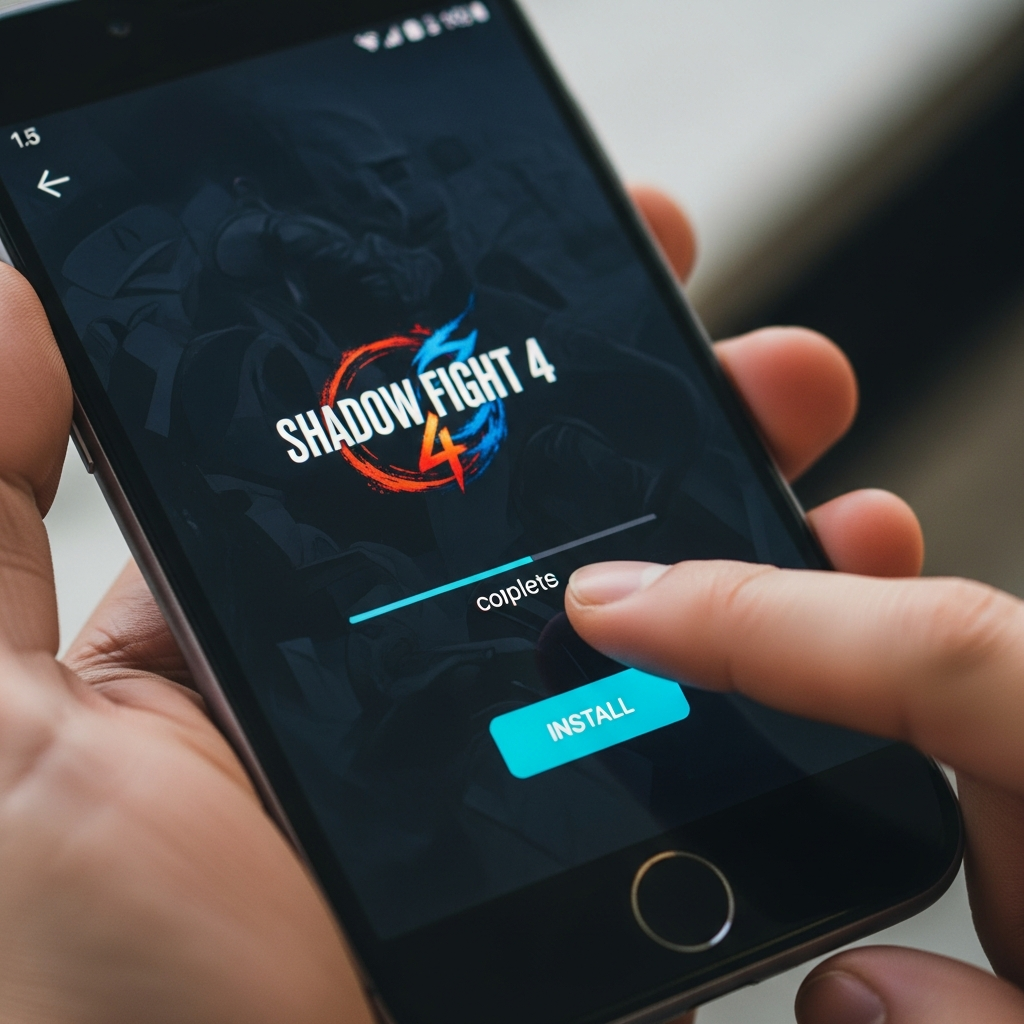
- Tap the “Install” button.
- If prompted for permissions, review them and tap “Accept”.
- The Play Store will first download the base APK and then automatically handle the installation.
Step 4: Initial Launch and Data Sync
Once the installation is complete, tap “Open”. The game will likely download additional “OBB” (Opaque Binary Blob) data or “In-app assets” upon the first launch. Do not close the app during this process.
Method 2: Manual Installation (APK and OBB)
Sometimes, users encounter the “Your device isn’t compatible with this version” error even if their hardware is capable. In such cases, you might choose to install the game manually. Note: Only download files from reputable third-party sources to avoid malware.
Step 1: Enable Unknown Sources
Before you can install an APK file manually, you must grant permission:
- Go to Settings > Security (or Privacy).
- Look for “Install Unknown Apps” or “Unknown Sources”.
- Toggle the switch to On for your browser or file manager.
Step 2: Download the Files
You will need two specific files:
- The Shadow Fight 4 APK file.
- The Shadow Fight 4 OBB data file (usually a .zip or .obb format).
Step 3: Install the APK
Locate the downloaded APK in your File Manager and tap on it to install. Do not open the game yet, as it will crash without the data files.
Step 4: Placing the OBB File
- Use a file extractor (like ZArchiver) to unzip the OBB file if it is compressed.
- Copy the folder (usually named
com.nekki.shadowfightarena). - Navigate to: Internal Storage > Android > obb.
- Paste the folder here.
Step 5: Verify and Launch
Launch the game. If the OBB is placed correctly, the game will bypass the “Download failed because you may not have purchased this app” error and load the main menu.
Optimizing Shadow Fight 4 for Peak Performance
Once you have successfully installed Shadow Fight 4, the next step is ensuring it runs smoothly. High latency or frame drops can be the difference between victory and defeat in the Arena.
1. Adjusting Graphics Settings
Navigate to the in-game Settings menu (gear icon). You will find options for:
- Graphics Quality: Choose between Low, Medium, High, and Ultra. For older devices, “Medium” is the sweet spot.
- FPS Limit: If your phone supports it, set this to 60 FPS for the smoothest experience.
- Anti-aliasing: Turn this off if you experience stuttering during special shadow moves.
2. Battery and Power Management
Android devices often throttle performance to save battery. To prevent this:
- Disable Battery Saver mode while playing.
- In your phone’s system settings, go to Battery > App Power Management and set Shadow Fight 4 to “Unrestricted”.
3. Network Optimization
Since Shadow Fight 4 is a real-time PvP game, your Ping (ms) is critical.
- Play near your Wi-Fi router.
- Close background apps that consume bandwidth (like YouTube, TikTok, or system updates).
- Use a “Game Booster” app if your phone manufacturer provides one (e.g., Samsung Game Launcher).
Troubleshooting Common Installation Errors
Even with a perfect guide, you might encounter hurdles. Here is how to fix the most common issues when trying to install Shadow Fight 4 on Android.
“Insufficient Storage Available”
The game requires about 2 GB for the initial install, but it expands as you unlock more heroes and maps.
- Fix: Clear your app cache or move photos/videos to the cloud. Always maintain at least 5 GB of free space for optimal Android performance.
“App Not Installed” Error
This usually occurs during manual APK installation.
- Fix: Ensure you don’t have a previous version of the game installed. Also, check if the APK file is corrupted or intended for a different processor architecture (ARM64 vs. ARMv7).
“Download Pending” in Play Store
This is a common Google Play bug.
- Fix: Go to Settings > Apps > Google Play Store > Storage and tap “Clear Data”. Restart your phone and try the download again.
Game Stuck on Loading Screen
If the game hangs at 0% or 99% during the initial startup:
- Fix: Check your internet connection. The game needs to verify files with the Nekki servers. If you used the manual OBB method, double-check that the folder name is exactly
com.nekki.shadowfightarena.
Setting Up Your Account: Don’t Lose Your Progress!
After you install Shadow Fight 4 on Android, the very first thing you should do is link your account.
- Open the game settings.
- Tap on the Google Play Games icon.
- Sign in to your primary Google account.
By doing this, your progress, unlocked heroes (like Marcus, Kibo, or Fireguard), and ranking will be saved in the cloud. If you switch phones or have to reinstall the game later, you can pick up exactly where you left off.
Expert Tips for New Players Post-Installation
Now that the game is running, you are ready to enter the fray. Here are a few tips to get started:
- Complete the Tutorial: Do not skip it. Shadow Fight 4 has unique “Talent” mechanics that differ from previous games.
- Focus on One Hero: Initially, master one hero’s move set before trying to balance a team of three.
- Watch Replays: Use the in-game “Shadow TV” to watch high-ranked players. Observe their timing and how they counter-attack.
- Daily Rewards: Even if you don’t have time to play, log in daily to collect shards and gold, which are essential for upgrading your roster.
Conclusion
Learning how to install Shadow Fight 4 on Android is the first step toward becoming a champion in one of the most competitive mobile fighters available today. Whether you choose the simplicity of the Play Store or the flexibility of a manual APK installation, ensuring your device meets the requirements and is properly optimized will give you a significant advantage.
Follow the steps outlined in this guide, keep your drivers and OS updated, and prepare yourself for the ultimate shadow battle. The Arena is waiting for you!