How to Install PUBG Mobile on Android: The Ultimate Comprehensive Guide
Since its release, PUBG Mobile has redefined the landscape of mobile gaming, bringing the high-octane battle royale experience to the palm of your hand. Whether you are a tactical mastermind or a fast-paced shooter enthusiast, the thrill of the “Winner Winner Chicken Dinner” is unparalleled. However, for many users, getting the game up and running smoothly can be a challenge due to varying device specifications, regional restrictions, or technical glitches.
In this definitive guide, we will walk you through every possible method to install PUBG Mobile on Android. We will cover the standard Google Play Store method, the manual APK and OBB installation process, and essential optimization tips to ensure your device performs at its peak. If you have been searching for a reliable resource to start your journey in Erangel, you have come to the right place.
Understanding PUBG Mobile System Requirements
Before you begin the installation process, it is crucial to verify if your Android device can handle the graphical intensity of the game. PUBG Mobile is a resource-heavy application that requires significant processing power and memory.
Minimum System Requirements
- Operating System: Android 5.1.1 (Lollipop) or higher.
- RAM: At least 2 GB (More is highly recommended).
- Storage Space: Minimum 4 GB of free space (The initial download is smaller, but additional resources are downloaded in-game).
- Processor: A stable quad-core processor or better.
Recommended System Requirements for Smooth Gameplay
- Operating System: Android 10 or newer.
- RAM: 4 GB to 8 GB.
- Storage Space: 10 GB (To accommodate high-resolution resource packs and multiple maps).
- Processor: Snapdragon 700 series, 800 series, or equivalent MediaTek Dimensity chipsets.
Method 1: Installing via the Google Play Store (Recommended)
The easiest and safest way to install PUBG Mobile on Android is through the official Google Play Store. This method ensures that you receive the legitimate version of the game and automatic updates.
Step-by-Step Instructions:
- Open the Google Play Store: Locate the Play Store icon on your Android home screen or app drawer.
- Search for the Game: Type “PUBG Mobile” in the search bar at the top. Ensure the developer listed is Level Infinite or Krafton (depending on your region).
- Check Compatibility: If the “Install” button is visible, your device is compatible. If you see a message saying “Your device isn’t compatible with this version,” you may need to use the manual method or upgrade your hardware.
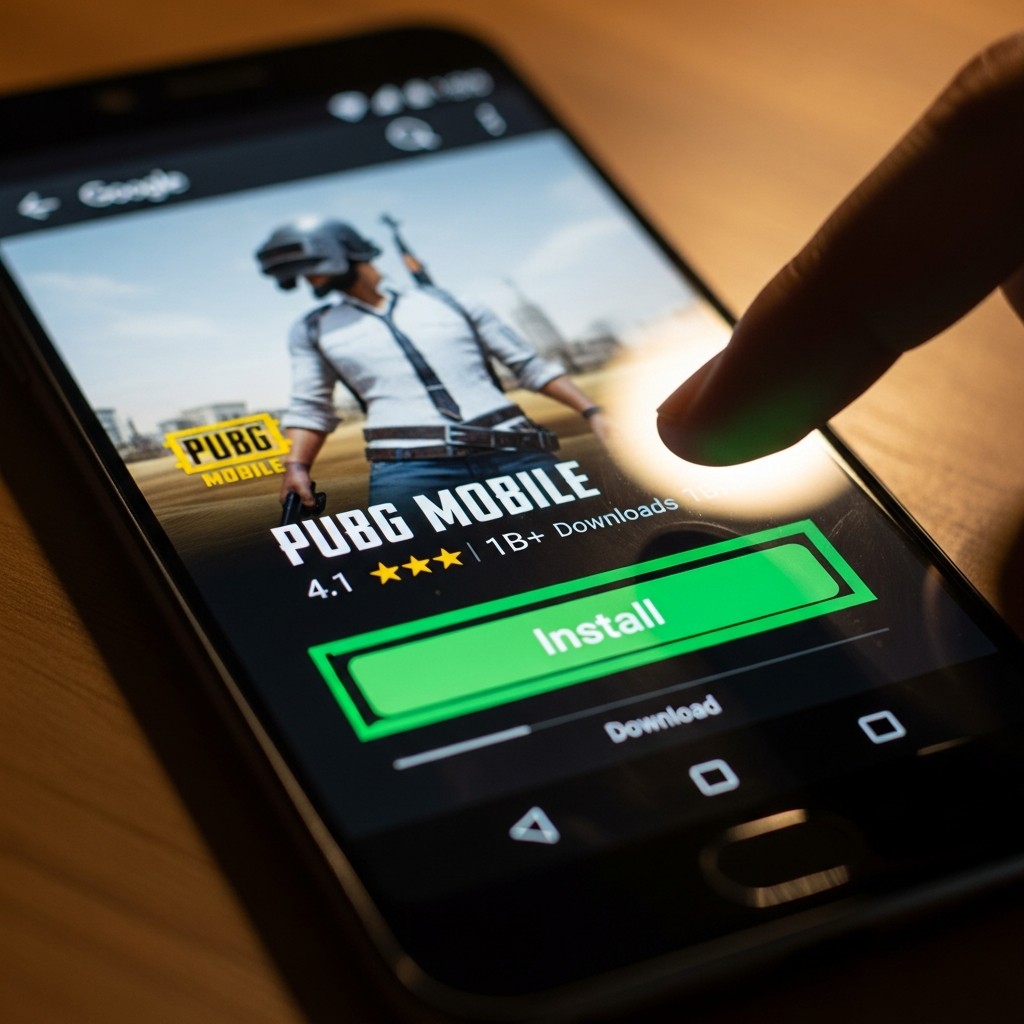
- Tap Install: Click the green Install button. It is highly recommended to use a Wi-Fi connection as the file size is approximately 1.5 GB to 2 GB.
- Grant Permissions: Once the download is complete, tap “Open.” The game will ask for permissions to access your storage and microphone. Grant these to ensure full functionality.
Method 2: Manual Installation using APK and OBB Files
Sometimes, the Play Store might not work due to regional locks or server issues. In such cases, you can manually install PUBG Mobile using the APK (Android Package) and OBB (Opaque Binary Blob) files.
What are APK and OBB Files?
The APK is the application installer, while the OBB file contains the heavy data such as graphics, maps, and audio. Without the OBB file, the game will not run even if the APK is installed.
Steps for Manual Installation:
- Download Official Files: Visit the official PUBG Mobile website (pubgmobile.com) to download the latest APK file. Avoid third-party sites that may host modified or malicious files.
- Enable “Unknown Sources”: Go to your phone’s Settings > Security (or Privacy) and toggle on the option to Install apps from Unknown Sources. On newer Android versions, you must grant this permission specifically to your browser or file manager.
- Install the APK: Locate the downloaded APK file in your “Downloads” folder and tap on it to install. Do not open the game yet.
- Place the OBB File: If you downloaded the OBB separately, you must move it to the correct directory. Use a file manager to navigate to:
Internal Storage > Android > obb. - Create Folder: Inside the
obbfolder, create a new folder namedcom.tencent.ig(for the Global version). - Paste the File: Paste the OBB file inside the
com.tencent.igfolder. - Launch the Game: Now, you can open PUBG Mobile. It will verify the files and start the additional resource download.
Method 3: Using Third-Party App Stores (TapTap or APKPure)
If you find the manual APK/OBB process too complicated, third-party stores like TapTap or APKPure offer a middle ground. These platforms automate the OBB placement for you.
How to use TapTap:
- Download the TapTap app from their official website.
- Open TapTap and search for “PUBG Mobile.”
- Choose the version you want (Global, KR, or VN).
- Click “Download.” The app will handle the installation of both the APK and the OBB data.
Note: While these stores are popular, always exercise caution and ensure you are downloading from reputable platforms to protect your data privacy.
Troubleshooting Common Installation Errors
Even with a clear guide, you might encounter issues. Here are the most common problems and how to fix them:
1. “App Not Installed” Error
This usually happens if there is a conflict with a previous version of the game. Uninstall any existing PUBG Mobile versions, clear your cache, and ensure you have enough storage space before trying again.
2. “Problem Parsing the Package”
This error indicates that the APK file was not downloaded completely or is corrupted. Delete the file and re-download it using a stable internet connection.
3. “Download Failed Because You May Not Have Purchased This App”
This occurs when the OBB file is missing or placed in the wrong directory. Double-check that the file is in Android/obb/com.tencent.ig/ and that the filename starts with main.xxxx.com.tencent.ig.obb.
4. Game Stuck on Loading Screen
This is often a network issue. Switch from mobile data to Wi-Fi or try using a DNS changer (like Google DNS 8.8.8.8) to resolve connection bottlenecks.
Optimizing PUBG Mobile for Better Performance
Once you have successfully installed PUBG Mobile on Android, the next step is ensuring it runs smoothly without lag or overheating.
Adjusting In-Game Graphics Settings
- Graphics: Set this to “Smooth.” This reduces the visual load on the GPU and increases the frame rate.
- Frame Rate: Set this to the highest available option (Ultra or Extreme). A higher frame rate provides a significant competitive advantage.
- Style: “Colorful” or “Classic” are preferred by most players for better enemy visibility.
- Anti-Aliasing: Disable this if you experience lag, as it consumes a lot of processing power.
System-Level Optimizations
- Disable Background Apps: Close all other apps before launching the game to free up RAM.
- Use Game Mode: Most modern Android phones (Samsung, Xiaomi, OnePlus) have a built-in “Game Turbo” or “Game Mode.” Enable this to prioritize network bandwidth and CPU for PUBG Mobile.
- Storage Management: Ensure at least 20% of your internal storage is free. SSD-based mobile storage slows down when nearly full, leading to stuttering.
Safety and Security Warnings
As a professional recommendation, always prioritize the security of your device and gaming account. The internet is full of “Modded APKs” promising free UC (Unknown Cash) or “Wallhacks.”
- Avoid Hacks: Using modified versions of PUBG Mobile will lead to a permanent 10-year ban by the anti-cheat system.
- Official Sources Only: Only download the game from the Play Store or official website. Third-party APKs can contain spyware or malware that steals your personal information.
- Two-Factor Authentication: Link your game account to Facebook, Twitter, or Google and enable 2FA to prevent hacking.
Conclusion
Learning how to install PUBG Mobile on Android is the first step toward joining a global community of millions of players. Whether you choose the straightforward Play Store route or the manual APK/OBB method, the key is to ensure your device meets the requirements and that you are using official files.
By following the troubleshooting and optimization steps outlined in this guide, you can enjoy a seamless gaming experience with minimal lag. Remember, the world of PUBG Mobile is constantly evolving with new updates and seasons, so always keep your app updated to the latest version to access new maps and features.
Now that you are ready, jump into the battleground, find your loot, and fight for survival. See you in the final circle!
Frequently Asked Questions (FAQ)
Can I play PUBG Mobile on a 2GB RAM phone?
Yes, you can, but you may experience lag and low frame rates. It is recommended to use the PUBG Mobile Lite version if your device has 2GB of RAM or less for a smoother experience.
How much total data is required for a full installation?
While the initial download is around 2 GB, the total size after downloading all maps (Miramar, Sanhok, Vikendi), resource packs, and skins can exceed 8 GB to 10 GB.
Is it legal to use an APK to install PUBG Mobile?
Yes, installing the game via an APK is legal as long as you are downloading the official, unmodified file from the developer. Using “cracked” or “modded” versions is against the terms of service.
Why is PUBG Mobile not showing up in my Play Store?
This could be because the game is restricted in your country or your device’s Android version is too old. In these cases, using the manual APK installation method is the only workaround.