Best Settings For Black Desert Mobile: The Ultimate Optimization Guide
Black Desert Mobile (BDM) is widely regarded as one of the most visually stunning MMORPGs available on mobile platforms. Powered by Pearl Abyss’s proprietary engine, it brings a PC-level graphical experience to the palm of your hand. However, with great visual fidelity comes a significant demand on your hardware. Whether you are playing on a flagship device or a budget smartphone, finding the best settings for Black Desert Mobile is crucial for a smooth, competitive, and enjoyable experience.
In this comprehensive guide, we will break down every menu option, from graphical presets to combat controls, to help you achieve the perfect balance between aesthetic beauty and high-performance gameplay.
Why Optimizing Your Settings Matters
Optimization in Black Desert Mobile isn’t just about making the game look “pretty.” It directly impacts your efficiency in various game modes. In high-stakes PvP (Player vs. Player) or Node Wars, a single frame drop can be the difference between landing a crowd-control skill or being defeated. Conversely, during long hours of AFK grinding (Black Spirit Mode or Sleep Mode), your priority shifts toward battery preservation and thermal management.
By following this guide, you will learn how to customize your experience based on your specific device capabilities and your current goals within the world of Elion and Hadum.
1. Graphics Settings: Balancing Beauty and Performance
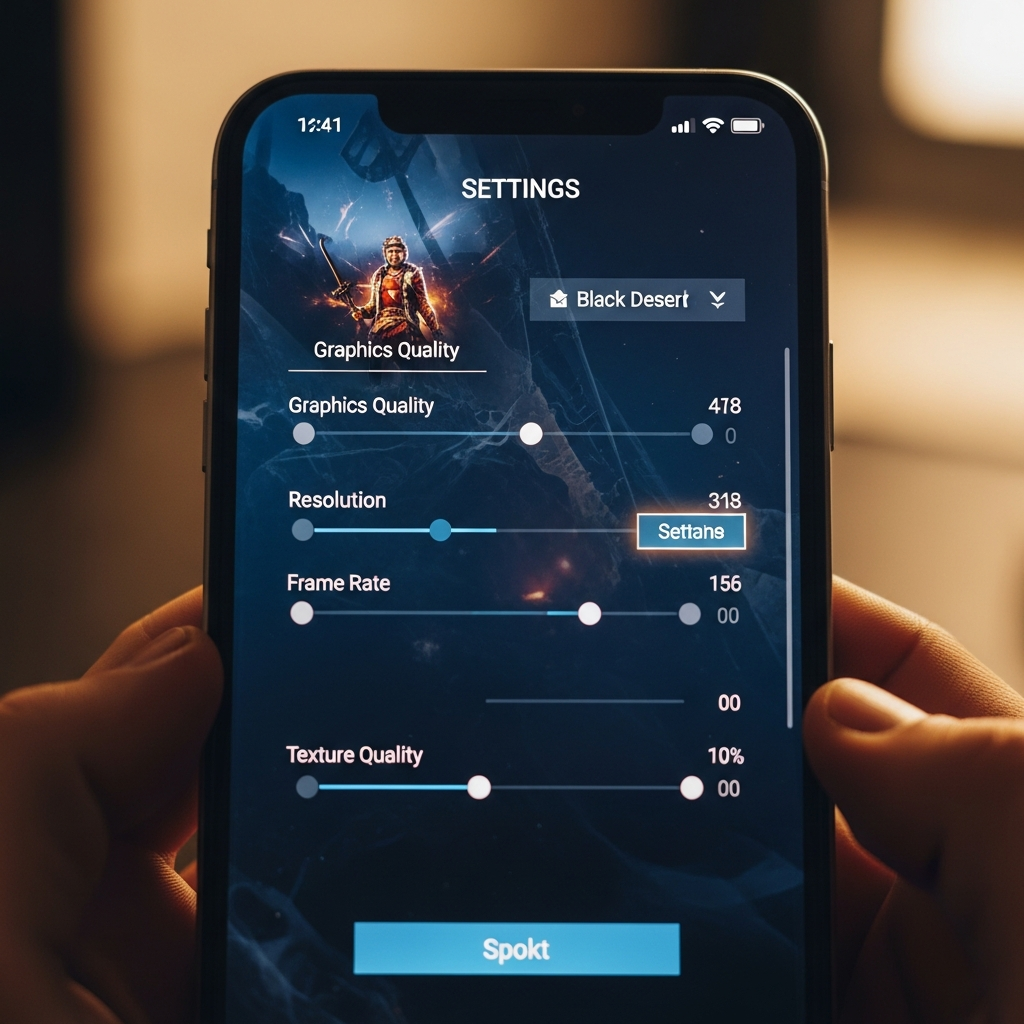
The Graphics menu is the most critical section for performance tuning. You can access this by navigating to Menu > Settings > Graphics.
Resolution
The Resolution setting determines the clarity of the image.
- High/Max: Recommended for high-end devices (iPhone 13+ or Snapdragon 8 Gen 1+). It makes the UI and character models look sharp.
- Medium/Low: If you notice “jagged” edges or if your device is heating up quickly, lowering the resolution is the fastest way to regain FPS.
Frame Limit (FPS)
This is arguably the most important setting. Black Desert Mobile supports up to 60 FPS (and in some regions/devices, higher).
- Recommendation: Always aim for the highest possible frame limit your device can sustain. High FPS reduces input lag and makes combat animations much smoother.
- Note: If your device throttles (slows down) after 15 minutes of play, consider capping this at 30 FPS to maintain consistency.
Texture Quality
Texture quality affects the detail on surfaces, armor, and environments.
- High: Requires significant VRAM. If you have 6GB of RAM or more, keep this on High.
- Low: If you experience crashes in crowded cities like Velia or Heidel, lowering textures will reduce the memory load.
Effects Quality
This controls the “flashiness” of skills. While beautiful, high effect quality is the primary cause of lag during World Bosses and Guild Wars.
- Pro Tip: Set this to “Low” or “Medium” during large-scale PvP to ensure you can actually see what is happening beneath the particle effects.
2. Best Settings for Low-End Devices (Smooth Gameplay)
If you are using an older device or a budget-friendly smartphone, your goal is to minimize the load on the GPU and CPU to prevent overheating. Use these specific best settings for Black Desert Mobile on low-end hardware:
- Resolution: Low or Medium
- Frame Limit: 30 FPS (Consistency is better than spikes)
- Texture: Low
- Effects: Low
- Shadows: Off
- Anti-Aliasing: Off
- Distances: Low
- Character Display Limit: 10-15 (Crucial for performance in towns)
By disabling Shadows and Anti-Aliasing, you remove a massive computational burden, allowing the game to run more fluidly during combat.
3. Best Settings for High-End Devices (Max Visuals)
If you own a flagship device and want to witness the full glory of the Remastered graphics, use these settings:
- Resolution: Max
- Frame Limit: Max (60 FPS)
- Texture: Max
- Effects: Max
- Anti-Aliasing: On (Smooths out edges)
- Depth of Field: On (Adds a cinematic blur to backgrounds)
- Bloom: On (Enhances light reflections)
Warning: Even on high-end devices, playing on “Max” settings for extended periods will drain your battery rapidly and generate heat. We recommend using these settings for manual play or taking screenshots, then switching to a “Performance” profile for overnight grinding.
4. Gameplay and Combat Settings Optimization
Performance isn’t just about graphics; it’s about how the game feels. The Settings > Gameplay tab contains options that can significantly improve your combat efficiency.
Camera Settings
- Camera Shake: Set to 0% or Low. While it adds “impact” to hits, it can be extremely disorienting in PvP and makes it harder to track enemy movements.
- Camera Zoom: Maximize your field of view. Being able to see more of the battlefield allows you to react to incoming threats from the side or rear.
Target Lock and Combat
- Auto-Targeting: Enable this for PvE grinding. For high-level PvP, you may want to practice manual targeting to prioritize squishy targets like Rangers or Magicians.
- Skill Camera Effects: Turn these OFF. These effects change the camera angle during certain skills, which can ruin your positioning during a fight.
5. UI and Convenience Settings
A cluttered screen can be distracting. Black Desert Mobile allows for deep UI customization.
- Alert Settings: Turn off “Other Players’ Loot” and “Marketplace Notifications.” These pop up constantly in the center of the screen and can be a major distraction.
- Quick Slot: Use the “Circular” or “Standard” layout based on your thumb size. Most competitive players prefer the layout that allows for the fastest access to health potions and dodge rolls.
- Transparency: You can adjust the transparency of the UI. Lowering the transparency of the chat box can help you focus on the environment.
6. Optimization for Specific Activities
Best Settings for PvP (Arena & Ramoness)
In PvP, performance is king. Visuals are secondary.
- Effects: Low (To see enemy animations clearly).
- Frame Rate: Max (Mandatory for timing dodges).
- Player Names: On (To identify targets quickly).
- Vibration: Off (Can be distracting during intense combos).
Best Settings for World Bosses
World Bosses involve dozens of players attacking a single entity.
- Character Display Limit: Set to the lowest possible value. You only need to see the boss, not the 50 other players.
- Effects Quality: Low. This prevents the “slide-show” effect when everyone uses their ultimate skills simultaneously.
7. Battery Saving and Thermal Management
Since Black Desert Mobile is a game designed for long-term progression, you will likely leave it running for hours. To protect your device’s longevity:
- Screen Saver Mode: Ensure this is set to activate after 1-3 minutes of inactivity. It lowers the brightness and frame rate significantly to save power.
- Black Spirit Mode: Use this when you cannot have the game open at all. It provides rewards for up to 3-6 hours (depending on your perks) without consuming any battery.
- Lower Brightness: Manually lowering your phone’s screen brightness is the most effective way to reduce heat.
8. Advanced Optimization: Using Emulators
Many players choose to play Black Desert Mobile on PC using emulators like BlueStacks, LDPlayer, or Nox. If you are using an emulator, the best settings for Black Desert Mobile involve more than just in-game menus:
- CPU Allocation: Assign at least 4 cores to the emulator.
- RAM Allocation: Assign at least 4GB of RAM.
- Graphics Engine Mode: Use OpenGL for better stability in BDM.
- DPI Settings: Higher DPI can make the game look sharper on a large monitor.
9. Frequently Asked Questions (FAQ)
Does high FPS affect attack speed?
While FPS doesn’t technically change the “stat” of your attack speed, higher FPS allows for smoother animation transitions. This makes it easier to chain combos perfectly, which can result in a higher damage output in real-world scenarios.
Why does my game lag even on low settings?
Lag can be caused by two things: hardware limitations or network latency (Ping). If the game “hitches” or “freezes,” it’s likely your hardware. If players are “teleporting” or your skills take a second to register, it is a network issue. Try switching from Wi-Fi to 4G/5G or vice versa.
What is the “Optimization” toggle in the menu?
This is a dynamic setting that automatically lowers graphics quality when the game detects a drop in frame rate. It is highly recommended for mid-range devices to ensure a consistent experience during unexpected action.
Should I turn on “Use Metal” or “Vulkan”?
Depending on your device, you might see options for different graphics APIs. Generally, Vulkan (on Android) and Metal (on iOS) provide better performance and efficiency than older standards. If available, keep them enabled.
Conclusion
Finding the best settings for Black Desert Mobile is a personal journey that depends on your hardware and your playstyle. If you want to appreciate the artistry of the world, crank the settings to Max. If you want to climb the ranks in the Arena, prioritize Frame Rate and visibility.
Remember to periodically check your settings after major game updates, as Pearl Abyss often introduces new optimization features or graphical enhancements. By following the configurations outlined in this guide, you are now equipped to experience Black Desert Mobile at its absolute best.
Happy adventuring, and may your RNG be ever in your favor!