Best Settings For Fortnite Mobile
Best Settings For Fortnite Mobile: The Ultimate Guide to Performance and Victory
Fortnite Mobile has redefined the possibilities of handheld gaming, bringing the full Battle Royale experience to the palm of your hand. However, unlike playing on a high-end PC or a dedicated console, mobile gaming presents unique challenges, particularly regarding hardware limitations and touch-screen ergonomics. To compete with the best, you cannot rely on default configurations.
Achieving the best settings for Fortnite Mobile is a delicate balance between visual clarity and raw performance. Whether you are playing on a flagship Android device or streaming via cloud services like Xbox Cloud Gaming or GeForce Now, optimizing your setup is the first step toward a Victory Royale. This comprehensive guide will walk you through every menu, slider, and toggle to ensure your game runs smoothly and your shots land consistently.
1. Understanding the Importance of Optimization
In a fast-paced game like Fortnite, a split-second delay can be the difference between winning a build battle and heading back to the lobby. Mobile devices often struggle with thermal throttling and frame drops. By fine-tuning your Fortnite Mobile performance, you reduce input lag and provide your brain with the most up-to-date information on screen.
Before diving into the menus, ensure your device is prepared. Close all background applications, disable power-saving modes, and ensure you have a stable internet connection. High-level mobile gaming is as much about the environment as it is about the software settings.
2. Graphics Settings: Prioritizing FPS Over Aesthetics
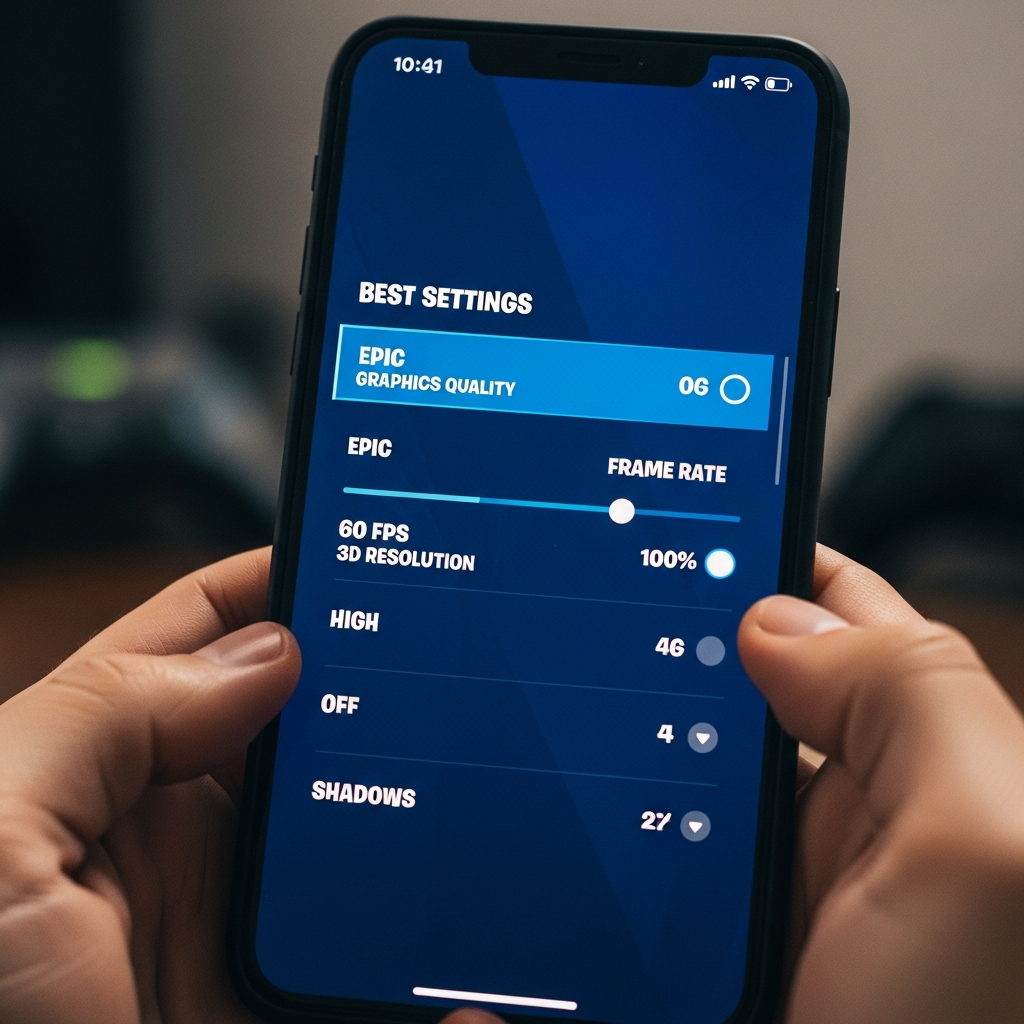
The golden rule for competitive Fortnite is: Frames Win Games. While the game can look beautiful on “Epic” settings, the resulting heat and lag will hinder your performance. Here are the recommended graphics settings for a competitive advantage.
Mobile Framerate (FPS)
Always set this to the highest possible value your device supports (e.g., 60 FPS, 90 FPS, or 120 FPS). A higher framerate makes the game feel more responsive and reduces the perceived delay between your touch and the action on screen. If your device fluctuates wildly, consider locking it at a stable 60 FPS rather than a jittery 90 FPS.
Quality Presets and 3D Resolution
- Quality Preset: Set this to “Low”. This removes unnecessary shadows and post-processing effects that clutter the screen and drain the battery.
- 3D Resolution: This is the most impactful setting for performance. For most devices, 75% to 85% is the sweet spot. It keeps the game looking sharp enough to see enemies at a distance while significantly boosting your FPS boost.
Advanced Graphics Toggles
- Allow Multithreaded Rendering: On (if available). This allows the game to utilize multiple CPU cores.
- Show FPS: On. Keeping this visible helps you identify when your device is overheating or when a specific area of the map is causing lag.
3. Mastering Sensitivity: Finding Your Aim
Your sensitivity settings are deeply personal, but there are established ranges that professional mobile players use to maintain accuracy while still being able to build 90-degree turns rapidly.
Touch Sensitivity
- Touch Look Sensitivity: 15% – 25%. This allows for precise aiming without feeling sluggish.
- Touch Aim Sensitivity (ADS): 10% – 15%. When aiming down sights, you need more control to track moving targets.
- Touch Scope Sensitivity: 30% – 40%. Sniping requires a slightly faster movement to lead shots effectively.
Building and Editing Sensitivity
Unlike aiming, you want your building sensitivity to be much higher. This allows you to spin rapidly to place walls or perform complex edits.
- Build Mode Sensitivity Multiplier: 1.5x – 2.0x.
- Edit Mode Sensitivity Multiplier: 1.5x – 1.8x.
By using multipliers, you can keep your combat aim steady while remaining a “cracked” builder.
4. The HUD Layout: Ergonomics for Success
The HUD (Heads-Up Display) is where mobile players win or lose. The default layout is often inefficient. To play at a high level, you must customize your touch controls using the HUD Layout Tool.
The “Claw” Grip vs. Two-Thumb Setup
If you are serious about Fortnite Mobile, you should transition to a 3-finger or 4-finger “Claw” grip. Using only your thumbs limits you to only two actions at once (moving and looking). A claw grip allows you to jump, build, and shoot simultaneously.
Essential HUD Tips:
- Button Size: Make your fire and jump buttons larger (120% – 150%) so you never miss a press during a chaotic fight.
- Opacity: Lower the opacity of buttons you have memorized. This clears up your field of vision, allowing you to see enemies more easily.
- Dedicated Edit Button: Place a dedicated edit button where your index finger can reach it instantly.
5. Game Settings and Combat Toggles
Beyond graphics and touch, the “Game” tab in settings contains several “hidden” gems that can automate tedious tasks and allow you to focus on the fight.
Movement and Building
- Toggle Sprint: Off (Use “Sprint by Default” instead).
- Sprint by Default: On. This saves your thumb from constant pressure and ensures you are always moving at top speed.
- Turbo Building: On. This is non-negotiable. It allows you to hold the build button to place structures continuously.
- Confirm Edit on Release: On. This significantly speeds up your editing speed, as you no longer need to tap twice to finish an edit.
Combat and Interaction
- Auto-Open Doors: On. This prevents you from getting stuck in your own builds during a fast-paced rotation.
- Auto-Pick Up Weapons: Off. You don’t want your inventory cluttered with “grey” loot during the early game.
- Auto-Sort Consumables to Right: On. This keeps your shields and medkits organized automatically, so your weapons are always in the first few slots.
6. Audio Settings for Tactical Awareness
In Fortnite, sound is just as important as sight. You need to know exactly where an opponent is before you see them.
- Visualize Sound Effects: On. This is the single most important setting for mobile players. It provides visual cues on your screen for footsteps, chest hums, and gunfire. It is essentially a legal “radar” that compensates for mobile speakers’ lack of spatial depth.
- Sound Quality: Low. On mobile, “High” sound quality can cause frame drops and doesn’t provide a significant tactical advantage over “Low.”
7. Mobile Gaming Optimization: External Factors
Even with the best settings for Fortnite Mobile, your hardware can still be a bottleneck. Here is how to ensure your phone is running at its peak.
Thermal Management
Phones generate immense heat while playing Fortnite. When a phone gets too hot, it “throttles” the CPU, causing your FPS to drop to 10 or 20.
- Play in a cool environment.
- Remove your phone case to allow heat to dissipate.
- Consider a mobile cooling fan if you play for extended sessions.
Network Stability
Lag spikes are the enemy of the mobile gamer.
- Use a 5GHz Wi-Fi connection rather than 2.4GHz.
- If you are close to your router, consider a USB-C to Ethernet adapter for a “hardwired” mobile experience.
- Disable “Background App Refresh” in your phone settings to prevent other apps from stealing bandwidth.
8. Controller Settings for Mobile
Many players prefer using a controller (like a PlayStation DualSense, Xbox Controller, or Razer Kishi) with their mobile device. If you use a controller, your settings should mirror those of a console pro.
- Look Input Curve: Linear (for raw input) or Exponential (for smoother tracking).
- Deadzone Settings: Set as low as possible (usually 5% – 10%) without causing “stick drift.” This makes your movements instant.
- Aim Assist: Ensure this is always enabled. Controller players on mobile rely heavily on aim assist to compete with touch-screen flick shots.
9. Troubleshooting Common Fortnite Mobile Issues
“My game keeps crashing!” This is often due to a lack of RAM. Ensure all other apps are closed. If the problem persists, try lowering your 3D resolution further or reinstalling the game to clear cached data.
“I can’t see players in the distance.” This is a side effect of “Low” graphics. To fix this, slightly increase your 3D resolution. Even a 5% increase can make a world of difference in clarity.
“The touch controls feel unresponsive.” Check if you have a thick screen protector. Some protectors interfere with multi-touch gestures. Also, ensure your hands and the screen are clean and dry.
10. Conclusion: The Path to Pro Mobile Play
Finding the best settings for Fortnite Mobile is not a “one-and-done” task. It is an evolving process. As you get better at the game, you may find that you need higher sensitivity or a more complex HUD layout. The settings provided in this guide offer a professional-grade foundation designed to maximize your Fortnite Mobile performance and FPS boost.
Remember, the most important setting is your own comfort. Use these recommendations as a starting point, spend time in Creative Mode to test them out, and don’t be afraid to make small adjustments. With the right configuration, your mobile device becomes a powerful tool capable of taking down players on any platform. Now, get out there, optimize your game, and claim your next Victory Royale!
Frequently Asked Questions (FAQ)
What are the best graphics settings for Fortnite Mobile?
The best graphics settings for competitive play are “Low” Quality Presets with a 3D Resolution between 75% and 85%. This ensures the highest possible FPS and reduces input lag.
How can I get 60 FPS or 90 FPS on Fortnite Mobile?
First, check if your device supports these framerates in the “Video” settings tab. To maintain a high FPS, keep your device cool, close background apps, and set your graphics to “Low.”
Should I use “Visualize Sound Effects” on mobile?
Yes, absolutely. Visualize Sound Effects provides a visual indicator for every sound in the game, which is crucial for mobile players who may not have high-end headphones or are playing in noisy environments.
What is the “Claw” grip in Fortnite Mobile?
The “Claw” grip involves using your index fingers in addition to your thumbs to tap the screen. This allows you to perform multiple actions like jumping, aiming, and shooting at the same time.
How do I fix lag on Fortnite Mobile?
Fix lag by using a 5GHz Wi-Fi connection, lowering your 3D resolution, disabling background apps, and ensuring your device is not in power-saving mode.