How to Fix Black Desert Mobile Not Working or Crashing: A Comprehensive Troubleshooting Guide
Black Desert Mobile (BDM) is arguably one of the most visually stunning MMORPGs available on mobile platforms today. Developed by Pearl Abyss, it offers a vast open world, intricate character customization, and high-octane combat. however, the high-fidelity graphics and complex systems come at a cost: significant demand on your device’s hardware and software stability.
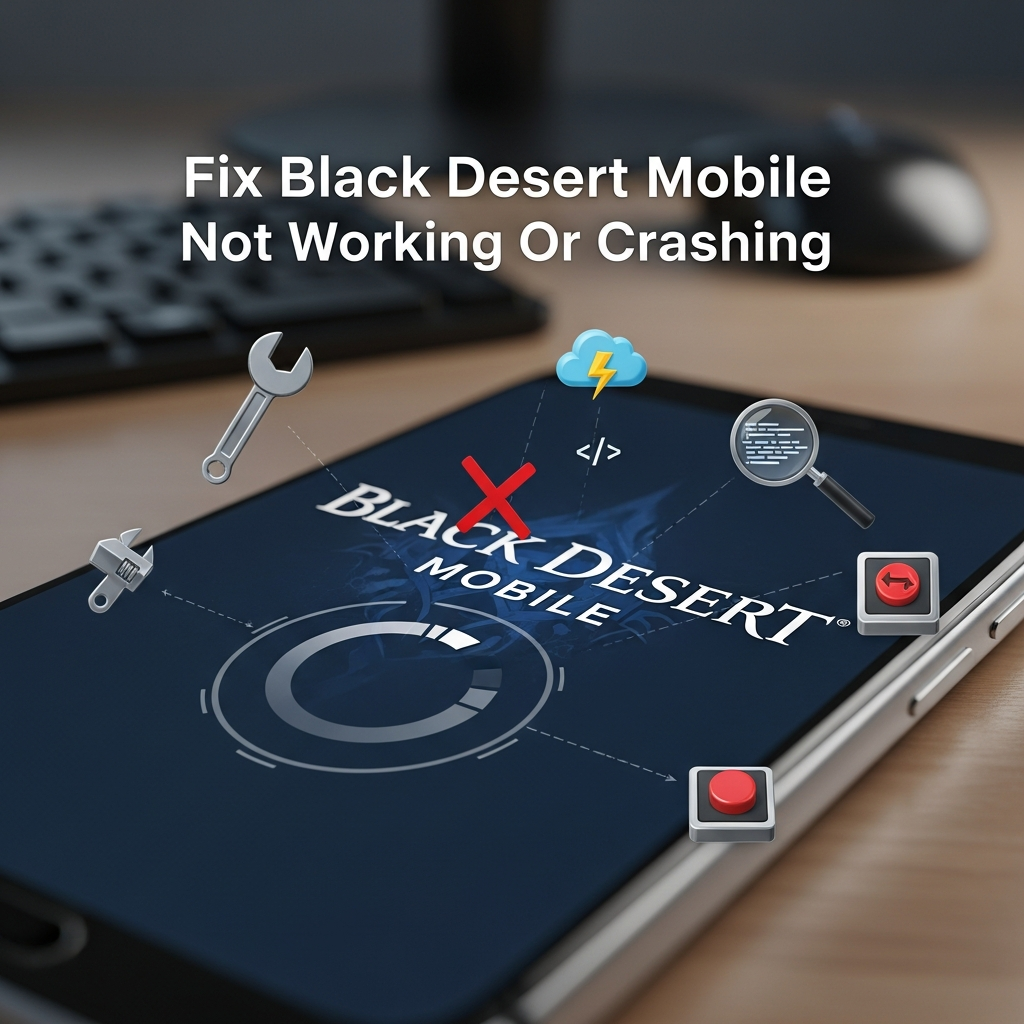
There is nothing more frustrating than your game crashing in the middle of a high-stakes Node War or failing to launch right when you have time for your daily quests. If you are experiencing Black Desert Mobile not working, frequent crashes, or the dreaded black screen, you are not alone. These issues can stem from various sources, ranging from server-side maintenance to local device optimization problems.
This guide provides a deep dive into every possible solution to get your game running smoothly again. We will cover everything from basic restarts to advanced system configurations for both Android and iOS users.
Understanding Why Black Desert Mobile Crashes
Before diving into the solutions, it is essential to understand why Black Desert Mobile crashing occurs. Identifying the root cause can save you hours of unnecessary troubleshooting. Generally, these issues fall into three categories:
- Hardware Limitations: Your device may not meet the minimum or recommended system requirements to handle the game’s heavy assets.
- Software Conflicts: Corrupted cache files, outdated operating systems, or background applications interfering with the game’s processes.
- Network Instability: BDM is an “always-online” game. Even a minor hiccup in your internet connection can cause the client to disconnect or close unexpectedly.
Step 1: Verify System Requirements and Storage Space
The first step in any troubleshooting process is ensuring your hardware is capable of running the software. Black Desert Mobile is a resource-intensive application that requires modern hardware to function correctly.
Minimum Requirements for Android
- OS: Android 6.0 (Marshmallow) or higher.
- RAM: At least 3GB (4GB+ highly recommended).
- Storage: Minimum 10GB of free space (the game grows with updates).
Minimum Requirements for iOS
- OS: iOS 11.0 or higher.
- Device: iPhone 6S or newer.
- Storage: Minimum 10GB of free space.
Expert Tip: Even if you meet the minimum requirements, running the game on low-end hardware often leads to thermal throttling. When your phone gets too hot, the CPU slows down, causing Black Desert Mobile lag and eventual crashes.
Step 2: Perform a Clean Restart of Your Device
It may sound overly simplistic, but a device restart is often the most effective way to clear out minor software glitches. Over time, your device accumulates “zombie processes”—apps that didn’t close properly and continue to consume RAM.
To perform a proper restart, do not just lock and unlock your screen. Power the device down completely, wait for 30 seconds to allow the capacitors to discharge, and then turn it back on. This refreshes the system memory and gives BDM a “clean slate” to work with.
Step 3: Clear Cache and Data (Android Only)
If the game crashes specifically during the loading screen or while downloading patches, the issue is likely a corrupted cache file. Android allows you to clear these temporary files without deleting your actual game account.
- Open Settings on your Android device.
- Navigate to Apps or Application Manager.
- Find Black Desert Mobile in the list.
- Tap on Storage.
- Select Clear Cache.
Note: Avoid selecting “Clear Data” unless you have linked your account to a social media profile (Google, Facebook, or Line). Clearing data will delete your guest login information and require you to redownload all game assets.
Step 4: Optimize In-Game Graphics Settings
If you find that Black Desert Mobile closes automatically during combat or in crowded towns like Velia, your graphics settings are likely too high for your device’s GPU. You need to find a balance between visual fidelity and stability.
Access the Settings menu in-game and navigate to the Graphics tab. We recommend the following “Stability First” configuration:
- Frame Limit: Set to 30 FPS (high FPS increases heat and crash risk).
- Resolution: Set to Medium or Low.
- Texture Quality: Set to Medium.
- Effects: Set to Low (this significantly reduces crashes during group combat).
- Other Players’ Effects: Turn off or set to “Minimal”.
By lowering these settings, you reduce the strain on your device’s VRAM, which is a common culprit for mid-game crashes.
Step 5: Check for Server Maintenance and Network Issues
Sometimes, the problem isn’t your device at all. Pearl Abyss conducts regular weekly maintenance. If you see a “Failed to Connect” message or the game stuck on the splash screen, check the official Black Desert Mobile Twitter or official website for maintenance notices.
If the servers are up, but you are still experiencing Black Desert Mobile connectivity issues, try these steps:
- Toggle Airplane Mode: Turn it on for 10 seconds and then off to refresh your network signal.
- Switch from Wi-Fi to Mobile Data: Sometimes specific Wi-Fi routers have firewall settings that block BDM’s ports.
- Use a Gaming VPN: If your ISP is throttling your connection to game servers, a reputable VPN can provide a more stable route.
Step 6: Update Your Operating System and Game Client
Running an outdated version of Android or iOS can lead to compatibility layers failing. Developers often optimize games for the latest OS versions. Ensure your device is fully updated by going to Settings > System Update.
Similarly, ensure the game client itself is updated. Sometimes the in-game patcher fails, and you must manually trigger an update through the Google Play Store or Apple App Store. If you see an “Update” button instead of “Open,” tap it immediately.
Step 7: Disable Background Apps and Overlays
Black Desert Mobile requires almost all available system resources. If you have apps like Facebook, Discord, or YouTube running in the background, they compete for RAM. Furthermore, screen recording software or “Game Booster” overlays can sometimes conflict with the game’s engine.
Before launching BDM, use your device’s task switcher to close all other applications. If you are on Android, you can go to Developer Options and limit background processes to “No background processes” for a temporary performance boost.
Step 8: The “Last Resort” – Reinstalling Black Desert Mobile
If you have tried all the above and Black Desert Mobile keeps crashing, your installation files may be fundamentally broken. A complete reinstallation is often the only way to fix deep-seated file corruption.
- Ensure your account is linked (Google, Facebook, etc.). Do not skip this, or you will lose your character.
- Uninstall the game from your device.
- Go to your App Store and download a fresh copy.
- Ensure you have a stable Wi-Fi connection, as you will need to download several gigabytes of data.
Advanced Troubleshooting: Fix BDM Black Screen on Startup
The Black Desert Mobile black screen issue is usually related to the game’s inability to initialize the graphics engine. This often happens on devices with “Game Mode” features or custom screen resolutions.
Try disabling any “Force 4K” or “High Performance” modes in your phone’s battery settings. Additionally, if you are using an emulator on PC (like BlueStacks or LDPlayer), ensure that you are using the 64-bit version of the emulator and have VT (Virtualization Technology) enabled in your BIOS.
Frequently Asked Questions (FAQ)
Why does Black Desert Mobile crash after an update?
Updates often introduce new assets that may conflict with old cache files. Clearing your cache or performing a “File Verification” from the login screen usually fixes this.
Can I play BDM on a 2GB RAM phone?
While the game might install, it is highly likely to crash during the tutorial or in any populated area. 3GB is the absolute minimum for a stable experience.
Does overheating cause the game to close?
Yes. Most modern smartphones have a safety feature that closes intensive apps if the internal temperature exceeds a certain threshold to prevent hardware damage.
Conclusion
Fixing Black Desert Mobile not working issues requires a systematic approach. By checking your hardware compatibility, managing your device’s memory, and optimizing in-game settings, you can eliminate the majority of crashes. Remember to keep your device cool and your software updated to ensure the best experience in the world of Black Desert.
If you have followed every step in this guide and the game still refuses to function, we recommend contacting Pearl Abyss Support directly through their official portal, providing them with your device model and a detailed description of the error code.