How to Fix Bully Anniversary Edition Not Working or Crashing: A Comprehensive Guide
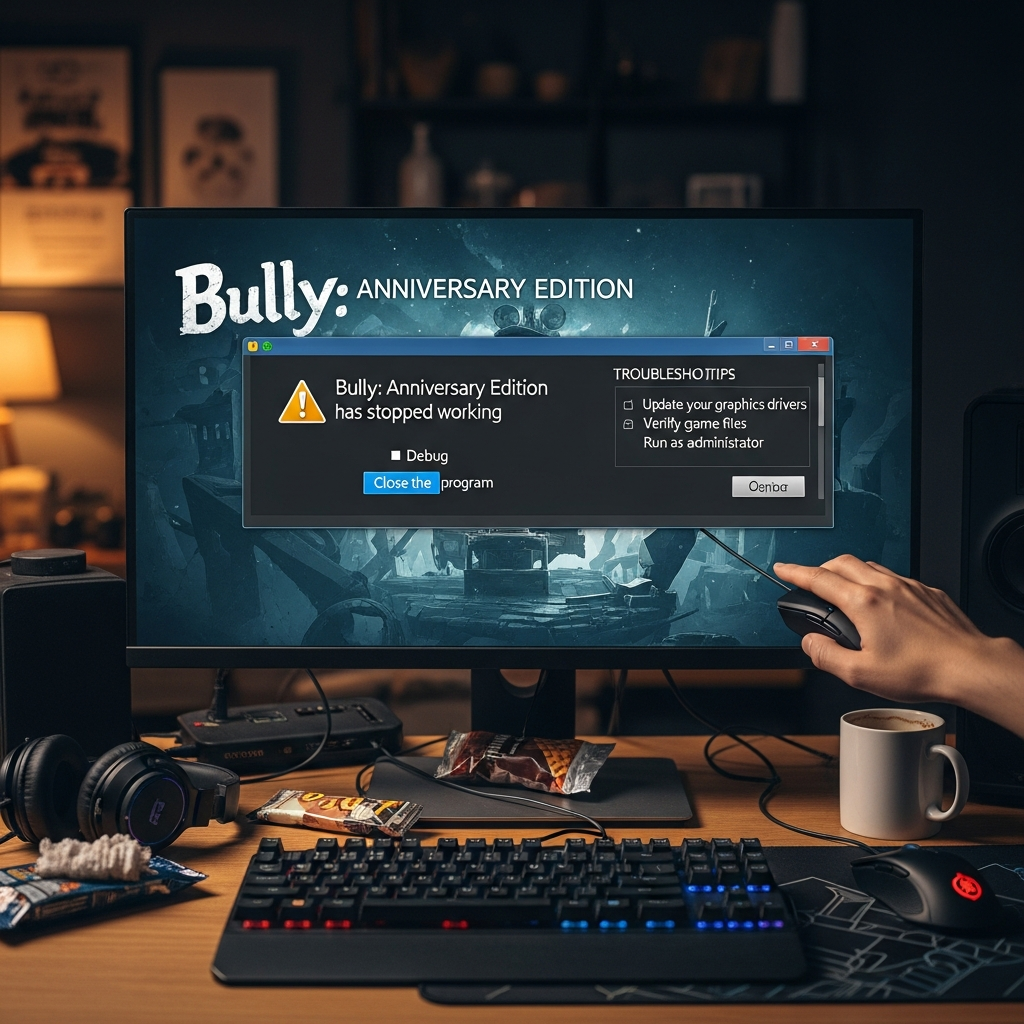
Bully: Anniversary Edition remains one of the most beloved titles from Rockstar Games, bringing the mischievous adventures of Jimmy Hopkins at Bullworth Academy to mobile devices and modern platforms. However, as technology evolves, many players encounter frustrating technical hurdles. You may find that the game refuses to open, crashes during the loading screen, or displays a persistent black screen that prevents you from playing.
The transition of classic games to newer operating systems often leads to compatibility issues. Whether you are running the game on a modern Android smartphone or using an emulator on your PC, these errors are common but solvable. This guide provides a detailed, step-by-step approach to troubleshooting and fixing Bully Anniversary Edition so you can return to the halls of Bullworth without interruption.
Understanding Why Bully Anniversary Edition Crashes
Before diving into the solutions, it is essential to understand the underlying causes of these technical failures. Most issues stem from the fact that the game was developed for older versions of mobile operating systems. When you try to run it on Android 11, 12, 13, or 14, the security protocols and file management systems differ significantly from what the game expects.
Common reasons for crashes include incompatible API levels, incorrect placement of OBB files, insufficient RAM allocation, or corrupted game data. Additionally, modern hardware optimizations can sometimes conflict with the game’s older engine. By identifying the specific nature of your problem, you can apply the most effective fix from the list below.
Solution 1: Checking and Granting Necessary Permissions
Modern Android versions utilize a feature called Scoped Storage, which limits how apps access your device’s files. If Bully does not have the “All Files Access” or storage permission, it will likely crash immediately upon startup because it cannot read the necessary game assets.
- Open the Settings menu on your mobile device.
- Navigate to Apps or Application Manager.
- Find Bully in the list of installed applications.
- Tap on Permissions and ensure that Storage (or Files and Media) is set to Allow.
- On newer devices, look for a special permission called Install Unknown Apps or All Files Access and enable it if available.
Solution 2: Verifying OBB File Placement
The OBB (Opaque Binary Blob) file contains the bulk of the game’s data, including graphics, sounds, and levels. If this file is missing, renamed, or placed in the wrong directory, the game will show a black screen or a “Download failed” error. This is one of the most frequent reasons why the game is not working.
To verify your OBB files, follow these steps:
- Use a File Manager app (like ZArchiver) to navigate to Internal Storage > Android > obb.
- Ensure there is a folder named com.rockstargames.bully.
- Inside this folder, you should see one or two files ending in .obb.
- If the folder or files are missing, you must reinstall the game or manually move the data files to this exact location.
Solution 3: Clearing Cache and Data
Sometimes, temporary files or corrupted cache settings can prevent the game engine from initializing correctly. Clearing the cache is a safe way to reset the app’s temporary state without deleting your actual save progress, though clearing “Data” will reset the game entirely.
- Go to Settings > Apps > Bully.
- Select Storage.
- Tap on Clear Cache.
- Restart your device and attempt to launch the game again.
- If the game still crashes, you may need to select Clear Data, but be aware this will remove your settings and offline saves.
Solution 4: Fixing Compatibility on Android 11 and Newer
If you are using a modern flagship device, the primary reason for Bully Anniversary Edition crashing is the operating system itself. The game has not received an official update in several years, making it incompatible with the latest Android kernels. Many users have found success using community-made patches or specific workarounds.
Using the “No-Crash” Patch
The gaming community has developed modified APK files designed to bypass the startup checks that cause crashes on Android 11+. While we recommend using official versions, searching for a Bully Anniversary Edition 1.0.0.19 fix or similar community patches can often resolve the issue. Always ensure you download from reputable community forums.
Using Virtual Machines (VMOS)
If the game refuses to run natively, you can use a Virtual Machine app like VMOS. This allows you to run an older version of Android (like Android 7 or 9) inside your current phone. Because the virtual environment matches the game’s requirements, the crashes usually disappear completely.
Solution 5: Adjusting In-Game Graphics Settings
If the game starts but crashes during gameplay or when entering a new area, the issue might be related to hardware strain or memory leaks. Lowering the graphical fidelity can stabilize the frame rate and prevent the OS from killing the app process to save memory.
- Launch the game and navigate to the Settings menu.
- Go to the Display or Graphics tab.
- Lower the Resolution to 70% or 80%.
- Set Shadows to “Off” or “Low”.
- Turn off Anti-Aliasing and set Clarity to a lower value.
- Disable Haptic Feedback as it has been known to cause crashes on certain devices.
Solution 6: Solving Crashes on PC Emulators
Many players prefer to play the Anniversary Edition on PC using emulators like BlueStacks, LDPlayer, or Nox. If the game is not working on an emulator, the fix usually involves changing the rendering engine or increasing allocated resources.
- Change Graphics Engine: Switch between OpenGL and DirectX in the emulator settings. OpenGL is generally more compatible with Rockstar titles.
- Allocate More RAM: Ensure the emulator has at least 4GB of RAM and 4 CPU cores assigned to it.
- Device Profile: Change the device profile in the emulator settings to an older model, such as the Samsung Galaxy S8 or Google Pixel 2, which are known to run the game more stably.
Solution 7: Disabling Full-Screen Optimizations (For PC Users)
If you are playing a version of Bully on PC and experiencing crashes, Windows 10 and 11 features like “Full-screen Optimizations” can interfere with the game’s display hooks. Turning this off can improve stability significantly.
- Right-click the Bully.exe file or its shortcut.
- Select Properties and go to the Compatibility tab.
- Check the box that says “Disable full-screen optimizations”.
- Check “Run this program as an administrator”.
- Click Apply and OK.
Essential Tips for a Smooth Experience
To ensure that Bully Anniversary Edition remains stable over long play sessions, you should follow these best practices. First, always close all background applications before starting the game. Apps like Facebook, Instagram, or Chrome consume significant RAM that the game needs for asset streaming.
Second, avoid using “Game Booster” apps that force-close processes aggressively. Sometimes these boosters kill essential system services that the game relies on for sound or licensing checks. Instead, use the built-in “Gaming Mode” provided by your device manufacturer (like Samsung’s Game Launcher or Xiaomi’s Game Turbo).
Updating Your Device Software
While newer Android versions can cause issues, sometimes a specific system update contains a fix for the graphics drivers. Check your device settings for any pending System Updates. Manufacturers often release patches that improve “Legacy App Compatibility,” which might be exactly what you need.
Reinstalling the Game
If all else fails, a clean reinstallation is necessary. Delete the app, go to your file manager and delete the com.rockstargames.bully folder from the OBB directory, and restart your phone. Download the game again from the Google Play Store to ensure you have the most recent official files.
Conclusion
Fixing Bully Anniversary Edition when it is not working or crashing requires a bit of patience and technical adjustment. From managing OBB files to using virtual environments or community patches, there is almost always a way to get Jimmy Hopkins back into action. By following the steps outlined in this guide, you can overcome the limitations of modern software and enjoy one of the greatest open-world games ever made.
Remember to keep your device’s storage organized and always back up your save files manually if you plan on experimenting with different APK versions or system settings. With the right configuration, Bullworth Academy is ready for your return.
Summary Table of Fixes
- Black Screen: Check OBB file placement and permissions.
- Crash on Startup: Use a Virtual Machine (VMOS) or compatibility patch.
- Lag/In-game Crash: Lower graphics settings and clear cache.
- Emulator Issues: Switch to OpenGL and increase RAM allocation.