How to Install Dragon Ball Legends on Android: The Ultimate Step-by-Step Guide
Dragon Ball Legends has redefined the mobile gaming landscape, offering high-octane 3D action-RPG gameplay that brings the iconic world of Akira Toriyama to the palm of your hand. Whether you are a fan of Goku, Vegeta, or the mysterious Shallot, the urge to dive into these Saiyan battles is undeniable. However, many users encounter hurdles when trying to download and set up the game.
You may find that the game is “not compatible with your device” or perhaps it is “not available in your region.” These obstacles can be frustrating for any eager gamer. This comprehensive guide is designed to walk you through every possible method to install Dragon Ball Legends on Android, ensuring you can join the fray regardless of your technical background.
In this pillar article, we will explore the official installation methods, the nuances of sideloading via APK files, and how to bypass geographical restrictions. We will also provide expert troubleshooting tips to ensure your installation remains stable and secure.
Understanding the Minimum System Requirements
Before you attempt to install Dragon Ball Legends on Android, it is imperative to verify that your hardware can handle the game’s intense graphical demands. Bandai Namco has optimized the game well, but it still requires a modern smartphone to run smoothly at high frame rates.
Minimum Hardware Specifications
- Operating System: Android 6.0 (Marshmallow) or higher.
- Processor: Quad-core 1.4 GHz or better.
- RAM: At least 2GB (3GB or higher is strongly recommended for PvP stability).
- Storage Space: Initial download is small, but the full game data requires approximately 4GB to 6GB of free space.
Recommended Specifications for Competitive Play
If you intend to participate in high-level PvP (Player vs. Player) matches, you will need a device that minimizes input lag. A device with a Snapdragon 800-series processor (or equivalent) and at least 4GB of RAM will provide the smoothest experience. Furthermore, a stable Wi-Fi connection is more critical than hardware for maintaining a consistent battle rank.
Method 1: Installing via the Official Google Play Store
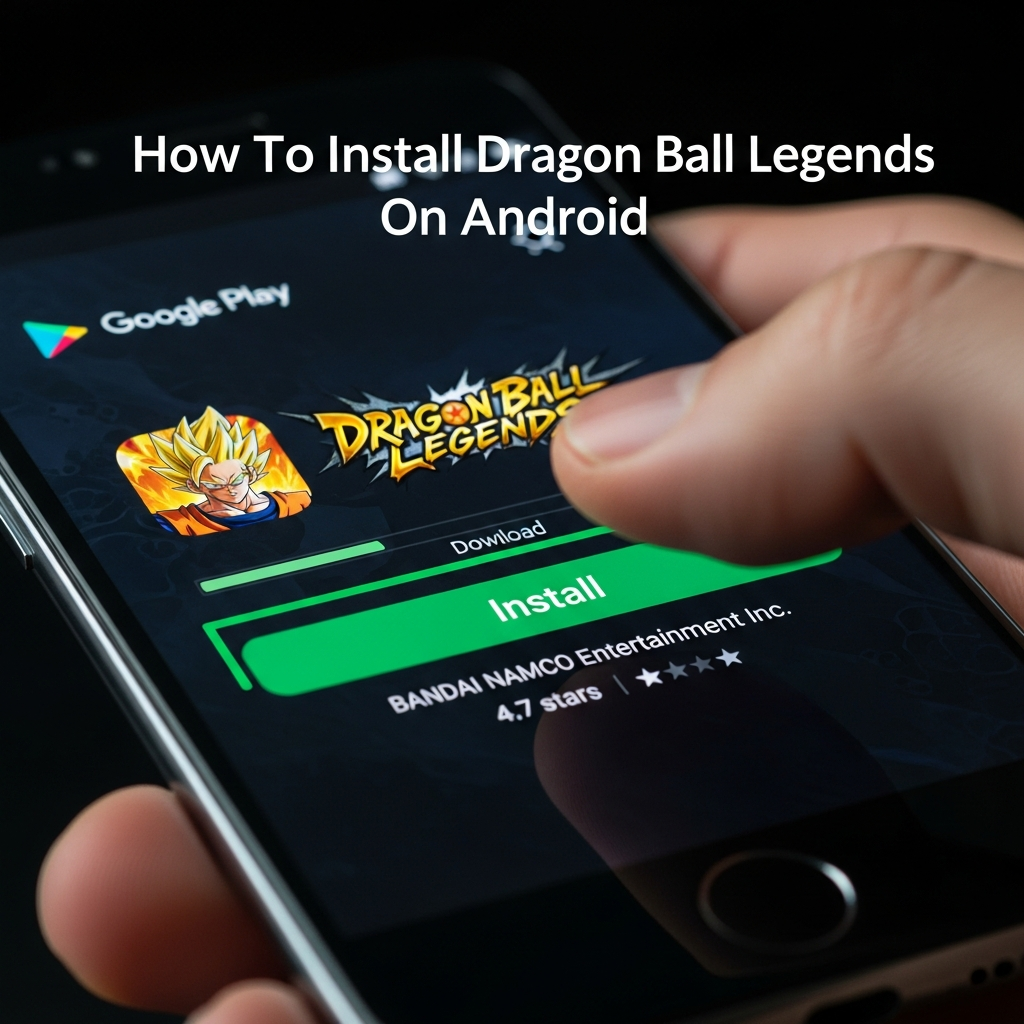
The most secure and straightforward way to install Dragon Ball Legends on Android is through the official Google Play Store. This method ensures that you receive automatic updates and that your game data is securely linked to your Google account.
Step-by-Step Play Store Installation
- Open the Google Play Store: Locate the Play Store icon on your Android home screen or app drawer.
- Search for the Game: Type “Dragon Ball Legends” into the search bar at the top of the screen.
- Select the Correct App: Tap on the official version published by Bandai Namco Entertainment Inc.
- Tap Install: Click the green “Install” button. The store will begin downloading the base application.
- Launch and Patch: Once installed, open the app. You will be prompted to download additional game data. You should use a Wi-Fi connection for this step.
Pro Tip: If the “Install” button is replaced by a message saying “Your device isn’t compatible with this version,” do not worry. You can still install the game using the alternative methods listed later in this guide.
Method 2: How to Sideload Dragon Ball Legends (APK & XAPK)
Sideloading is the process of installing an application using an APK (Android Package) file instead of the official store. This is particularly useful if your device is flagged as incompatible or if you are using a device without Google Play Services, such as newer Huawei models.
Is Sideloading Safe?
Sideloading is safe as long as you source your files from reputable repositories. You should avoid “modded” or “hacked” APKs, as these often contain malware and can lead to a permanent ban of your game account. Stick to trusted sites like APKMirror or TapTap.
Steps to Install via APK
- Enable Unknown Sources: Go to your device Settings > Security (or Apps & Notifications) and toggle on “Install Unknown Apps” for your mobile browser.
- Download the APK: Visit a trusted APK provider and download the latest version of Dragon Ball Legends.
- Locate the File: Open your “Downloads” folder using a File Manager app.
- Execute Installation: Tap on the APK file and select “Install.”
- Handle XAPK/OBB Files: If you downloaded an XAPK file, you might need an “XAPK Installer” app from the Play Store to correctly place the OBB (data) files.
After the installation is complete, you can launch the game. You will still need to download the internal game assets upon the first launch. Ensure you have a stable internet connection during this process.
Method 3: Bypassing Region Locks Using a VPN
In some instances, Dragon Ball Legends might not be available in your specific country. This is often due to licensing agreements or local regulations. However, you can bypass these restrictions by using a Virtual Private Network (VPN).
How to Change Your Play Store Region
- Download a VPN: Install a reputable VPN service (like ExpressVPN or NordVPN) from the Play Store.
- Connect to a Supported Region: Set your VPN location to the United States, Japan, or any country where the game is officially available.
- Clear Play Store Cache: Go to Settings > Apps > Google Play Store > Storage and tap “Clear Cache” and “Clear Data.”
- Force Stop Play Store: Go back one screen and tap “Force Stop.”
- Relaunch Play Store: Open the Play Store again. It should now reflect the library of the region you connected to via VPN.
- Search and Install: Search for “Dragon Ball Legends” and the “Install” button should now be active.
Important Note: You only need the VPN for the initial installation and occasionally for updates. Once the game is installed and the data is downloaded, you can usually play without the VPN active, though some regions may still require it for login.
Optimizing Dragon Ball Legends for the Best Experience
Once you successfully install Dragon Ball Legends on Android, the next step is ensuring the game runs at its peak performance. Lag during a Rising Rush or a vanishing step can mean the difference between victory and defeat.
Adjusting In-Game Graphics Settings
Navigate to the “Menu” then “Other” and finally “Options.” Under the “Graphics” tab, you can adjust several settings:
- Graphics Quality: Set this to “High” if you have a flagship device. If you experience stuttering, move it to “Medium” or “Low.”
- Energy Saving Mode: Ensure this is OFF for maximum frame rates. Turning it on caps the FPS at 30, which makes the game feel sluggish.
- Screen Resolution: Lowering this can significantly improve performance on older Android devices.
Managing Storage and Data
Dragon Ball Legends allows you to choose between “Download All” and downloading data as you go. We highly recommend using the “Download All” feature in the options menu. While it takes up more storage space, it prevents long loading screens and mid-match lag caused by data streaming.
Troubleshooting Common Installation Errors
Even with a perfect guide, Android’s diverse ecosystem can lead to specific errors. Here are the most common issues and how to fix them.
“App Not Installed” Error
This is a generic error that usually stems from one of three things: 1. Insufficient Storage: Ensure you have at least 5GB of free space. 2. Conflicting Version: If you have a previous version of the game (perhaps a modded one), you must uninstall it completely before installing a new APK. 3. Corrupt File: Re-download the APK file as it may have been corrupted during the transfer.
Black Screen on Startup
If the game launches to a black screen, it often indicates that the OBB (Obb Data) file is missing or placed in the wrong directory. Ensure the data is located in Internal Storage > Android > obb > com.bandainamcoent.dblegends_google.
Communication Error (Error Code: CR901001)
This is usually a network-related issue. Try switching from Wi-Fi to mobile data or vice versa. If you are using a VPN, try disconnecting it or switching to a different server. Clearing the game’s cache from the Android settings menu can also resolve persistent connection bugs.
Linking Your Account to Prevent Data Loss
After you install Dragon Ball Legends on Android and start making progress, the last thing you want is to lose your hard-earned Chrono Crystals and characters. The game does not automatically save your progress to the cloud unless you link an account.
Go to Menu > Other > Data Transfer Settings. You can link your account to: – Google Account – Facebook – Bandai Namco ID – Twitter (X)
By linking your account, you can easily transfer your progress to a new phone or recover your data if you ever need to reinstall the game.
Conclusion: Ready for Battle
Installing Dragon Ball Legends on your Android device is the first step toward becoming a legendary warrior. Whether you use the standard Play Store method, explore the flexibility of APK sideloading, or use a VPN to cross borders, the world of Dragon Ball is now within your reach.
Remember to keep your device updated, manage your storage wisely, and always link your account to secure your progress. Now that you know how to install Dragon Ball Legends on Android, it is time to summon your favorite characters and dominate the Hyperdimensional Co-Op and PvP arenas. The universe is waiting for its next champion—will it be you?
Frequently Asked Questions (FAQ)
Can I play Dragon Ball Legends on a rooted Android device?
Yes, but you may encounter security checks. Bandai Namco occasionally updates its anti-cheat system, which might flag rooted devices. It is recommended to use “Magisk Hide” or similar tools to ensure the game runs without issues.
How do I update the game if I installed it via APK?
If you sideloaded the game, you will not receive automatic updates from the Play Store. You must manually download the new APK version from your trusted source and install it over the existing one. Do not uninstall the old version, or you might lose your settings (unless your account is linked).
Why is the game size so large?
Dragon Ball Legends features high-quality 3D models, extensive voice acting (in both English and Japanese), and complex animations. These assets require significant storage space to provide a console-like experience on mobile.
Is Dragon Ball Legends free to play?
Yes, the game is free to download and play. It features a “Gacha” mechanic where you can spend in-game currency (Chrono Crystals) to summon characters. While you can buy these crystals with real money, the game is very generous with free rewards for active players.
Can I play Dragon Ball Legends on an Android Emulator for PC?
Yes, popular emulators like BlueStacks or LDPlayer can run Dragon Ball Legends. However, be aware that the game’s terms of service are strict regarding emulators, and you may face limitations in PvP modes due to potential advantages in control precision.