How To Install Diablo Immortal On Android
How to Install Diablo Immortal on Android: The Ultimate Step-by-Step Guide
The release of Diablo Immortal by Blizzard Entertainment has redefined what gamers expect from mobile Action RPGs. Bringing the dark, gothic world of Sanctuary to the palm of your hand, this title offers a massive multiplayer experience that requires careful installation and configuration to run smoothly. If you are eager to join the fight against the Burning Hells but are unsure how to begin, you have come to the right place.
In this comprehensive guide, we will walk you through every stage of the installation process. From checking system requirements to optimizing your device for the best performance, this article ensures that your journey into the depths of Hell is as seamless as possible.
Understanding the Scale of Diablo Immortal
Before we dive into the “how-to,” it is essential to understand that Diablo Immortal is not a typical lightweight mobile game. It is a full-fledged triple-A title with high-fidelity graphics, complex physics, and a massive persistent world. This means the installation process is more demanding than your average app.
You are not just downloading a game; you are downloading a massive ecosystem of assets, textures, and audio files. Knowing this will help you prepare your Android device appropriately to avoid common pitfalls like installation crashes or storage errors.
Minimum and Recommended System Requirements
To ensure you can actually play the game once it is installed, you must first verify that your Android hardware is up to the task. Blizzard has set specific benchmarks for performance.
Minimum Requirements
- Operating System: Android 5.0 (Lollipop) or higher.
- Processor: Snapdragon 660 / Exynos 9611 or higher.
- GPU: Adreno 512 / Mali-G72 MP3 or higher.
- RAM: At least 2GB of RAM.
- Storage: Minimum 4GB for the initial client (total space needed is much higher).
Recommended Requirements (for 60 FPS and High Graphics)
- Operating System: Android 10 or higher.
- Processor: Snapdragon 855 / Exynos 980 or higher.
- RAM: 4GB or more.
- Storage: At least 15GB of free space to accommodate all high-resolution assets and future updates.
Step 1: Preparing Your Android Device
Before you initiate the download, you must perform a few maintenance steps to ensure the installation process does not fail halfway through.
1. Clear Storage Space
Diablo Immortal requires roughly 2.4GB for the initial download from the Google Play Store. However, once you open the game, it will download an additional 10GB to 12GB of data. Ensure you have at least 15GB of free space to be safe.
2. Check Your Internet Connection
Given the massive file size, we strictly recommend using a stable Wi-Fi connection. Downloading over mobile data may lead to corruption of the OBB files if the signal fluctuates, and it will certainly consume your data quota rapidly.
3. Battery Life
Ensure your phone has at least 50% battery or is plugged into a charger. A device shutting down during the “Extracting Resources” phase can lead to file errors that require a full re-installation.
Step 2: Installing via the Google Play Store (Recommended Method)
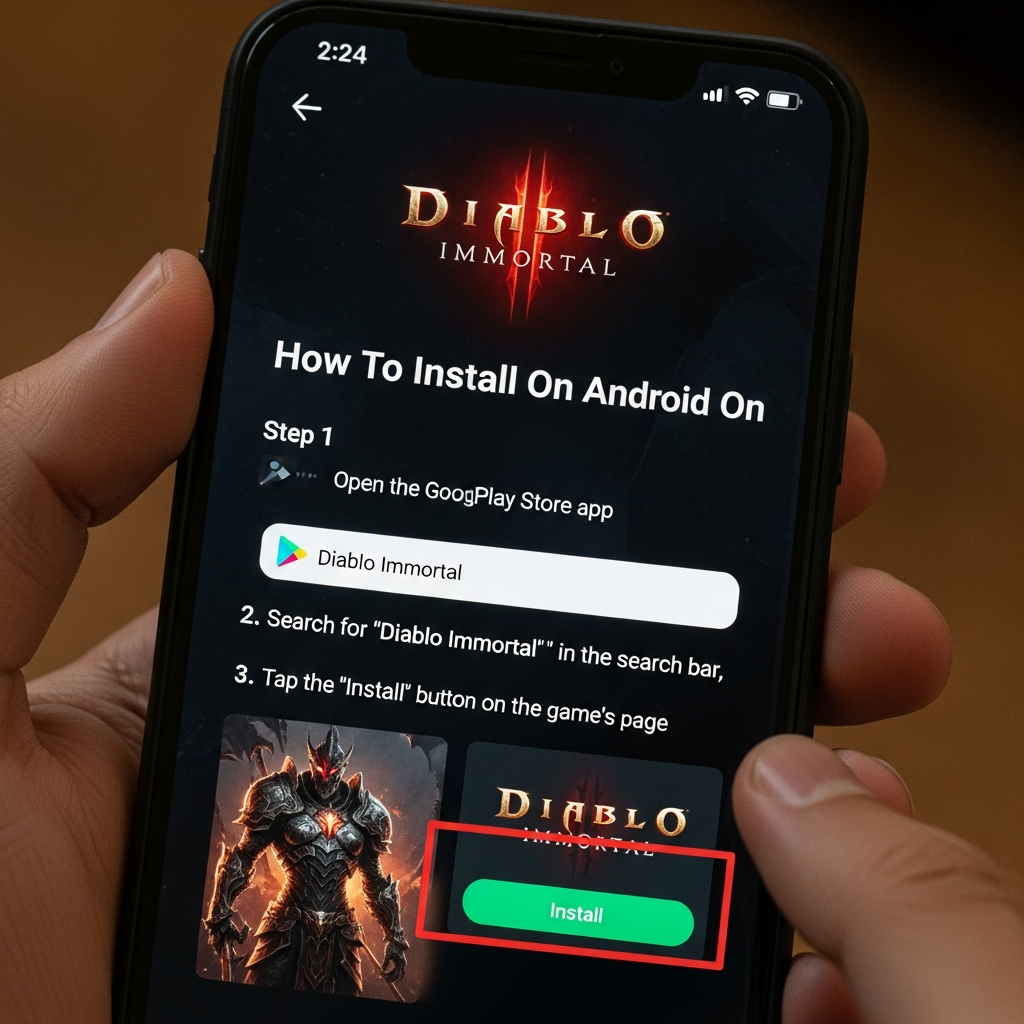
The most secure and straightforward way to install Diablo Immortal is through the official Google Play Store. This ensures you receive the latest updates and that the APK is verified for security.
- Open the Google Play Store app on your Android device.
- Tap the search bar at the top and type “Diablo Immortal.”
- Select the official game developed by Blizzard Entertainment, Inc.
- Tap the “Install” button.
- Once the initial download (approx. 2.4GB) is complete, tap “Play” to launch the game.
Step 3: Managing In-Game Resource Downloads
After the initial installation, the game will launch into a secondary download phase. This is where many users get confused. Diablo Immortal uses a “Play while you download” system.
- The Resource Manager: Once you reach the main menu, you will see a small download icon (usually a chest or a percentage bar) in the top right corner.
- Prioritize Downloads: You can choose which zones to download first. If you want to jump straight into the story, prioritize the early-game maps like Wortham and Ashwold Cemetery.
- Stay Online: Do not close the app entirely during this phase. You can minimize it, but the download speed is usually faster when the app is in the foreground.
Step 4: Setting Up Your Battle.net Account
While you can play as a “Guest,” it is highly recommended that you link your Battle.net account immediately.
Why Link Your Account?
- Cross-Progression: You can start playing on your Android phone and continue exactly where you left off on your PC.
- Data Security: If you lose your phone or clear your cache, your character progress is saved on Blizzard’s servers.
- Social Features: It is much easier to find friends and join Clans if you are using a verified Battle.net ID.
To link your account, tap the “Account” button on the top left of the login screen and follow the prompts to sign in or create a new Blizzard account.
Step 5: Manual Installation (APK and OBB)
In some cases, the Google Play Store might state that your “Device is not compatible,” even if your hardware meets the requirements. In such instances, advanced users often turn to manual installation using APK and OBB files.
Note: Only download files from reputable sources like APKMirror or TapTap to avoid malware.
- Download the APK: Download the Diablo Immortal APK file to your device.
- Enable Unknown Sources: Go to Settings > Security > Install Unknown Apps and allow your browser to install files.
- Install the APK: Tap the downloaded file to install the base game.
- Place the OBB File: If the OBB is provided separately, you must move it to
Internal Storage > Android > obb > com.blizzard.diablomortal. - Launch: Open the game and let it verify the files.
Step 6: Optimizing Performance and Graphics
Once you have successfully installed the game, you want it to run smoothly. Diablo Immortal offers extensive graphical settings.
- Frame Rate: If your device supports it, set this to 60 FPS for a much smoother combat experience. If the phone gets too hot, drop it back to 30 FPS.
- Resolution: Setting this to “High” or “Ultra” makes the game look stunning but significantly drains the battery.
- Image Sharpening: Turn this on if the game looks slightly blurry on your screen.
- Device Temperature: If you notice “thermal throttling” (the game slowing down after 20 minutes), lower the “Visual Effects” setting.
Troubleshooting Common Installation Issues
Even with a perfect guide, technology can be temperamental. Here are solutions to the most common problems:
“Device Not Compatible” Error
This often happens if your Android version is outdated or if your specific chipset hasn’t been whitelisted by Blizzard yet. Try clearing the Google Play Store Cache:
- Go to Settings > Apps > Google Play Store.
- Tap Storage > Clear Cache and Clear Data.
- Restart your phone and try again.
Installation Stuck at 0% or 99%
This is usually a storage or permission issue. Ensure you have at least 5GB more space than the game requires. Sometimes, the installer needs “buffer” space to move files around.
Game Crashes on Startup
If the game closes immediately after the Blizzard logo, it is likely a corrupted OBB file. The best fix is to uninstall the game, delete the com.blizzard.diablomortal folder from your Android/data directory, and start the installation fresh.
The Importance of Regular Updates
Blizzard frequently releases patches to fix bugs and add new content like “Helliquary” raids or new legendary items. Always ensure that your “Auto-update” is turned on in the Play Store. Large content patches will still require you to download additional data inside the game client itself.
Best Practices for Mobile Gaming Longevity
To enjoy Diablo Immortal for years to come, consider these habits:
- Use a Controller: Diablo Immortal supports Bluetooth controllers (like Xbox or PS5 controllers). This makes the installation feel more like a console experience.
- Manage Heat: Avoid playing while charging if your phone gets very hot, as heat can degrade your battery over time.
- Storage Management: Periodically check the in-game resource manager to delete old “cutscene” data if you are running low on space.
Frequently Asked Questions (FAQ)
Is Diablo Immortal free to play on Android?
Yes, the game is free to download and play. It contains in-game purchases, but the core campaign and leveling experience are accessible without spending money.
Can I play Diablo Immortal offline?
No. Diablo Immortal is an “Always Online” MMORPG. You need a persistent internet connection to log in, interact with the world, and save your progress.
How much total space does Diablo Immortal take?
As of the latest updates, you should set aside approximately 12GB to 15GB of storage space for the full installation, including all high-resolution textures and audio.
Can I move Diablo Immortal to an SD Card?
While you can move the base APK, most Android versions do not support running the heavy OBB data files from an SD card efficiently. It is highly recommended to install it on your device’s internal storage for better loading speeds.
What should I do if the game is lagging?
First, check your ping (latency). If the ping is high, it is your internet. If the graphics are stuttering, go to Settings > Graphics and lower the “Visual Effects” and “Resolution.”
Conclusion
Installing Diablo Immortal on Android is a gateway to one of the most expansive mobile gaming experiences available today. While the file size is large and the requirements are steep, following the steps outlined in this guide will ensure you get into the action without unnecessary headaches.
Remember to prioritize a stable Wi-Fi connection, clear ample storage space, and link your Battle.net account for the safest experience. Now that you know how to navigate the installation process, the gates of Sanctuary are open. Prepare your hero, sharpen your blades, and get ready to face Skarn’s minions.
Whether you are a veteran of the Diablo series or a newcomer to the ARPG genre, the mobile version offers a deep, rewarding journey. Happy hunting, Nephalem!