How to Fix Shadow Fight 4 Not Working, Crashing, or Stuck on Loading Screen
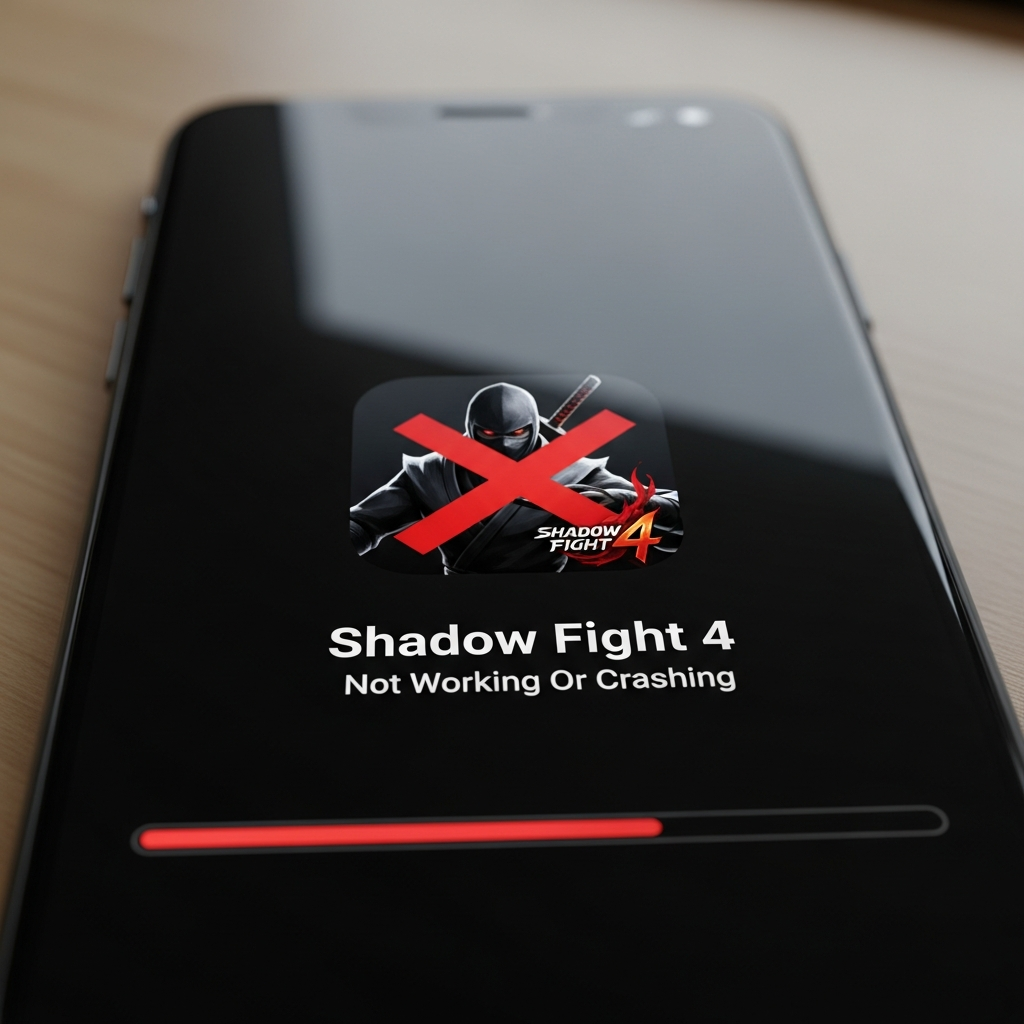
Shadow Fight 4: Arena has redefined the mobile fighting genre with its breathtaking 3D graphics, intricate physics, and intense real-time PvP battles. However, nothing breaks the immersion faster than a sudden crash in the middle of a ranked match or a loading screen that refuses to budge. If you are experiencing issues where Shadow Fight 4 is not working, crashing, or showing a black screen, you are not alone.
Technical glitches in high-fidelity games like Shadow Fight 4 often stem from a variety of sources, ranging from hardware limitations and software conflicts to server-side maintenance. This comprehensive guide is designed to provide you with a step-by-step roadmap to diagnose and resolve these issues, ensuring you can get back into the arena without delay.
Understanding Why Shadow Fight 4 Might Be Crashing
Before diving into the solutions, it is essential to understand the “why.” Shadow Fight 4 is a resource-intensive game. Unlike its predecessors, it relies heavily on a stable internet connection for its synchronous PvP mechanics and high-end graphical assets that push mobile processors to their limits.
Common symptoms of a malfunctioning game include:
- App Crashing on Startup: The game closes immediately after the Nekki logo appears.
- Stuck on Loading Screen: The progress bar reaches 99% or 100% but never enters the main menu.
- In-Game Freezing: The screen freezes while the audio continues to play.
- Connection Errors: Frequent “Server Connection Lost” messages despite having functional Wi-Fi.
- Black Screen: The game launches, but the display remains unresponsive and dark.
Below are the most effective strategies to fix these problems, categorized from basic troubleshooting to advanced system configurations.
1. Verify Minimum System Requirements
One of the most common reasons Shadow Fight 4 crashes is that the hardware simply cannot keep up with the game’s engine. Over time, updates introduce new visual effects that may render older devices obsolete.
For Android Users:
- OS: Android 5.0 or higher (Android 10+ recommended).
- RAM: Minimum 2GB (4GB+ highly recommended for “Ultra” settings).
- Storage: At least 2GB of free space to allow for temporary cache files.
- Processor: Snapdragon 600 series or equivalent.
For iOS Users:
- OS: iOS 11.0 or later.
- Device: iPhone 7 or newer is recommended for a stable experience.
If your device falls below these specifications, the game may launch but will inevitably crash during high-action sequences due to “Out of Memory” (OOM) errors.
2. Perform a “Cold Boot” Restart
It may sound overly simplistic, but restarting your device is often the most effective fix for minor software conflicts. Over time, your phone’s operating system accumulates background processes that hog RAM and CPU cycles.
- Close Shadow Fight 4 completely from your “Recent Apps” or “App Switcher.”
- Power off your device entirely.
- Wait for 30 seconds to allow the capacitors to discharge and the RAM to clear.
- Turn the device back on and launch the game.
3. Check for Game and System Updates
Running an outdated version of the game is a primary cause of Shadow Fight 4 not working. Developers frequently release “hotfixes” to patch stability issues discovered in previous versions.
- Update the Game: Open the Google Play Store or Apple App Store, search for “Shadow Fight 4,” and check if an “Update” button is available.
- Update System Software: Go to your phone’s Settings > System Update (Android) or Settings > General > Software Update (iOS). A system-level bug could be preventing the game’s graphics driver from functioning correctly.
4. Clear Cache and Data (Android Only)
The “Cache” is a collection of temporary files stored by the game to speed up loading times. If these files become corrupted—perhaps due to an interrupted download—the game will crash.
How to clear cache safely:
- Navigate to Settings on your Android device.
- Go to Apps or Application Manager.
- Find and tap on Shadow Fight 4.
- Select Storage & Cache.
- Tap Clear Cache.
Note: Avoid tapping “Clear Data” unless you have linked your game progress to Google Play Games or Facebook, as this will delete your local save files and guest account progress.
5. Optimize Your Internet Connection
Shadow Fight 4: Arena is a real-time multiplayer game. Unlike Shadow Fight 2 or 3, it requires a constant, high-speed handshake with the server. A momentary “jitter” in your connection can cause the game client to desync and crash.
- Switch to Wi-Fi: If you are on 4G/5G, try a stable Wi-Fi connection. Mobile data is prone to signal fluctuations.
- Disable VPN: Using a VPN can increase your “Ping” (latency) and cause the game to kick you out for stability reasons. Ensure your VPN is turned off.
- Reset Network Settings: If you experience “Connection Error” frequently, try toggling Airplane Mode on and off to refresh your IP address.
6. Adjust In-Game Graphics Settings
If the game crashes specifically during combat, your Graphics Processing Unit (GPU) might be overheating or over-taxed.
If you can reach the main menu:
- Tap the Settings (Gear Icon) in the top left corner.
- Navigate to the Graphics tab.
- Lower the quality from “Ultra” or “High” to “Medium” or “Low.”
- Disable “Post-processing” and “Anti-aliasing” if these options are available.
- Restart the game to apply changes.
Reducing the graphical load reduces the heat generated by your device, which prevents “Thermal Throttling”—a state where the phone slows down to cool itself, often leading to game crashes.
7. Free Up Internal Storage Space
Mobile devices require a “buffer” of free space to function correctly. When your storage is 95% full, the Android/iOS system struggles to write “Swap Files” (virtual memory).
- Ensure you have at least 5GB of free internal storage.
- Delete unused apps, large video files, or old downloads.
- Avoid installing the game on an external SD card, as SD cards have slower read/write speeds than internal UFS storage, which can lead to loading screen hangs.
8. Disable Background Apps and Overlays
Other apps running in the background can compete for the same resources Shadow Fight 4 needs.
- Close Overlays: Apps like Discord (with bubbles), Facebook Messenger, or Screen Recorders use “Screen Overlays” that can interfere with the game’s touch response and rendering.
- Battery Saver Mode: Disable “Power Saving Mode” or “Battery Saver.” These modes limit CPU performance and lower the screen’s refresh rate, which can cause the game to stutter and crash.
9. Reinstall the Game (The Clean Slate Approach)
If none of the above steps work, the game’s core installation files might be corrupted. A fresh installation is the best way to ensure everything is in order.
- Crucial: Ensure your progress is synced to the cloud (Google Play Games or iCloud).
- Uninstall Shadow Fight 4.
- Restart your device.
- Go to the official App Store/Play Store and download the game again.
- Allow the game to download all additional in-game assets before entering a match.
10. Check for Server Maintenance
Sometimes, the problem isn’t your device; it’s the server. Nekki occasionally takes the servers offline for maintenance or to deploy a new “Season.”
- Check the official Shadow Fight 4: Arena Twitter (X) or Facebook page.
- Look for community reports on Reddit (r/ShadowFightArena).
- If the servers are down, you will likely see a “Maintenance” message in-game. In this case, you simply need to wait.
11. Advanced Fix: Update Google Play Services
For Android users, Shadow Fight 4 relies on Google Play Services for authentication and cloud saves. If this system app is outdated, the game may fail to log you in and crash at the loading screen.
- Go to Settings > Apps > See all apps.
- Find Google Play Services.
- Tap “App Details” (this will take you to the Play Store).
- If an “Update” button is visible, tap it immediately.
12. Contact Nekki Support
If you have tried every step in this guide and Shadow Fight 4 is still not working, you may be facing a specific bug related to your account or a very rare hardware incompatibility.
How to contact support:
- Visit the Nekki Support Website.
- Provide your User ID (found in the game settings if you can access it).
- Detail your Device Model and OS Version.
- Explain exactly when the crash happens (e.g., “Every time I select Kibo in ranked mode”).
Summary Checklist for a Smooth Experience
To prevent future crashes, follow these best practices:
- Keep your device cool: Playing while charging generates excess heat.
- Stay updated: Always install the latest patch.
- Avoid “Modded” APKs: Third-party modified versions of the game are unstable, violate terms of service, and often contain malware that causes crashes.
- Use a stable connection: Real-time PvP is unforgiving of weak signals.
Frequently Asked Questions (FAQ)
Q: Will I lose my progress if I uninstall Shadow Fight 4?
A: Not if you have linked your account. On Android, ensure you are signed into Google Play Games. On iOS, ensure Game Center is active. Your progress is tied to these accounts, not just the local files on your phone.
Q: Why does the game lag even if I have high-speed internet?
A: Speed (Mbps) is different from Latency (Ping). You might have 100Mbps speed, but if your Ping is over 200ms, you will experience lag. This is often caused by being physically far from the game server or using a busy public Wi-Fi.
Q: The game shows a “Black Screen” on startup. What does this mean?
A: A black screen usually means the game is failing to initialize the graphics engine. This is often fixed by clearing the cache or updating your Android System WebView (for Android users).
Q: Can I play Shadow Fight 4 on an emulator?
A: While some players use BlueStacks or LDPlayer, these are not officially supported. Nekki’s anti-cheat or the game’s high-end graphics requirements often cause emulators to crash or fail to load. For the best stability, use a physical mobile device.
By following this guide, you should be able to resolve most issues related to Shadow Fight 4 crashing or not working. The arena is waiting—make sure your technical setup is as sharp as your blade!