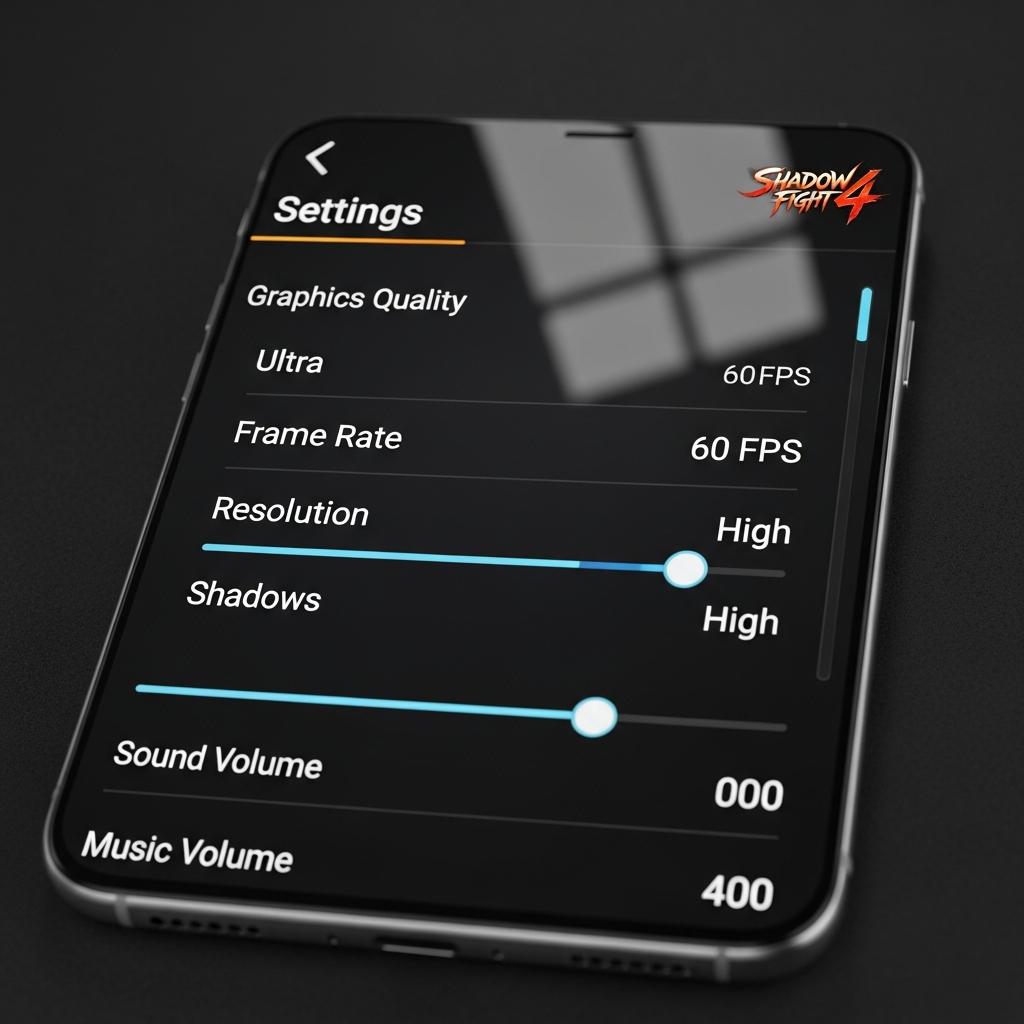
Best Settings For Shadow Fight 4: The Ultimate Optimization Guide for Competitive Play
Shadow Fight 4: Arena is not merely a mobile fighting game; it is a high-stakes competitive environment where milliseconds determine the difference between a perfectly timed counter-attack and a crushing defeat. To ascend the ranked ladders, you must ensure that your technical setup is as sharp as your reflexes. Technical limitations, such as input lag or frame drops, can severely hinder your ability to perform complex combos and react to “unbreakable” attacks.
In this comprehensive guide, you will discover the best settings for Shadow Fight 4 to optimize your gameplay experience. Whether you are using a flagship device or a budget smartphone, these configurations are designed to provide a competitive edge, ensuring maximum visual clarity and minimal latency.
Why Your Settings Matter in Shadow Fight 4: Arena
In a real-time PvP (Player vs. Player) game like Shadow Fight 4, performance stability is the foundation of success. Unlike the previous single-player installments, SF4 relies heavily on server synchronization and frame-perfect execution. If your frame rate fluctuates, your input buffer—the window in which the game registers your taps—becomes inconsistent.
Optimization is about finding the “Sweet Spot” between visual fidelity and operational speed. You need to see the subtle start-up animations of your opponent’s moves while maintaining a consistent 60 FPS (Frames Per Second) to ensure your blocks and dodges trigger exactly when you intend them to.
1. Graphics Settings: Balancing Visuals and Performance
The graphics menu in Shadow Fight 4 offers several tiers of quality. While it is tempting to maximize everything for the best visual experience, competitive players often prefer a leaner setup to prioritize frame rate stability.
Graphics Quality Tiers
- Ultra/High: Recommended only for high-end flagship devices (e.g., iPhone 14/15 Pro, Samsung S23/S24 Ultra). This provides dynamic shadows and high-resolution textures but can cause overheating during long sessions.
- Medium: The balanced choice for most mid-range devices. It retains character details while removing heavy post-processing effects.
- Low/Minimal: Mandatory for older devices. This setting removes shadows and simplifies backgrounds, which drastically reduces GPU load and prevents thermal throttling.
Advanced Graphics Toggles
Within the settings, you may find specific toggles that impact performance. If you experience “stuttering,” consider the following:
- Anti-Aliasing: Turn this OFF if you want a slight FPS boost. While it smooths out jagged edges, it consumes significant processing power.
- Shadows: Set to Low or Off. In competitive play, shadows are often a distraction. A cleaner floor allows you to focus better on the character’s hitboxes.
- High Frame Rate Mode: Always ensure this is Enabled if your device supports it. Playing at 60 FPS vs 30 FPS is a massive advantage in reaction-based combat.
2. Control Settings: Precision and Customization
Your ability to execute “Special Moves” and “Shadow Abilities” depends entirely on how comfortable you are with the interface. Shadow Fight 4 allows for significant HUD (Heads-Up Display) customization.
Joystick Configuration
The virtual joystick is your primary tool for movement and stance switching. You have two main options:
- Fixed Joystick: The joystick stays in one specific spot. This is preferred by veteran players as it builds muscle memory for precise directional inputs (Up-Forward, Down-Back).
- Dynamic Joystick: The joystick appears wherever you place your thumb. While flexible, it can lead to accidental inputs if your thumb slips during an intense exchange.
Button Layout and Size
Navigate to the “Controls” section and select “Edit Controls.” You should aim for the following optimizations:
- Button Size: Increase the size of the Attack and Kick buttons by 10-20%. This reduces the chance of “missing” a button during a high-pressure scramble.
- Transparency: Lower the opacity of the buttons to around 40-50%. This allows you to see more of the arena, helping you track your opponent’s position if they jump or use a long-range shadow ability.
- Spacing: Ensure there is enough gap between the “Shadow Ability” button and the “Range Weapon” button to prevent accidental activations.
3. Audio Settings: Using Sound as a Tactical Tool
Many players overlook audio, but sound cues are vital in Shadow Fight 4. Every move has a distinct sound effect (SFX) that often plays a few frames before the hit connects.
- Music Volume: Consider lowering this to 20-30%. While the soundtrack is excellent, it can mask the sound of a “Ranged Weapon” being thrown or the “Shadow Form” activation sound.
- SFX Volume: Keep this at 80-100%. Hearing the “clink” of a blocked hit or the specific grunt of a heavy attack helps you time your counter-attacks without relying solely on visual confirmation.
- Voice Volume: Personal preference, but keeping it audible helps identify character-specific cues.
4. Connectivity and Network Optimization
Even with the best graphics settings, a poor connection will lead to input delay and “teleporting” opponents. Shadow Fight 4 is highly sensitive to “Ping” (latency).
Best Practices for Low Latency:
- Use Wi-Fi over Cellular: A stable 5GHz Wi-Fi connection is generally superior to 4G or 5G, which can suffer from signal fluctuations.
- Disable Background Sync: Ensure that apps like Instagram, YouTube, or Play Store updates are not running in the background, as they consume bandwidth and CPU cycles.
- Server Selection: The game usually selects the best server automatically. However, if you are using a VPN, turn it off. VPNs add extra hops for your data, significantly increasing your ping.
5. Device Optimization: External Factors
Your phone’s hardware environment is just as important as the in-game settings. To maintain the best performance for Shadow Fight 4, follow these steps:
- Battery Saver Mode: Ensure this is OFF. Battery savers usually throttle the CPU and GPU, which will cause the game to lag.
- Gaming Mode: Most modern Android devices (Samsung, Xiaomi, ASUS) have a “Game Turbo” or “Game Mode.” Activate it to prioritize system resources for the game and block intrusive notifications.
- Thermal Management: If your device gets hot, the performance will drop (thermal throttling). Play in a cool environment or remove your phone case during long sessions to help with heat dissipation.
Step-by-Step Guide to Applying the Best Settings
If you are looking for a quick setup to get started immediately, follow these steps:
- Launch Shadow Fight 4: Arena and tap the “Gear” icon in the top-left corner.
- Go to the Graphics tab. Set “Quality” to “Medium” (or “Low” for older phones) and ensure “High FPS” is checked.
- Navigate to the Controls tab. Switch to “Fixed Joystick” and enter the “Layout Editor” to increase button sizes.
- Go to Audio. Lower the music to 30% and keep SFX at 100%.
- Restart the game to ensure all changes, especially graphical ones, are applied correctly.
Tips from the Experts: The “Pro” Configuration
Professional Shadow Fight 4 players often use specific configurations to gain an edge. One common tip is to maximize brightness on your device. Shadow Fight 4 features many dark-themed arenas and shadow-based effects; high brightness ensures you can see the character models clearly against dark backgrounds.
Another expert tip involves Sensitivity Settings. While SF4 doesn’t have a traditional “aim sensitivity,” the responsiveness of your screen matters. Ensure your screen is clean and consider using a “matte” screen protector if you find your thumbs sticking to the glass during complex directional inputs.
Frequently Asked Questions (FAQ)
How do I fix lag in Shadow Fight 4?
Lag is usually caused by either a poor internet connection or device overheating. To fix it, lower your graphics settings to “Minimal,” close all background apps, and ensure you are on a stable Wi-Fi connection with low ping.
What is the best FPS for Shadow Fight 4?
The ideal frame rate is 60 FPS. This provides the smoothest animations and the lowest input latency, which is critical for timing your blocks and attacks correctly in PvP matches.
Can I play Shadow Fight 4 on 2GB RAM?
While the game may run, it will likely struggle with crashes or significant lag. For a smooth experience, at least 4GB of RAM and a modern mid-range processor are recommended.
Does “High Quality” graphics give an advantage?
Actually, no. High Quality adds extra particles, motion blur, and detailed shadows which can sometimes obscure the action. Many top-tier players prefer “Medium” or “Low” settings for a cleaner, distraction-free view of the combat.
Conclusion
Finding the best settings for Shadow Fight 4 is an essential step for any player looking to move beyond casual play. By prioritizing frame rate stability, customizing your control layout for muscle memory, and ensuring a low-latency network connection, you create an environment where your skill is the only limit.
Remember that optimization is a personal journey. Use the configurations suggested in this guide as a baseline, and don’t be afraid to tweak individual settings to match your specific device and playstyle. With your technical setup optimized, you are now ready to enter the arena and fight your way to the top. Good luck, Shadow Fighter!