In the high-stakes world of PUBG Mobile, a fraction of a second can be the difference between a “Winner Winner Chicken Dinner” and a premature return to the lobby. While skill and strategy are paramount, your technical configuration acts as the foundation of your performance. If your frame rate stutters or your sensitivity is misaligned, even the best tactics will fail you.
This comprehensive guide is designed to walk you through the best settings for PUBG Mobile. We will delve deep into graphics optimization, sensitivity calibration, control layouts, and advanced features that professional players use to gain a competitive edge. Whether you are a beginner or looking to reach Conqueror tier, these insights will transform your gameplay.
1. Graphics Settings: Prioritizing Performance Over Visuals
The most common mistake among new players is maxing out graphics for visual fidelity. In competitive mobile gaming, Frame Rate is King. A higher frame rate reduces input lag and provides smoother enemy movement tracking.
Graphics Quality and Frame Rate
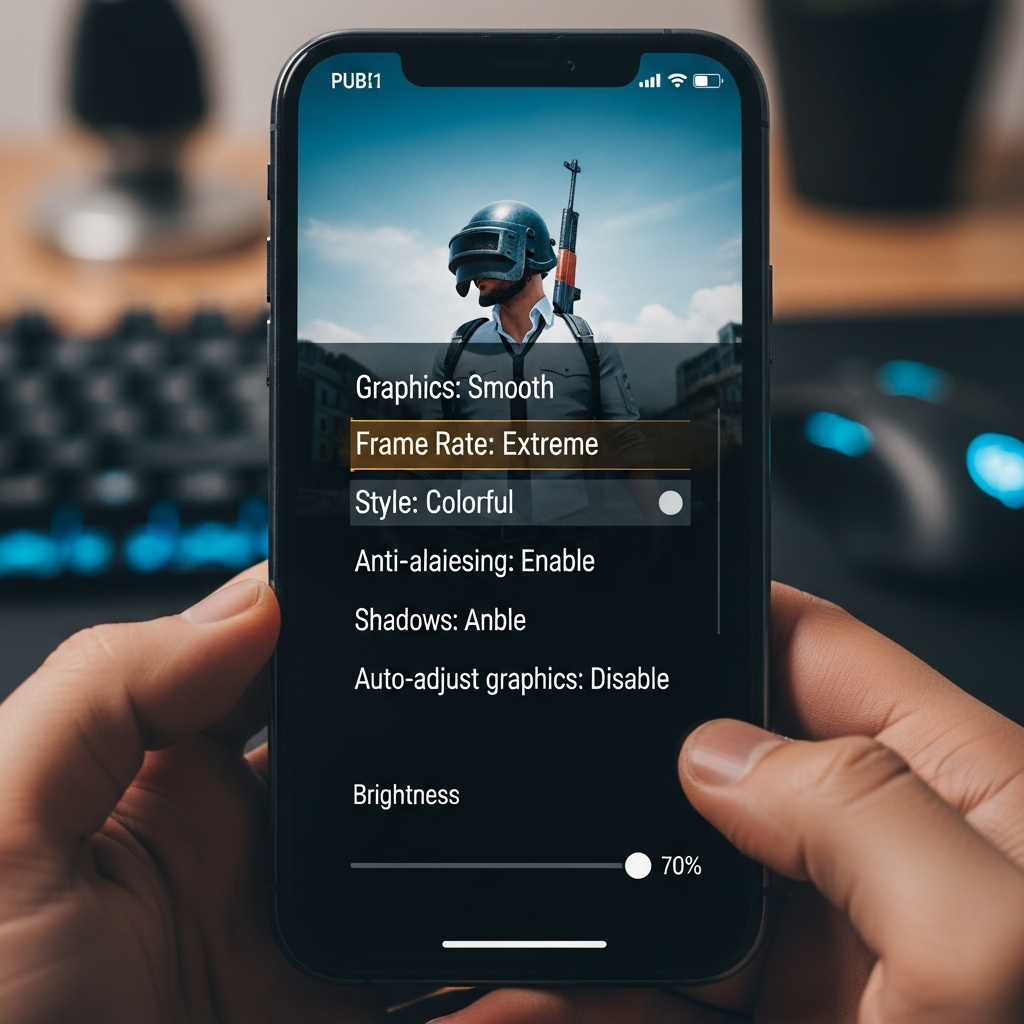
- Graphics: Set this to Smooth. Even if you own a flagship device, “Smooth” ensures the most stable performance and prevents the device from overheating, which leads to thermal throttling and lag.
- Frame Rate: Always select the highest available option (Extreme or 90 FPS). A higher frame rate allows you to see frames faster than your opponent, giving you a literal temporal advantage in gunfights.
Style and Visual Enhancements
- Style: Colorful is generally recommended. It increases the contrast between players and the environment, making it easier to spot enemies hiding in grass or shadows.
- Anti-aliasing: Disable this unless you have a high-end device. While it makes edges look smoother, it consumes significant battery and can cause frame drops during intense combat.
- Brightness: Set this between 110% and 120%. This helps in illuminating dark corners and spotting “snakes” (prone players) in the grass.
Auto-Adjust Graphics
Disable this feature. You want your performance to be consistent. Allowing the game to automatically lower your settings mid-match can cause sudden stutters that disrupt your aim.
2. Control Settings: Finding Your Perfect Layout
Your control layout determines how quickly you can react to threats. The best settings for PUBG Mobile controls often depend on how many fingers you use to play.
The “Claw” Method vs. Two-Finger Thumb
While beginners start with two thumbs, moving to a 3-finger or 4-finger claw layout is essential for high-level play. This allows you to move, aim, and shoot simultaneously.
Essential Button Configurations
- Peek & Fire: Enable this immediately. It allows you to lean around cover, exposing only a small portion of your head instead of your entire body.
- Lean Mode: Set to Hold. This provides faster transitions in and out of cover compared to “Tap.”
- Scope Mode: Set to Hold for quicker ADS (Aim Down Sight) transitions.
- Display Left-Side Fire Button: Always ON. This is crucial for “claw” players to shoot while using the right thumb to control recoil.
3. Sensitivity Settings: The Secret to Recoil Control
Sensitivity is perhaps the most subjective yet critical aspect of the best settings for PUBG Mobile. There is no “one size fits all,” but there are professional ranges you should follow.
Camera Sensitivity (Free Look)
This affects how fast you can look around without firing.
- 3rd Person No Scope: 120% – 150%
- 1st Person No Scope: 100% – 120%
- Red Dot, Holographic: 50% – 70%
ADS Sensitivity (Aim Down Sight)
This is the most important setting for recoil control. It determines how much the camera moves while you are firing.
- 3rd Person No Scope: 100% – 120%
- Red Dot, Holographic: 50% – 60%
- 3x Scope: 20% – 30%
- 4x Scope: 15% – 25%
- 6x Scope: 10% – 15%
Gyroscope Sensitivity: The Pro Choice
If you want to master long-range sprays, you must learn to use the Gyroscope. It allows you to control recoil by physically tilting your device.
- 3rd Person No Scope: 300% – 400%
- Red Dot, Holographic: 300% – 400%
- 3x & 4x Scopes: 200% – 300%
Expert Tip: Start with low Gyroscope sensitivity and gradually increase it as your muscle memory develops.
4. Pick-Up and Audio Settings
Efficiency in looting and spatial awareness through audio are often overlooked but are vital components of the best settings for PUBG Mobile.
Auto Pick-Up Optimization
Configure your auto pick-up limits to avoid inventory clutter.
- First Aid Kits: 3-5
- Bandages: 5 (Stop picking them up late-game)
- Boosters (Painkillers/Energy Drinks): 5-8
- Grenades: 2-3 (Essential for end-game circles)
- Smoke Grenades: 3-4 (Critical for rotation and reviving)
Audio Settings for Spatial Awareness
- SFX Quality: Set to Ultra if your device supports it. This enhances the clarity of footsteps and directional gunfire.
- Music: Disable it. You need total silence to hear the subtle sounds of an approaching enemy.
- Microphone & Speakers: Ensure these are balanced so team communication doesn’t drown out game sounds.
5. Advanced Features and Lag Reduction
To truly achieve the best settings for PUBG Mobile, you must look beyond the in-game menu and optimize your environment.
Aim Assist: To Enable or Disable?
For most players, Aim Assist should be ON. It provides a slight magnetic pull towards the enemy’s torso. However, some professional players disable it to have more precise control over headshots, as Aim Assist can sometimes pull the crosshair away from the head toward the body.
Reducing Lag and Ping Spikes
- Background Apps: Always close all other applications before launching the game.
- Battery Saver Mode: Ensure this is OFF. Battery savers aggressively throttle the CPU/GPU, causing massive frame drops.
- Storage: Keep at least 15-20% of your device storage free to ensure the operating system can handle cache files efficiently.
6. How to Test and Calibrate Your Settings
Changing your settings to match a pro player won’t make you a pro overnight. You need to calibrate them in the Training Ground.
- Enter Training Mode: Pick up your favorite weapon (usually the M416) with no attachments.
- Test Recoil: Try to spray at a target 50 meters away. If the gun moves up too much, increase your ADS/Gyro sensitivity. If your aim is shaky and jumping around, lower it.
- Add Attachments: Once you are comfortable with “naked” guns, add a Compensator and Vertical Foregrip to see how much easier it becomes.
- Practice Daily: Spend 15 minutes in training before your first match of the day to warm up your muscle memory.
Conclusion
Finding the best settings for PUBG Mobile is a journey of trial and error. While the configurations provided in this guide are based on professional standards, your device’s screen size, your hand size, and your personal reaction speed will play a role.
Start with the Smooth + Extreme graphics combo, transition into a 3-finger claw, and slowly master the gyroscope. With these technical hurdles out of the way, you can focus on what really matters: outsmarting your opponents and securing that final kill. The battlegrounds are waiting—adjust your settings and take your place at the top.
Frequently Asked Questions (FAQ)
What are the best graphics settings for a low-end device?
For low-end devices, always choose Smooth graphics and the highest possible Frame Rate (usually High or Ultra). Disable Anti-aliasing and Auto-adjust graphics to keep the performance stable.
Does Gyroscope really help in PUBG Mobile?
Yes, the Gyroscope is considered the most effective way to control recoil in PUBG Mobile. It allows for micro-adjustments that are much harder to achieve using just your thumbs.
Why is my game lagging even with the best settings?
Lag can be caused by two things: Device Heat or Network Ping. Make sure you are playing on a stable Wi-Fi connection and keep your device cool. Playing while charging can also cause significant overheating and lag.
What is the best sensitivity for long-range sniping?
For 6x and 8x scopes, you generally want low sensitivity (around 10-15% for ADS). This allows for precise movements when trying to hit a headshot from hundreds of meters away.
Should I use 90 FPS if my phone supports it?
Absolutely. 90 FPS provides a much smoother visual experience and reduces input latency. However, ensure your device doesn’t overheat, as sustained 90 FPS gaming is very demanding on the processor.