How to Fix One Piece Bounty Rush Not Working or Crashing: The Ultimate Troubleshooting Guide
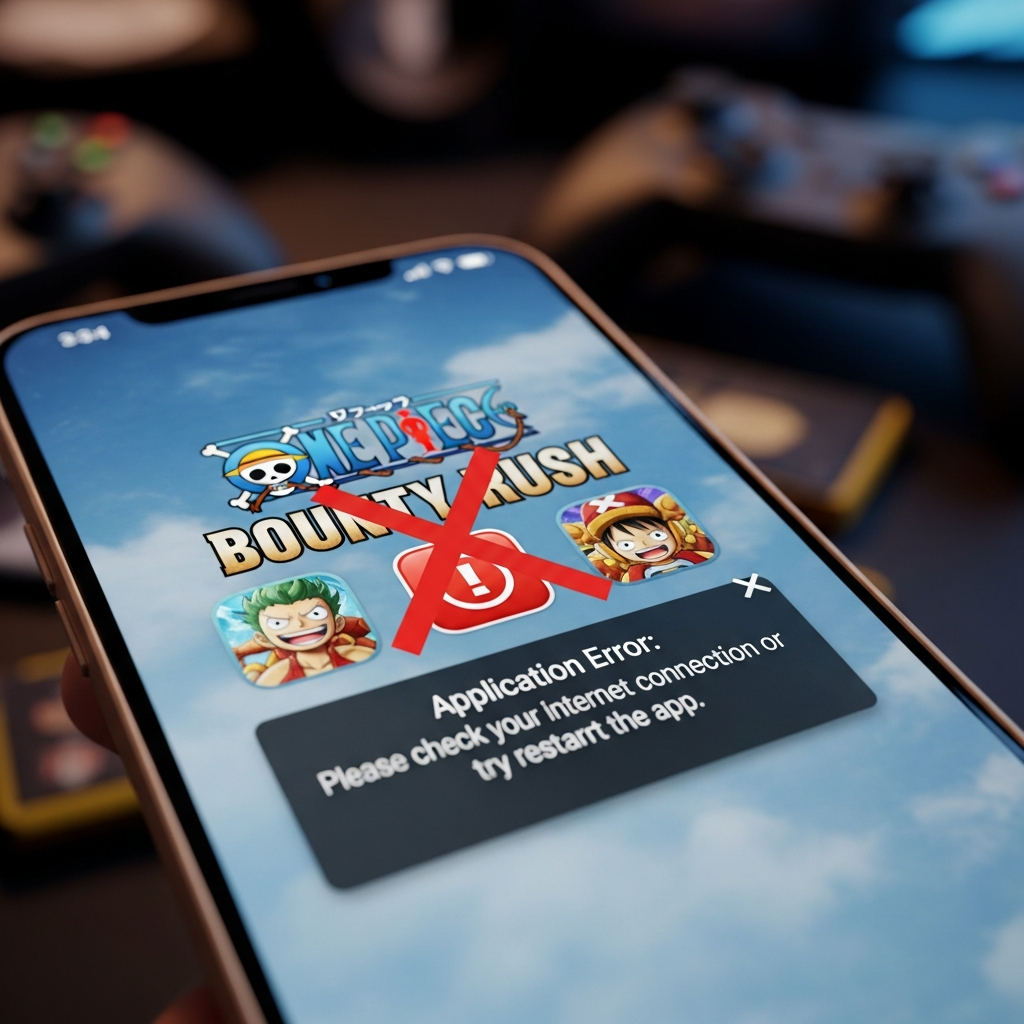
One Piece Bounty Rush (OPBR) is undoubtedly one of the most thrilling 4v4 real-time treasure-grabbing mobile games available today. However, nothing ruins the excitement of a high-stakes League Battle more than a sudden crash, a persistent black screen, or the app refusing to open. If you find yourself frustrated because One Piece Bounty Rush is not working or crashing, you are not alone.
Technical glitches in high-fidelity mobile games like OPBR are often the result of a mismatch between the game’s software requirements and your device’s current state. Whether you are experiencing “App Not Responding” errors, infinite loading screens, or mid-game disconnects, this comprehensive guide provides the definitive solutions to get you back into the Grand Line.
Understanding Why One Piece Bounty Rush Crashes
Before diving into the solutions, it is essential to understand the root causes. Identifying the “why” helps you apply the correct fix more efficiently. Generally, OPBR issues stem from three main categories:
- Hardware Limitations: Your device may lack the necessary RAM or processing power to handle the game’s heavy 3D rendering.
- Software Conflicts: Outdated operating systems, corrupted cache files, or background applications can interfere with game stability.
- Network Instability: Since OPBR is a real-time multiplayer game, even a minor “ping spike” can cause the game client to desync and crash.
Step 1: Verify Minimum System Requirements
The first step to fix One Piece Bounty Rush not working is ensuring your hardware is actually capable of running it. As the game receives updates (like the 5th or 6th Anniversary updates), the technical demands increase.
For Android Users:
- OS: Android 5.0 or higher (Android 10+ recommended).
- RAM: At least 3GB (4GB+ highly recommended for stable 60FPS).
- Storage: Minimum 4GB of free space.
For iOS Users:
- OS: iOS 11.0 or later.
- Device: iPhone 7 or newer is recommended for a smooth experience.
Expert Tip: If your device barely meets the minimum specs, the game will likely crash during intensive 4v4 battles where multiple skills are being triggered simultaneously. Reducing the graphic settings in the game menu is mandatory in this case.
Step 2: Basic Troubleshooting (The Quick Fixes)
Sometimes, the simplest solutions are the most effective. Perform these steps before moving to advanced configurations.
1. Perform a Hard Restart
A simple restart clears your device’s temporary memory (RAM) and terminates any “zombie” processes that might be hogging resources. Turn your phone off completely, wait 30 seconds, and turn it back on.
2. Check for Server Maintenance
If One Piece Bounty Rush is not opening or stuck on the title screen, Bandai Namco might be performing scheduled maintenance. Check the official OPBR Twitter (X) account or community forums. If the servers are down, no amount of troubleshooting on your end will fix it.
3. Force Stop the App
On Android, go to Settings > Apps > One Piece Bounty Rush > Force Stop. This ensures the app is completely killed before you attempt a fresh launch.
Step 3: Advanced Software Fixes
If basic steps fail, the issue likely lies within the app’s data or the system’s interaction with the game.
Clear Game Cache (Without Deleting Data)
Corrupted cache files are a leading cause of One Piece Bounty Rush crashing on startup. Clearing the cache removes temporary files but keeps your account data safe.
- Navigate to your device Settings.
- Select Apps or Application Manager.
- Find One Piece Bounty Rush.
- Tap on Storage.
- Select Clear Cache (Do NOT select Clear Data unless you have backed up your Transfer ID).
Update the Game and OS
Running an outdated version of OPBR will lead to “Version Mismatch” errors or crashes. Visit the Google Play Store or Apple App Store and ensure you have the latest update installed. Similarly, check your phone’s System Update settings. Developers optimize games for the latest OS versions; staying on an old version of Android or iOS can cause stability issues.
Step 4: Fix One Piece Bounty Rush Black Screen Issues
A black screen usually indicates that the game’s graphical engine failed to initialize. This is common on devices with “Android System WebView” issues.
Update Android System WebView
For Android users, many in-app browser functions and rendering tasks rely on “WebView.” If this component is outdated, OPBR might show a black screen. Search for “Android System WebView” in the Play Store and tap Update.
Adjust In-Game Graphics Settings
If you can reach the title screen but the game crashes when the battle starts, your GPU is likely overwhelmed. Go to Menu > Options > Graphics and set:
- Graphics Quality: Low or Standard.
- Frame Rate: Standard (30 FPS) instead of High (60 FPS).
- Anti-Aliasing: Off.
Step 5: Solving Network and Connection Errors
OPBR is extremely sensitive to network latency. A “Communication Error” often leads to the game kicking you back to the title screen or closing entirely.
1. Switch Between Wi-Fi and Mobile Data
Sometimes your Wi-Fi router’s DNS might be blocking Bandai’s servers. Try switching to 4G/5G mobile data to see if the game loads. If it works on data but not Wi-Fi, restart your router.
2. Use a Gaming DNS
Changing your DNS can stabilize your connection. On your phone’s network settings, change the Private DNS provider to dns.google or 1.1.1.1 (Cloudflare). This often resolves “Connecting…” loops.
3. Disable VPNs
While a VPN can sometimes help bypass regional blocks, it usually adds significant latency. Most mobile games have anti-cheat systems that might flag or disconnect VPN users. Disable any active VPN before launching OPBR.
Step 6: Fixing Crashing on Emulators (BlueStacks/LDPlayer)
Many players enjoy OPBR on PC using emulators. However, emulators are prone to One Piece Bounty Rush not working due to engine incompatibility.
- Switch to Pie 64-bit or Android 11 Instance: Modern games require 64-bit architecture. Ensure your emulator instance is not the old Nougat 32-bit.
- Enable Virtualization (VT): Ensure VT-x or AMD-V is enabled in your PC’s BIOS settings. Without this, emulators will lag and crash.
- Allocate More Resources: Set the emulator to use at least 4 Cores and 4GB of RAM in the settings menu.
- Graphics Engine Mode: Toggle between DirectX and OpenGL. Most OPBR players find OpenGL more stable.
Step 7: The Last Resort – Reinstallation
If all else fails, a clean installation is necessary. This fixes deeply rooted corrupted files that “Clear Cache” cannot reach.
⚠️ CRITICAL WARNING: Before deleting the app, you MUST link your account to Facebook/Google or generate a Transfer ID and Password. If you delete the app without doing this, your account and all your hard-earned characters (Ex-Units) will be lost forever.
- Uninstall One Piece Bounty Rush.
- Go to your file manager and delete any remaining folder named com.bandainamcoent.opbrww.
- Restart your device.
- Re-download the game from the official store.
- Launch the game and download the additional data (ensure you have a stable Wi-Fi connection for this 2GB+ download).
How to Prevent Future Crashes in OPBR
Once you have fixed the issue, follow these best practices to ensure the game remains stable:
- Close Background Apps: Before playing, close apps like Facebook, Instagram, or Chrome which consume significant RAM.
- Monitor Device Temperature: If your phone gets hot, the CPU will “throttle,” causing the game to lag and eventually crash. Take breaks or use a phone cooler.
- Avoid “Game Booster” Apps: Ironically, some third-party game boosters interfere with the game’s native optimization. Use the built-in system game mode if available (like Samsung Game Launcher).
- Keep Storage Free: Always maintain at least 10-15% free internal storage. SSDs and flash storage in phones slow down significantly when nearly full, leading to app crashes.
Conclusion
Fixing One Piece Bounty Rush not working or crashing usually comes down to managing your device’s resources and ensuring a stable connection. By clearing the cache, updating your system components like WebView, and adjusting graphics settings, you can eliminate most technical hurdles. Remember to always back up your account data before making major changes to the app files.
Now that your game is optimized, it is time to head back to the battlefield, capture those treasures, and climb the ranks to become the Pirate King!
Frequently Asked Questions (FAQ)
Why does One Piece Bounty Rush keep crashing on my Android phone?
The most common reasons are insufficient RAM, an outdated “Android System WebView,” or corrupted cache files. Ensure you have at least 3GB of RAM and try clearing the app cache in settings.
Can I fix the OPBR black screen issue without reinstalling?
Yes. Try updating your Android System WebView and Google Play Services. Additionally, ensure your device’s “Power Saving Mode” is turned off, as it can limit GPU performance required for the game to start.
Does One Piece Bounty Rush work on 2GB RAM devices?
It is highly unlikely to run stably. While the game might install, it will frequently crash during combat. To play on low-end devices, you must set all graphics settings to “Low” and close all other background applications.
Why am I getting a “Communication Error” even with good internet?
This could be due to unstable “ping” or packet loss. Try switching from Wi-Fi to Mobile Data, or change your DNS settings to Google DNS (8.8.8.8) to stabilize the route to Bandai Namco’s servers.
Is it safe to clear data in One Piece Bounty Rush?
Clearing “Data” will delete your account login information from the device. You should only do this if you have linked your account to a social media profile or have a valid Transfer ID and Password ready.