Best Settings For One Piece Bounty Rush: The Ultimate Optimization Guide for Competitive Play
In the high-stakes world of One Piece Bounty Rush (OPBR), a split-second delay can mean the difference between capturing the final treasure and suffering a crushing defeat. As a 4v4 real-time combat game, your success depends not only on your character’s level or your strategic prowess but also on how well your game is optimized. If you have ever experienced a “Perfect Dodge” that failed to trigger or a skill that lagged at a crucial moment, your settings are likely to blame.
This comprehensive guide is designed to provide you with the best settings for One Piece Bounty Rush. We will delve deep into graphics optimization, control sensitivity, battle UI customization, and network stability. Whether you are using a flagship device or a budget-friendly smartphone, these configurations will help you gain a significant competitive edge.
Why Optimizing OPBR Settings is Essential for Victory
One Piece Bounty Rush is a fast-paced game where visual clarity and input responsiveness are paramount. The game features complex character animations, particle effects from powerful skills (like those of EX units), and a dynamic environment. Without the correct configuration, your device may struggle to maintain a consistent frame rate, leading to “input lag.”
By following this OPBR performance guide, you will achieve three main objectives:
- Reduced Latency: Faster communication between your taps and the game server.
- Visual Clarity: Better visibility of enemy movements and map pings.
- Consistent Frame Rate: Smooth animations that allow for precise “Perfect Dodges.”
The Best Graphics Settings for One Piece Bounty Rush
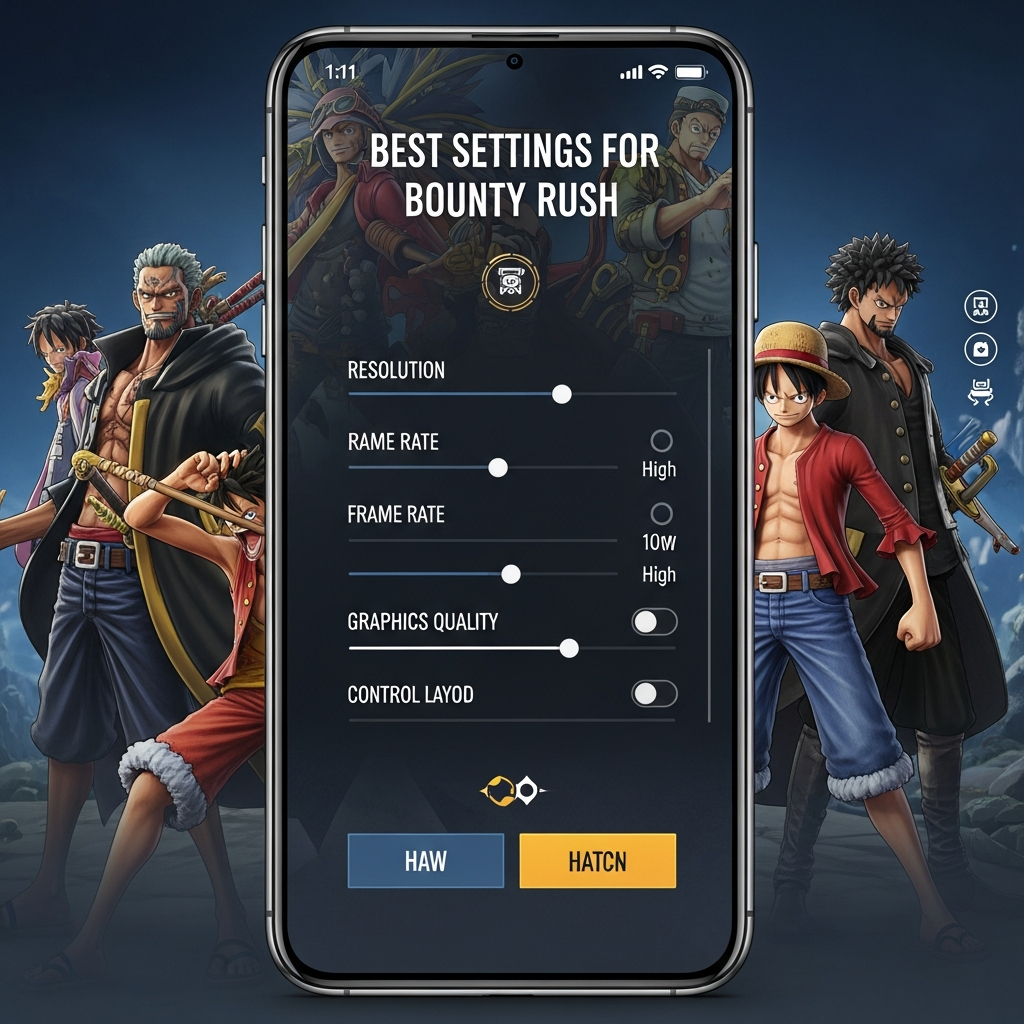
The graphics menu is the first place you should visit. While it is tempting to turn everything to “High” to enjoy the beautiful cel-shaded art style, competitive players prioritize performance over aesthetics. Here is the breakdown of the best graphics settings for One Piece Bounty Rush.
1. Frame Rate (The Most Critical Setting)
In OPBR, the Frame Rate should always be set to High (60 FPS). Many players mistakenly keep this at standard to save battery, but this is a massive disadvantage. A higher frame rate provides more visual data per second, making it significantly easier to time your dodges against fast attacks like Kamusari or lightning strikes.
2. Graphics Quality
If you are using a high-end device (e.g., iPhone 13 or newer, Samsung S22 or newer), you can set this to High. However, for the vast majority of players, Standard or even Low is recommended. Lowering the graphics quality reduces the load on your GPU, which prevents your phone from overheating. Overheating is the primary cause of thermal throttling, which leads to sudden frame drops mid-match.
3. Resolution and Anti-Aliasing
If your device supports it, keep resolution at a level where the UI text remains sharp. However, disabling Anti-Aliasing (if the option is available via external game boosters) can provide a slight performance bump. Within the game, simply ensuring that “Simplified Effects” are toggled on can help clear the visual clutter during chaotic team fights at the center treasure.
Mastering Control Settings and Sensitivity
The way you interact with the game determines how effectively you can kite enemies and land your skills. The best control settings for One Piece Bounty Rush involve finding a balance between speed and precision.
1. Camera Sensitivity
Default camera sensitivity is often too slow for high-level play. When an enemy like Runner King or Hybrid Kaido teleports behind you, you need to turn your camera instantly. We recommend setting your Horizontal and Vertical Sensitivity to at least 70-80%. This allows you to scan the battlefield quickly without having to swipe your screen multiple times.
2. Target Settings (Auto vs. Manual)
OPBR offers an Auto-Target feature. While helpful for beginners, it can be detrimental when you need to target a specific low-HP enemy in a crowd.
- Target Lock-On: Set this to “Tap.” This allows you to manually tap an enemy icon on the right side of the screen to lock your skills onto them.
- Camera Tracking: Turn this OFF. You want full control over where you are looking, especially when trying to look back while running away from a pursuer.
3. Button Layout and Size
While OPBR does not offer full HUD customization like some Battle Royale games, you should ensure your screen is clean. Ensure that your thumb placement does not accidentally trigger the “Dodge” button when you intended to use a “Normal Attack.” Training your muscle memory on a consistent layout is key to competitive OPBR gameplay.
Optimizing the Battle UI for Better Map Awareness
Map awareness is what separates S+ players from SS-rank professionals. The Battle UI settings help you filter the noise so you can focus on the mini-map and teammate status.
1. Mini-Map Zoom
Ensure your mini-map is set to a zoom level where you can see at least 70% of the stage. Knowing where the enemy runners are located is vital for defenders. If you cannot see the flank routes on your map, you are essentially playing blind.
2. Teammate Information
Always keep the Teammate Status display active. This shows you who has their “Team Boost” ready and who is currently waiting to respawn. Aligning your push with a Team Boost is the most effective way to flip a game in the final 30 seconds.
3. Effect Transparency
Some skills in OPBR create massive visual effects that obscure the ground. If you find it hard to see “telegraphed” attacks (red circles on the ground), consider lowering the Effect Opacity in the settings menu. This makes the environment clearer during heavy combat.
Network and Connectivity: Fixing Lag in One Piece Bounty Rush
Even with the best settings for One Piece Bounty Rush, a poor internet connection will ruin your experience. OPBR is notorious for its “Communication Error” messages and “Teleporting” enemies. Here is how to optimize your connection:
- Disable Background Sync: Before starting a match, ensure that apps like Instagram, YouTube, or Play Store updates are not running in the background.
- Use 5GHz Wi-Fi: If you are playing on Wi-Fi, ensure you are connected to a 5GHz band rather than 2.4GHz. 5GHz offers lower latency and less interference from household appliances.
- Static IP/DNS: Some players find that using a gaming DNS (like Cloudflare 1.1.1.1 or Google 8.8.8.8) provides a more stable route to the OPBR servers, reducing the frequency of “Connection Unstable” warnings.
- Avoid Public VPNs: Unless you are playing in a region where the game is blocked, avoid using free VPNs. They add an extra layer of latency that makes high-level dodging nearly impossible.
Advanced Device Optimization (Android & iOS)
To truly achieve high FPS in One Piece Bounty Rush, you must look outside the game app itself. Your operating system manages how resources are allocated to the game.
For Android Users:
- Enable Developer Options: Go to Settings > About Phone > Tap “Build Number” 7 times.
- Force 4x MSAA: This can improve visual quality, but if you want raw performance, keep it OFF.
- Background Process Limit: Set this to “No background processes” or “At most 1 process” while gaming to ensure OPBR gets all the RAM.
- Game Mode/Game Turbo: Use your phone’s built-in game booster to clear cache and block notifications.
For iOS Users:
- Guided Access: Turn this on to prevent accidental swipes that might pull down the notification center or close the game.
- Background App Refresh: Turn this OFF globally or specifically for non-gaming apps to save CPU cycles.
- Low Power Mode: Never play OPBR in Low Power Mode. This mode significantly throttles the CPU and GPU, leading to massive lag.
The Pro Player Setup: Tips from the Top of the Leaderboard
We interviewed several top-tier players to see what OPBR settings they use to maintain their rank in the Top 100. Here are their “secret” tips:
- Sound Cues: They never play on mute. Many skills have distinct sound effects that trigger before the animation becomes visible. For example, the sound of a sword unsheathing can tell you to dodge even if the enemy is off-screen.
- Brightness Levels: Keep your screen brightness at around 80%. This helps in spotting the subtle “glimmer” of a perfect dodge opportunity in darker maps like Thriller Bark.
- Clean Your Screen: It sounds simple, but fingerprints on your screen increase friction, making your movement less precise. Pro players often use a microfiber cloth or even gaming finger sleeves to ensure smooth gliding.
Troubleshooting Common One Piece Bounty Rush Issues
Even with optimized OPBR settings, you might encounter issues. Here is how to fix them:
Game Crashing After Update
If the game crashes frequently after a new patch, go to the title screen and use the “Download Data” or “Clear Cache” option. This often fixes corrupted files without requiring a full reinstallation. Always ensure your account is linked to Google, Facebook, or an Apple ID before clearing data.
Overheating and Battery Drain
If your phone becomes uncomfortably hot, your first step should be to lower the Graphics Quality to “Low.” Additionally, remove your phone case while playing. Cases trap heat, which forces the processor to slow down to protect itself.
Unresponsive Touch Controls
If your skills aren’t firing when you tap them, check if your phone has “Touch Sensitivity” or “Screen Protector Mode” in the display settings. Turning this on can help if you are using a thick tempered glass protector.
Conclusion: Finding Your Perfect Configuration
Finding the best settings for One Piece Bounty Rush is a personal journey. While the recommendations above provide the strongest foundation for competitive play, you should experiment with sensitivity and graphics levels to see what feels best on your specific device. The goal is always the same: a smooth, responsive experience that allows your skills to shine without being hindered by technical limitations.
Remember, even the best character in the game, like Gear 5 Luffy or Whitebeard, is only as good as the player controlling them. By optimizing your performance, you remove the barriers between your intent and the game’s execution. Now, take these settings, head into the League Battle, and aim for the top of the Pirate King rankings!
Frequently Asked Questions (FAQ)
What are the best settings for One Piece Bounty Rush on low-end devices?
For low-end devices, set Graphics Quality to “Low,” Frame Rate to “Standard” (if “High” causes stuttering), and turn off all background applications. Ensure Simplified Effects are enabled to reduce GPU load.
How do I fix lag in One Piece Bounty Rush?
Lag is usually caused by either thermal throttling or network instability. Lower your graphics to reduce heat and switch to a stable 5GHz Wi-Fi connection. Clearing the game cache from the title screen can also help.
Does Frame Rate affect my ability to dodge?
Yes, absolutely. A higher frame rate (60 FPS) provides more visual frames, allowing you to see the exact moment an enemy attack starts. This makes timing a “Perfect Dodge” much more consistent compared to playing at 30 FPS.
What camera sensitivity do pro players use?
Most professional OPBR players use a high sensitivity (70% or above). This allows for rapid 180-degree turns to counter flankers and keep track of multiple enemies in the treasure area.
Why is my game stuck on the loading screen?
This is often a network handshake issue. Try toggling your Airplane Mode on and off, or switch from Wi-Fi to Mobile Data. If the problem persists, the game servers may be undergoing maintenance.