Best Settings For Free Fire Max: The Ultimate Pro-Player Guide for Performance and Precision
Garena Free Fire Max has redefined the battle royale experience on mobile devices by offering enhanced graphics, immersive sound effects, and smoother animations compared to its predecessor. However, with these graphical upgrades comes a greater demand on your device’s hardware. To truly dominate the battlefield and achieve that coveted “Booyah,” simply having quick reflexes isn’t enough. You need the best settings for Free Fire Max tailored to your specific device and playstyle.
Whether you are a casual player looking for a more beautiful visual experience or a competitive grinder aiming for perfect headshot sensitivity, this comprehensive guide covers everything. We will dive deep into graphics optimization, sensitivity configurations, control layouts, and hidden system tweaks that the pros use to gain a competitive edge.
Why Your Free Fire Max Settings Matter
In a fast-paced shooter like Free Fire Max, every millisecond counts. A slight delay in frame rendering or a jittery sensitivity can be the difference between winning a duel and returning to the lobby. Optimizing your settings ensures that your device performs at its peak, reducing input lag and providing ping stability.
Moreover, the “Max” version introduces features like Firelink technology and enhanced map effects. Without the right configuration, these features can cause overheating or battery drain on mid-range devices. By the end of this guide, you will understand how to balance visual fidelity with raw performance.
1. Optimal Graphics Settings for High FPS
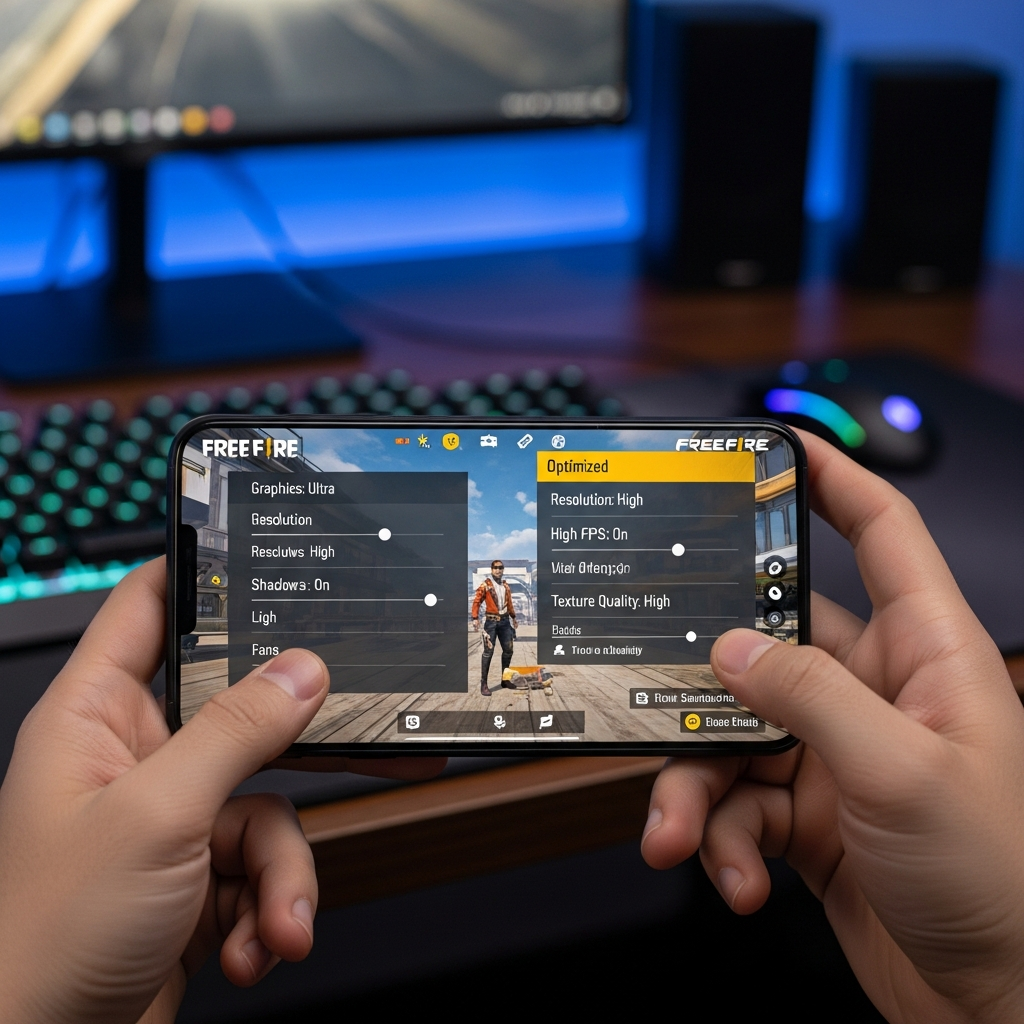
The visual settings in Free Fire Max are the most resource-intensive. While it is tempting to turn everything to “Ultra,” this often leads to frame drops during intense combat. For competitive play, Frame Rate (FPS) is always more important than visual quality.
Graphics Quality
- Smooth: Recommended for low-end devices (2GB-3GB RAM) to ensure no lag.
- Standard: Best for mid-range devices (4GB-6GB RAM) providing a balance.
- Ultra/Max: Only for high-end flagship devices.
High FPS (The Most Critical Setting)
Always set High FPS to “High”. This is non-negotiable. A higher frame rate makes the game appear smoother and significantly reduces input lag, making it easier to track moving enemies. If your phone starts to heat up excessively, you may need to lower the Graphics Quality to “Smooth” while keeping High FPS on “High.”
Shadows and Filters
Turn Shadows OFF unless you have a top-tier device. Shadows can be distracting and consume significant GPU power. For Filters, many pro players prefer “Bright” or “Vivid” as it makes player models stand out more clearly against the environment, aiding in faster target acquisition.
High Res and Anti-Aliasing
Keep High Res on “Normal” for better performance. Anti-aliasing smoothens jagged edges but can be a heavy burden on the processor. If you prioritize battery optimization and consistent performance, keep these settings disabled.
2. Best Sensitivity Settings for Auto-Headshots
Finding the perfect FF Max sensitivity settings is a journey of trial and error. However, most professional players follow a specific range that allows for quick “drag headshots” while maintaining control over long-range sprays. Sensitivity is the core of your aim precision.
The Pro-Standard Sensitivity Template
- General: 90 – 100 (Crucial for movement and 360-degree views).
- Red Dot: 85 – 95 (Affects your aim when not using a scope).
- 2x Scope: 75 – 85 (Balanced for mid-range combat).
- 4x Scope: 65 – 75 (Lower sensitivity helps in steadying long-range shots).
- Sniper Scope: 40 – 50 (Precision is key here to avoid over-flicking).
- Free Look: 50 – 70 (Personal preference for scouting surroundings).
The Secret of “General” Sensitivity
The General sensitivity is the most important. If it is too low, you won’t be able to react to enemies attacking from behind. If it is too high, your screen will shake, making it impossible to land shots. Start at 95 and adjust by increments of 2 until you find your “sweet spot” where you can comfortably perform a 180-degree turn with a single swipe.
3. Custom HUD and Control Layout
Your control layout or Custom HUD (Heads-Up Display) determines how fast you can execute actions like jumping, crouching, and shooting simultaneously. While the default 2-finger setup is fine for beginners, moving to a 3-finger or 4-finger “claw” grip is essential for high-level play.
Key HUD Adjustments
- Fire Button Size: Keep this between 40% and 55%. If it is too large, it limits your screen real estate for dragging. If it is too small, you might miss it during panic moments.
- Fire Button Position: Place it slightly lower on the right side. This gives you more vertical space to “drag up” for headshots.
- Transparency: Once you have muscle memory of your button locations, lower the transparency to 20-30%. This clears your vision, allowing you to see enemies more easily.
- Left Fire Button: Always keep this “Always On.” It is vital for “Gloo Wall” placement and sniping.
Quick Weapon Switch & Quick Reload
Enable both of these in the settings. The Quick Weapon Switch button allows for faster movement and “showboating” with melee weapons, which actually helps in moving faster across the map.
4. Auto-Pickup Settings: Efficiency is Key
Looting quickly is a skill. You don’t want to stand still over a death crate for too long, as it makes you an easy target. The Auto-pickup feature should be optimized to grab only what you need at maximum speed.
- Weapons & Ammo: ON
- Medkits: ON
- Grenades: ON
- Equipment & Event Items: ON
- Auto-Pickup Speed: Set to “Fast”. This is a game-changer for early-game hot drops.
- Priority: Set Medkits and Gloo Walls to the top of your priority list so your character grabs them first.
5. Sound Settings and Situational Awareness
In Free Fire Max, sound is just as important as sight. Hearing a footstep or a vehicle approaching can give you the split second you need to prepare. Sound settings are often overlooked but are vital for survival.
- Music: 0 (Background music is distracting during a match).
- Sound Effects (SFX): 100 (This controls footsteps, gunshots, and explosions).
- Voice: 80-90 (To hear your teammates clearly over the noise of battle).
- Audio Balance: If your device supports it, use Stereo sound to identify the exact direction of enemy fire.
6. Advanced Game Settings: Vibration and Visual Effects
Free Fire Max introduced Vibration Feedback for various actions. While it adds immersion, it can be distracting and may affect your grip during intense gunfights. Most competitive players turn Vibration OFF to maintain steady hands.
Visual Effects Settings
- Damage Indicator: Set to “New” for clearer, larger numbers.
- Visual Effects: Set to “No Blood” or “Dark.” This prevents the red blood splatter from obscuring your vision when you are taking damage or shooting an enemy at close range.
- Hit Marker: “New” provides better visual feedback on whether your shots are connecting.
7. Device Optimization for Lag-Free Gaming
Even the best settings for Free Fire Max won’t help if your phone is struggling with background tasks. To ensure ping stability and smooth performance, follow these steps:
- Clear Cache: Regularly clear the game cache from the in-game settings menu.
- Background Apps: Close all other apps (Social media, browsers) before launching the game to free up RAM.
- Game Mode: Use your phone’s built-in “Game Mode” or “Gaming Hub” to block notifications and prioritize network data for Free Fire Max.
- Storage Management: Ensure you have at least 5GB of free internal storage. A full storage drive slows down the OS, leading to stuttering.
- Stable Connection: Switch to a 5GHz Wi-Fi band if possible, or ensure you have a strong 4G/5G signal to avoid “999+” ping issues.
8. Sensitivity Tips for Different Device Types
The screen size and touch sampling rate of your device significantly impact how sensitivity feels.
For Low-End Devices (2-4GB RAM)
Since these devices often have lower touch response rates, you should keep your General sensitivity at 100. You need all the help you can get to make the movement feel fluid. Keep graphics on “Smooth” to avoid frame drops that mess up your aim.
For High-End Devices & Tablets
Flagship phones and iPads have very high touch sampling rates. You might find that 100 sensitivity is too “slippery.” Try lowering General sensitivity to 85-90 for better precision. On tablets, because the screen is larger, you may need to increase the size of your HUD buttons.
9. Mastering the “Drag Headshot” with New Settings
Once you have applied the headshot sensitivity settings mentioned above, you need to practice the technique. The drag headshot involves swiping the fire button upwards toward the enemy’s head while shooting.
- Aim at the enemy’s chest area.
- Quickly flick the right fire button upward.
- The aim precision logic in Free Fire will “lock” onto the head if your sensitivity is balanced.
- If your aim goes over the head, lower your sensitivity slightly. If it stays stuck on the chest, increase it.
Conclusion: Consistency is Key
Finding the best settings for Free Fire Max is only half the battle. The other half is muscle memory. Once you have found a configuration that feels comfortable, do not change it frequently. Your brain and fingers need time to adapt to the sensitivity and button placements.
Spend at least 15-20 minutes in the Training Ground every day to warm up. Test your new sensitivity with different weapons like the M1887 (Shotgun) and Woodpecker (Marksman Rifle) to see how the drag feels. With the right settings and consistent practice, you will see a dramatic improvement in your K/D ratio and your rank.
Frequently Asked Questions (FAQ)
What is the best sensitivity for Free Fire Max on 4GB RAM phones?
For 4GB RAM devices, it is recommended to keep General sensitivity at 100 and Red Dot at 95. This compensates for the slightly slower hardware response and ensures smooth movement.
Does Free Fire Max lag more than the original Free Fire?
Yes, because of the high-resolution textures and enhanced effects. To reduce lag, set Graphics to “Smooth” and High FPS to “High.”
What is the best fire button size for headshots?
Most experts recommend a size between 45% and 52%. This provides enough surface area to touch without blocking the screen space needed for dragging your aim upwards.
How can I get 60 FPS in Free Fire Max?
Go to Settings > Display and set “High FPS” to “High.” If your device supports it, this will unlock 60 FPS, providing a much smoother gameplay experience.
Should I turn on Auto-Scale in settings?
Auto-scale adjusts the UI based on your screen’s notch or rounded corners. It is usually best to keep it “On” to ensure no buttons are cut off by your device’s physical screen boundaries.