How to Install Call of Duty Mobile on Android: The Definitive Step-by-Step Guide
Since its explosive debut in 2019, Call of Duty: Mobile (CODM) has redefined what is possible for first-person shooters on handheld devices. Developed by TiMi Studio Group and published by Activision, this title brings the legendary fast-paced action of the console franchise directly to your pocket. Whether you are a fan of the iconic Nuketown map or the high-stakes intensity of Battle Royale, getting the game onto your device is the first step toward victory.
However, for many users, the installation process can sometimes be more complex than a simple click. From compatibility issues to regional restrictions and storage management, there are several factors to consider. In this comprehensive guide, you will find everything you need to know about how to install Call of Duty Mobile on Android, including official methods, manual installations, and performance optimization tips.
Understanding Call of Duty Mobile System Requirements
Before you begin the installation process, it is imperative to ensure that your Android device meets the minimum hardware and software specifications. Call of Duty Mobile is a high-fidelity game with advanced 3D graphics; attempting to run it on unsupported hardware will result in crashes or a poor user experience.
Minimum System Requirements
- Operating System: Android 5.1 (Lollipop) or higher.
- RAM: At least 2GB of RAM (3GB or more is highly recommended for stability).
- Processor: Dual-core 1.2GHz CPU or better.
- Storage: At least 3GB of free space for the initial installation (Note: Additional in-game resources can push this over 10GB-15GB).
Recommended Specifications for High Performance
If you wish to enjoy the game at 60 FPS (Frames Per Second) with “High” or “Very High” graphics settings, you should aim for the following:
- Operating System: Android 10 or later.
- RAM: 6GB or 8GB of RAM.
- Processor: Qualcomm Snapdragon 700 series or 800 series (or equivalent MediaTek Dimensity/Exynos chips).
- Storage: 20GB of free internal storage to accommodate all HD resource packs and maps.
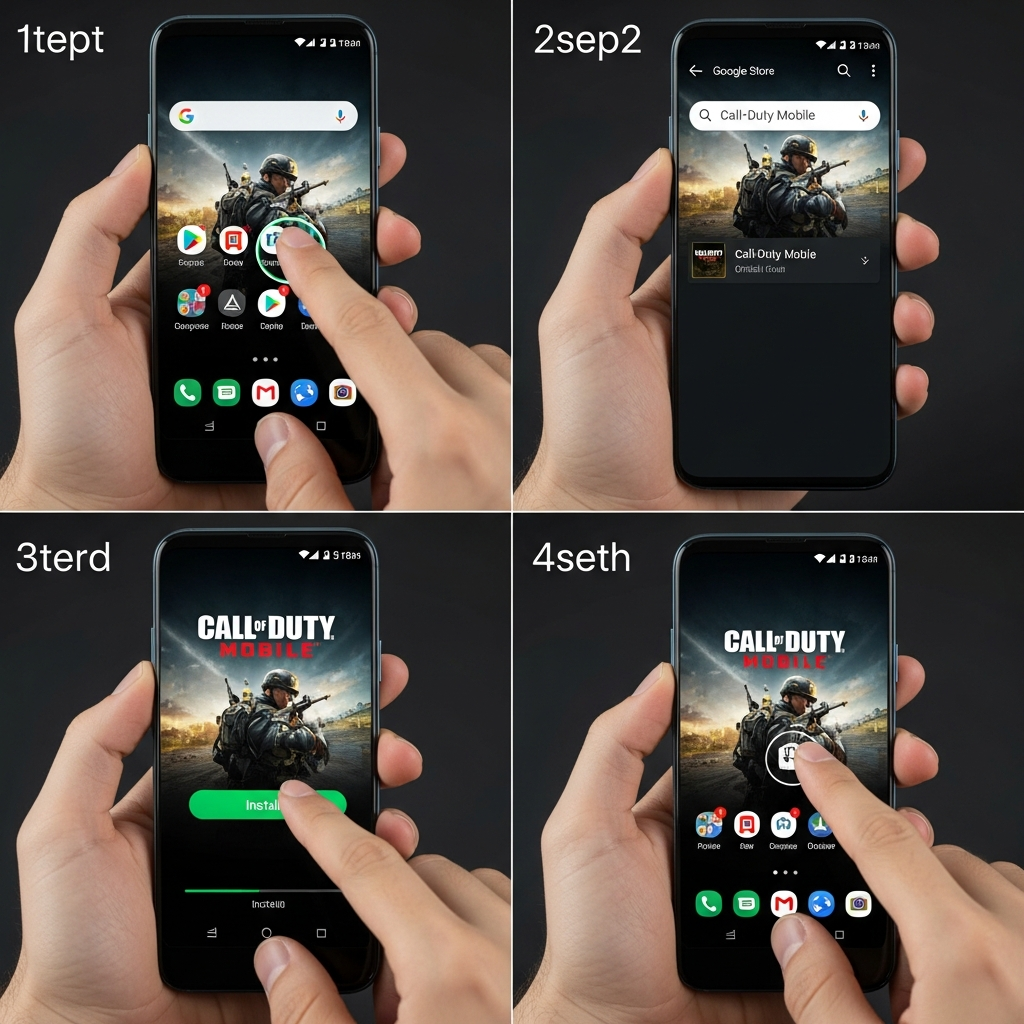
Method 1: Installing via the Google Play Store (Official Method)
The most secure and straightforward way to install Call of Duty Mobile is through the Google Play Store. This method ensures you receive the official version of the game and automatic updates directly from Activision.
Step 1: Open the Google Play Store
Locate the Google Play Store icon on your Android device’s home screen or app drawer. Ensure that you are logged into your Google Account and that your internet connection (preferably Wi-Fi) is stable.
Step 2: Search for the Game
Tap the search bar at the top of the screen and type “Call of Duty: Mobile”. Press the search icon. You should see the official app published by Activision Publishing, Inc. (or Garena in certain Southeast Asian regions).
Step 3: Initiate the Download
Tap the “Install” button. The Play Store will first check if you have enough storage space. If your device is compatible, the download will begin. Because the initial file is approximately 2GB to 3GB, it is highly recommended to use a Wi-Fi connection to avoid excessive mobile data charges.
Step 4: Permissions and Installation
Once the download is complete, Android will automatically install the application. You may be prompted to grant certain permissions, such as access to storage (to save game data) and microphone (for in-game voice chat). Accept these to ensure the game functions correctly.
Method 2: Manual Installation via APK and OBB Files
In some instances, you might find that the Google Play Store lists the game as “not compatible” with your device, or you may be in a region where the game is not officially available. In such cases, you can perform a manual installation using APK and OBB files.
What are APK and OBB Files?
- APK (Android Package Kit): This is the executable file that installs the application’s framework.
- OBB (Opaque Binary Blob): This contains the heavy data files, including graphics, sound, and map assets.
Step 1: Enable “Unknown Sources”
By default, Android blocks the installation of apps from outside the Play Store. Go to Settings > Security (or Settings > Apps > Special App Access) and enable “Install Unknown Apps” for your web browser or file manager.
Step 2: Download the Files
Download the latest version of the COD Mobile APK and OBB files from a reputable source like APKMirror or UpToDown. Ensure the version of the APK matches the version of the OBB file.
Step 3: Install the APK
Locate the downloaded APK file in your “Downloads” folder using a File Manager. Tap on it and select “Install”. Do NOT open the game yet, as it will fail to run without the data files.
Step 4: Place the OBB File
Find the downloaded OBB file (usually named main.xxxx.com.activision.callofduty.shooter.obb). You must move this file to a specific directory:
- Navigate to Internal Storage > Android > obb.
- Create a new folder named com.activision.callofduty.shooter (ensure the spelling is exact).
- Paste the OBB file inside this new folder.
Step 5: Launch the Game
Now, you can tap the Call of Duty Mobile icon on your home screen. The game will verify the OBB files and begin the initial setup.
Setting Up Your Account and Initial Configuration
After the installation is successful, you will be greeted by the loading screen. Before jumping into a match, you need to configure your profile.
Choosing a Login Method
Call of Duty Mobile offers several ways to save your progress:
- Guest Account: Quick to start, but progress is lost if you uninstall the game or change phones.
- Facebook: Allows you to play with friends and syncs your profile picture.
- Activision Account (Recommended): The best way to ensure cross-progression and security. It also often grants exclusive rewards.
- Google Play Games: Seamlessly links to your Android profile.
Downloading In-Game Resources
Once you are in the main menu, you will notice a small “Download” icon. Call of Duty Mobile uses a modular system to keep the initial app size small. You will need to manually download:
- HD Graphics Pack: For better visual clarity.
- Maps: Specific maps for Multiplayer and Battle Royale.
- Weapon Skins and Soldiers: To see other players’ customized items.
- Audio Packs: High-quality sound effects and voiceovers.
Optimizing Call of Duty Mobile for the Best Experience
Installing the game is only half the battle. To truly compete, you must optimize your settings to ensure the smoothest possible gameplay.
Adjusting Graphics Settings
Navigate to the Settings (Gear Icon) > Audio and Graphics. For competitive play, many professional players prefer Low Graphics Quality paired with Max Frame Rate. A higher frame rate reduces input lag, giving you a split-second advantage in gunfights.
Customizing Controls
CODM offers two main control modes:
- Simple Mode: The gun fires automatically when the crosshair is on an enemy. This is good for absolute beginners but lacks precision.
- Advanced Mode: You have full control over firing, aiming down sights (ADS), and hip-firing. You can customize the layout of every button on your screen to fit your grip style (e.g., “Claw” grip).
Sensitivity Settings
Sensitivity is subjective. Spend time in the Practice Range to adjust your “Standard Sensitivity” and “ADS Sensitivity.” If you find it hard to track moving targets, increase the sensitivity. If your aim is shaky, decrease it.
Troubleshooting Common Installation Errors
Even with a powerful device, you might encounter hurdles. Here is how to fix the most common issues:
1. “App Not Installed” Error
This usually happens if you have a previous version of the game that wasn’t fully uninstalled, or if your storage is almost full. Ensure you have at least 5GB of free space and try restarting your device.
2. “Download Failed Because You May Not Have Purchased This App”
This is a common error when manually installing OBB files. It means the OBB file is either missing, in the wrong folder, or named incorrectly. Double-check the path: /Android/obb/com.activision.callofduty.shooter/.
3. Game Stuck on Loading Screen
This is often a network issue. Toggle your Airplane Mode on and off, or try switching from mobile data to Wi-Fi. Clearing the app cache in Settings > Apps > COD Mobile > Storage > Clear Cache can also help.
4. Device Not Compatible (Play Store)
If your hardware is technically capable but the Play Store blocks you, it might be due to your screen resolution or DPI settings. Using the manual APK/OBB method (Method 2) is the standard workaround for this issue.
Safety and Fair Play
It is vital to download Call of Duty Mobile only from trusted sources. Avoid “Modded APKs” or “Unlimited CP Hacks.” Activision has a robust anti-cheat system (Ricochet), and using modified files will lead to a permanent ban of your account and your device’s hardware ID.
Furthermore, always keep your Android system updated. Security patches often include optimizations for the graphics drivers that can improve game stability and prevent crashes during intense Battle Royale matches.
Conclusion
Installing Call of Duty Mobile on Android is a gateway to one of the most immersive gaming experiences available on mobile. By following the official Play Store method, you ensure a hassle-free setup. If you encounter regional or compatibility roadblocks, the manual APK/OBB method provides a reliable alternative.
Once installed, remember that the key to success lies in your configuration. Take the time to download all resource packs, fine-tune your sensitivity, and choose the right login method to protect your progress. We will see you on the battlefield!
Frequently Asked Questions (FAQ)
Is Call of Duty Mobile free to play on Android?
Yes, Call of Duty Mobile is a free-to-play game. While there are in-game purchases for cosmetic items (skins) and the Battle Pass, the core gameplay and all maps/modes are accessible without spending money.
Can I play COD Mobile with a controller on Android?
Yes, Call of Duty Mobile officially supports PlayStation 4/5 (DualShock/DualSense) and Xbox One/Series X|S controllers. You can connect them via Bluetooth in your Android settings.
How much total space does COD Mobile take?
While the initial download is around 2.5GB, a full installation including all HD textures, maps, and weapon skins can take up between 15GB and 20GB of storage space.
Why is COD Mobile not showing up in my Play Store?
This usually happens if your device does not meet the minimum requirements or if the game is not released in your specific country. You can try clearing the Play Store cache or using an APK/OBB manual installation.
Can I play COD Mobile on a PC?
Yes, you can play Call of Duty Mobile on a PC using the official emulator, GameLoop. This allows you to use a mouse and keyboard for a more traditional FPS experience.