How to Fix PUBG Mobile Not Working or Crashing: The Ultimate Troubleshooting Guide
PUBG Mobile remains one of the most popular battle royale games globally, offering an intense and immersive experience. However, nothing ruins a potential “Winner Winner Chicken Dinner” faster than a sudden application crash or the game refusing to launch. If you are experiencing PUBG Mobile not working or frequent crashing issues, you are not alone.
Technical glitches can stem from various sources, including hardware limitations, software conflicts, or network instabilities. This comprehensive guide is designed to help you diagnose and resolve these issues effectively, ensuring a smooth and uninterrupted gaming experience on both Android and iOS devices.
Understanding Why PUBG Mobile Crashes or Fails to Launch
Before diving into the solutions, it is crucial to understand the root causes. When PUBG Mobile keeps crashing, it is usually due to one of the following reasons:
- Insufficient RAM: The game requires significant memory to process high-quality textures and real-time physics.
- Corrupted Game Files: Updates that were interrupted or improper shutdowns can lead to file corruption.
- Overheating: Intense graphical processing generates heat, leading to thermal throttling and app closure.
- Incompatible Software: Outdated operating systems or conflicting background applications can interfere with the game’s execution.
- Network Latency: Unstable internet connections can cause the game to hang or disconnect from the server.
1. Verify System Requirements and Compatibility
The first step in troubleshooting is ensuring your device meets the minimum specifications. As the game evolves with new updates and maps like Erangel and Miramar, the hardware demands increase.
For Android Users:
- OS: Android 5.1.1 or higher.
- RAM: At least 2GB (4GB or more is highly recommended for stability).
- Storage: Minimum 4GB of free space to accommodate the app and additional resource packs.
For iOS Users:
- Device: iPhone 6s or newer.
- OS: iOS 9.0 or higher.
- Storage: Minimum 4GB of free space.
If your device falls below these specifications, the PUBG Mobile crashing issue may be a hardware limitation that cannot be fully resolved without an upgrade.
2. Basic Troubleshooting Steps (The Quick Fixes)
Often, the simplest solutions are the most effective. Perform these steps before moving on to more complex configurations.
Restart Your Device
A simple restart clears the temporary cache and terminates background processes that might be hogging resources. This is often the quickest way to fix PUBG Mobile not opening.
Check Your Internet Connection
PUBG Mobile is an online-only game. Switch between Wi-Fi and Mobile Data to see if the issue persists. If you are using Wi-Fi, ensure you are close to the router and that no other devices are consuming heavy bandwidth (like Netflix or large downloads).
Update the Game
Developers frequently release patches to fix bugs and optimization issues. Open the Google Play Store or Apple App Store, search for PUBG Mobile, and check if an “Update” button is available. Running an outdated version is a primary cause of server connection errors.
3. Clearing Cache and Data (Android Only)
Over time, cached data can become cluttered or corrupted. Clearing it can refresh the application without deleting your game progress (as long as your account is linked to social media).
- Open Settings on your Android device.
- Navigate to Apps or Application Manager.
- Find and tap on PUBG Mobile.
- Select Storage.
- Tap Clear Cache.
- If the problem persists, you may try Clear Data, but note that this will require you to re-download resource packs and log in again.
4. Using the In-Game “Repair” Tool
PUBG Mobile includes a built-in diagnostic tool specifically designed to fix crashing and loading issues. This is one of the most effective methods for resolving file discrepancies.
- Launch PUBG Mobile.
- On the login screen, look for the Repair button on the right side.
- Select Routine Repair (this is usually sufficient).
- If the issue is severe, you can also select “Restore Default Settings.”
- Tap OK and restart the game. The system will verify and replace any missing or corrupted files.
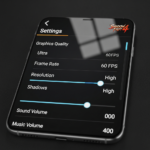
5. Optimizing Graphics Settings for Stability
High graphics settings can overwhelm your processor, leading to PUBG Mobile freezing or crashing during intense combat. Adjusting these settings can significantly improve stability.
- Graphics: Set to “Smooth.” This reduces the load on the GPU.
- Frame Rate: Set to the highest available (Extreme or 90 FPS) if your device supports it, but if you experience crashes, drop it to “High” or “Ultra.”
- Anti-Aliasing: Disable this to save processing power.
- Auto-Adjust Graphics: Enable this setting. It will automatically lower settings if the frame rate drops or the device heats up.
6. Managing Background Applications and RAM
Modern smartphones are great at multitasking, but PUBG Mobile requires a large portion of the system’s focus. Background apps like Facebook, Instagram, or Chrome can consume the RAM needed for the game to run smoothly.
Before launching the game, close all other applications. For Android users, you can use the “Recent Apps” button and select “Clear All.” For iOS users, swipe up and dismiss all open cards.
Pro Tip: Disable “Background App Refresh” in your system settings to prevent apps from starting themselves while you are in a match.
7. Addressing Thermal Throttling and Overheating
When your phone gets too hot, the CPU and GPU slow down to protect the hardware. This results in lag and eventual crashing. To prevent this:
- Remove your phone case while gaming to allow better heat dissipation.
- Avoid playing while the device is charging.
- Play in a cool environment or use a dedicated phone cooling fan.
- Lower the screen brightness.
8. Troubleshooting Network and Ping Issues
If PUBG Mobile is not working due to “Server Did Not Respond” errors, the issue is likely your network configuration. High ping (above 200ms) can also cause the game to kick you back to the lobby.
Change DNS Settings
Sometimes, your ISP’s DNS can be slow. Switching to Google DNS or Cloudflare can improve connection stability.
- Google DNS: 8.8.8.8 and 8.8.4.4
- Cloudflare DNS: 1.1.1.1
Disable VPN
Unless you are in a region where the game is restricted, avoid using a VPN. VPNs add an extra layer of latency and can lead to account bans or connection timeouts.
9. Advanced Fixes: Reinstallation and OS Updates
If none of the above steps work, you may need to perform a clean installation.
Clean Reinstall
- Uninstall PUBG Mobile from your device.
- Go to your file manager and delete any remaining folders named “com.tencent.ig” (Android).
- Restart your device.
- Download the game fresh from the official App Store or Play Store.
Update Your Operating System
Ensure your Android or iOS version is up to date. System updates often include compatibility patches for high-performance applications. Go to Settings > System Update to check for available firmware upgrades.
10. Fixing PUBG Mobile Crashing on Emulators
Many players use emulators like Gameloop or BlueStacks to play on PC. If the game crashes on an emulator:
- Enable Virtualization (VT): Ensure VT is enabled in your PC’s BIOS settings. This is mandatory for emulator performance.
- Allocate More Resources: Go to the emulator settings and allocate at least 4 cores of CPU and 4GB of RAM.
- Update Graphics Drivers: Ensure your NVIDIA or AMD drivers are updated to the latest version.
- Switch Rendering Engine: Try switching between OpenGL+ and DirectX+ in the emulator’s engine settings.
Frequently Asked Questions (FAQ)
Why does PUBG Mobile keep closing by itself?
This is usually due to a lack of available RAM or the device overheating. When the system runs out of memory, it automatically kills the most resource-heavy task, which is the game. Try clearing background apps and lowering graphics settings.
Can a slow internet connection cause PUBG Mobile to crash?
While a slow connection usually causes lag or “Server Busy” messages, extreme packet loss can cause the game client to desync and crash to the home screen. Always ensure a stable 4G/5G or Wi-Fi connection.
Is it safe to use GFX Tools to fix crashing?
We do not recommend using third-party GFX tools. While they can improve performance, they violate PUBG Mobile’s Terms of Service and can result in a permanent account ban. Stick to the in-game settings for safety.
Why is my PUBG Mobile stuck on the loading screen?
A game stuck on the loading screen usually indicates a corrupted OBB file or a DNS issue. Use the “Repair” tool on the login screen or try switching your internet connection from Wi-Fi to mobile data.
Conclusion
Dealing with PUBG Mobile not working or crashing can be incredibly frustrating, but most issues can be resolved with systematic troubleshooting. Start with the basics: restart your device, check your connection, and ensure your hardware meets the requirements. If the problem persists, use the in-game repair tool and optimize your storage and RAM management.
By following the steps outlined in this guide, you should be able to eliminate technical hurdles and return to the battlefield. Remember to keep your device cool and your software updated for the best possible gaming experience. Good luck on the battleground!