How To Install Fortnite Mobile On Android
How to Install Fortnite Mobile on Android: The Ultimate Comprehensive Guide
Fortnite remains one of the most popular battle royale games globally, offering a unique blend of building mechanics and fast-paced combat. However, unlike most mobile games, finding Fortnite on the official Google Play Store is no longer possible due to long-standing legal disputes between Epic Games and Google.
If you are a mobile gamer looking to jump into the island from your handheld device, you might feel a bit lost. Fortunately, installing Fortnite mobile on Android is still very much possible and relatively straightforward if you know the right steps.
In this pillar guide, we will walk you through every method available to get Fortnite running on your device, from the official Epic Games launcher to specialized store alternatives. We will also cover system requirements, troubleshooting, and performance optimization to ensure you get the best “Victory Royale” experience.
Understanding the Current Landscape of Fortnite on Android
Before diving into the installation steps, it is crucial to understand why the process is different from other apps. In 2020, Epic Games introduced a direct payment system, bypassing Google’s 30% commission. This led to Google removing Fortnite from the Play Store.
Since then, Epic Games has developed its own distribution infrastructure. This means you will be “sideloading” the game—a process of installing software outside of the official app store. While this sounds technical, Android is designed to allow this, provided you grant the necessary permissions for security.
Minimum System Requirements for Fortnite Mobile
Fortnite is a graphically intensive game that requires significant processing power. Before attempting the Fortnite Android download, ensure your device meets these minimum specifications to avoid crashes or “Device Not Supported” errors.
- Operating System: 64-bit Android 8.0 (Oreo) or higher.
- RAM: At least 4GB of RAM (8GB recommended for 60/90 FPS).
- GPU: Adreno 530 or higher, Mali-G71 MP20, Mali-G72 MP12 or higher.
- Storage: Minimum 10GB of free space for the initial installation and high-resolution assets.
If your device falls below these specs, the game may refuse to launch, or you will experience severe lag that makes competitive play impossible.
Method 1: Installing via the Epic Games App (Recommended)
This is the primary and safest method for most users. By using the official Epic Games Store app, you ensure that you are receiving genuine files and timely updates.
Step 1: Visit the Official Website
Open your mobile browser (Chrome is recommended) and navigate to fortnite.com/android. This is the only official source for the installer. Avoid third-party websites claiming to offer “Fortnite Mod APKs,” as these often contain malware.
Step 2: Download the Epic Games App
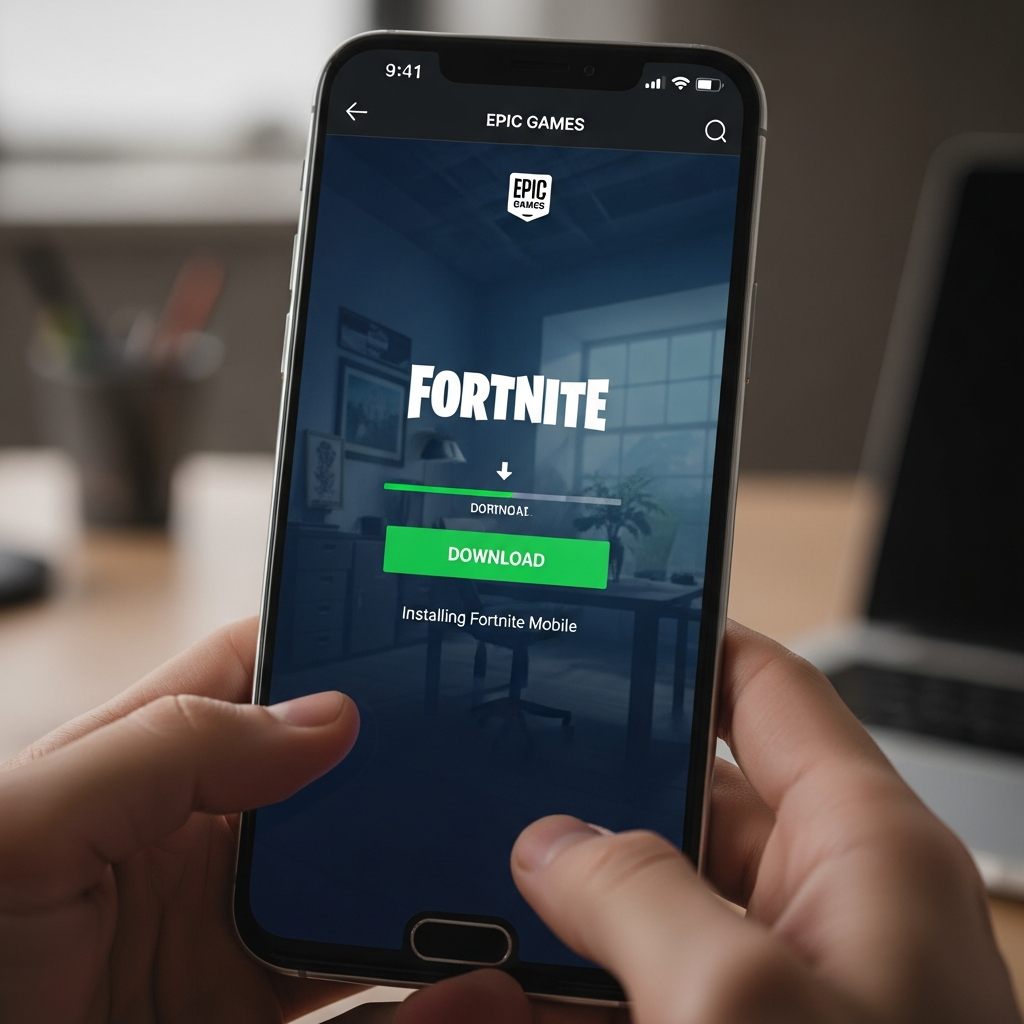
Click on the “Download” button. Your browser may show a warning stating that “this type of file can harm your device.” This is a standard Android warning for any APK file downloaded outside the Play Store. Tap OK or Download Anyway.
Step 3: Enable “Install Unknown Apps”
Once the download is complete, tap the file to open it. Android will likely block the installation for security. Tap Settings in the pop-up and toggle the switch for “Allow from this source” (referring to your browser). Return to the installer and tap Install.
Step 4: Install Fortnite
Open the newly installed Epic Games app. You will see a library of games. Select Fortnite and tap the Install button. This will download the initial game launcher.
Step 5: The In-Game Update
Launch Fortnite. The game will now require a substantial data download (usually between 5GB to 10GB). Ensure you are connected to a stable Wi-Fi network and keep the app open during this process.
Method 2: Installing via the Samsung Galaxy Store
If you own a Samsung device, you have the easiest path available. Samsung and Epic Games maintain a partnership that allows Fortnite to be hosted directly on Samsung’s proprietary store.
- Open the Galaxy Store app on your Samsung phone or tablet.
- Search for “Epic Games” in the search bar.
- Download and install the Epic Games app.
- Launch the app and install Fortnite as described in Method 1.
The benefit of this method is that the Galaxy Store handles the background permissions more seamlessly than a manual APK download.
Method 3: Cloud Gaming (For Unsupported Devices)
If your Android device does not meet the hardware requirements, you can still play Fortnite via Cloud Gaming. This method streams the game from a powerful server to your screen, requiring only a fast internet connection rather than a powerful GPU.
Xbox Cloud Gaming (Free)
Microsoft offers Fortnite for free through Xbox Cloud Gaming without requiring a Game Pass subscription. Simply visit xbox.com/play on your mobile browser, sign in with a Microsoft account, and launch Fortnite.
GeForce NOW
NVIDIA’s GeForce NOW also supports Fortnite. This is ideal if you want high-fidelity graphics and have a low-end Android device. You will need to download the GeForce NOW app from the Play Store and link your Epic Games account.
Post-Installation: Optimizing Fortnite for Mobile Performance
Installing the game is only half the battle. To actually win, you need a smooth frame rate. Follow these expert tips to optimize your Fortnite mobile experience:
1. Adjust Graphic Presets
Go to the in-game settings. Set “Quality Presets” to Low or Medium even if you have a high-end phone. This reduces thermal throttling, ensuring your phone doesn’t overheat and slow down mid-match.
2. Enable “Show FPS”
Turn on the FPS counter in the settings. This helps you identify if drops are caused by your hardware or network lag. Aim for a consistent 60 FPS for competitive play.
3. Use a Controller
While touch controls have improved, Fortnite is a complex game. Connecting a Bluetooth controller (like an Xbox or PlayStation controller) or using a mobile wrap-around controller like the Razer Kishi will give you a significant advantage in building and aiming.
4. Manage Background Apps
Android’s RAM management can sometimes interfere with gaming. Before launching Fortnite, close all unnecessary background applications to free up memory for the game engine.
Safety and Security: A Warning on Scams
Because Fortnite is not on the Play Store, the internet is flooded with “Fortnite APK” scams. You must be vigilant to protect your personal data and your Epic Games account.
- Never enter your login credentials on any site other than epicgames.com or within the official app.
- Avoid “Free V-Bucks” generators. These are 100% scams designed to steal your account or infect your device with spyware.
- Check the URL. Always ensure you are downloading from the official
epicgames.comorfortnite.comdomains.
Common Troubleshooting Issues
“App Not Installed” Error
This usually happens if you have a corrupted version of the installer or if you don’t have enough storage space. Clear your browser cache, delete the downloaded APK, and try again after freeing up at least 15GB of space.
“Device Not Supported”
If you see this message despite having a modern phone, ensure your Android version is updated. Sometimes, certain “Lite” versions of Android or rooted devices are blocked by Epic’s anti-cheat system.
Stuck on Loading Screen
This is often a network issue. Toggle your Airplane mode on and off, or switch from 4G/5G to Wi-Fi. Fortnite requires a very stable connection to communicate with the matchmaking servers.
Conclusion
Learning how to install Fortnite on Android requires a few more steps than your average app, but the reward is having one of the world’s best games in your pocket. By following the official Epic Games App route, you ensure your device stays secure while gaining access to the full, uncompromised Fortnite experience.
Whether you are playing on a high-end Samsung Galaxy or streaming via the cloud on a budget device, the island awaits. Remember to keep your app updated through the Epic Games launcher to access new seasons, skins, and map changes.
See you on the Battle Bus!
Frequently Asked Questions (FAQ)
Is Fortnite free on Android?
Yes, Fortnite is completely free to download and play on Android. While there are in-game purchases for cosmetic items (V-Bucks), the core gameplay experience is free for everyone.
Why is Fortnite not on the Google Play Store?
Fortnite was removed due to a legal disagreement regarding payment systems. Epic Games implemented their own payment method to avoid Google’s 30% fee, leading to the game’s removal. You must now download it directly from Epic Games.
Can I play Fortnite with friends on PC or Console?
Absolutely. Fortnite supports full cross-play. You can squad up with friends playing on PlayStation, Xbox, PC, or Nintendo Switch using your Epic Games account.
Is it safe to sideload Fortnite?
Sideloading is safe as long as you download the APK directly from Epic Games. Sideloading from unverified third-party “APK mirror” sites is risky and not recommended.
How do I update Fortnite on Android?
Since the game isn’t on the Play Store, it won’t update automatically in the background. You must open the Epic Games App on your phone, and it will prompt you to download an update whenever a new version is released.